

Choose the kind of help first
A voice assistant that explains a screen, a dictation app that fills a text field, and an accessibility tool that clicks a button can all respond to speech. That does not make them substitutes. Start with the result you need and the amount of interface control you must retain.
For connected desktop work, evaluate VoiceOS. For a Mac companion with on-screen guidance and agent features, compare HeyClicky. For command-based navigation and text entry, start with Apple Voice Control or Windows Voice access. If you mostly want polished writing, a dedicated dictation app may be the smaller purchase.[1] [2] [3] [4]
A task-based comparison
Scroll horizontally to read all columns →
| Option | Primary fit | Boundary to test |
|---|---|---|
| VoiceOS | Dictation plus supported actions in connected services on Mac and Windows | Required connections, requested context, and the confirmation behavior of the action |
| HeyClicky | A Mac companion with screen guidance and agent tasks | Mac requirement and the precise task it can complete |
| Apple Voice Control | Mac navigation, text entry, and editing through commands | Whether each control in your apps is reachable |
| Windows Voice access | Windows 11 navigation and text entry with on-device recognition | Supported language and your complete application workflow |
| Dedicated dictation apps | Writing into existing text fields | Text quality, editing behavior, and insertion reliability |
Do not equate a large list of app logos with the ability to perform any action inside those apps. Text insertion, screen interpretation, a supported integration, and general interface automation are different capabilities. Ask for a demonstration of your specific operation.
VoiceOS: when the next step is in another app
VoiceOS’s official integration catalog describes what each connection can do, including the platform and whether the tool asks first. Gmail, Slack, calendars, Notion, Linear, and Jira are examples of connected workflows. Native Apple integrations have Mac-specific requirements. Check the individual integration page instead of assuming every action works on both platforms.[5]
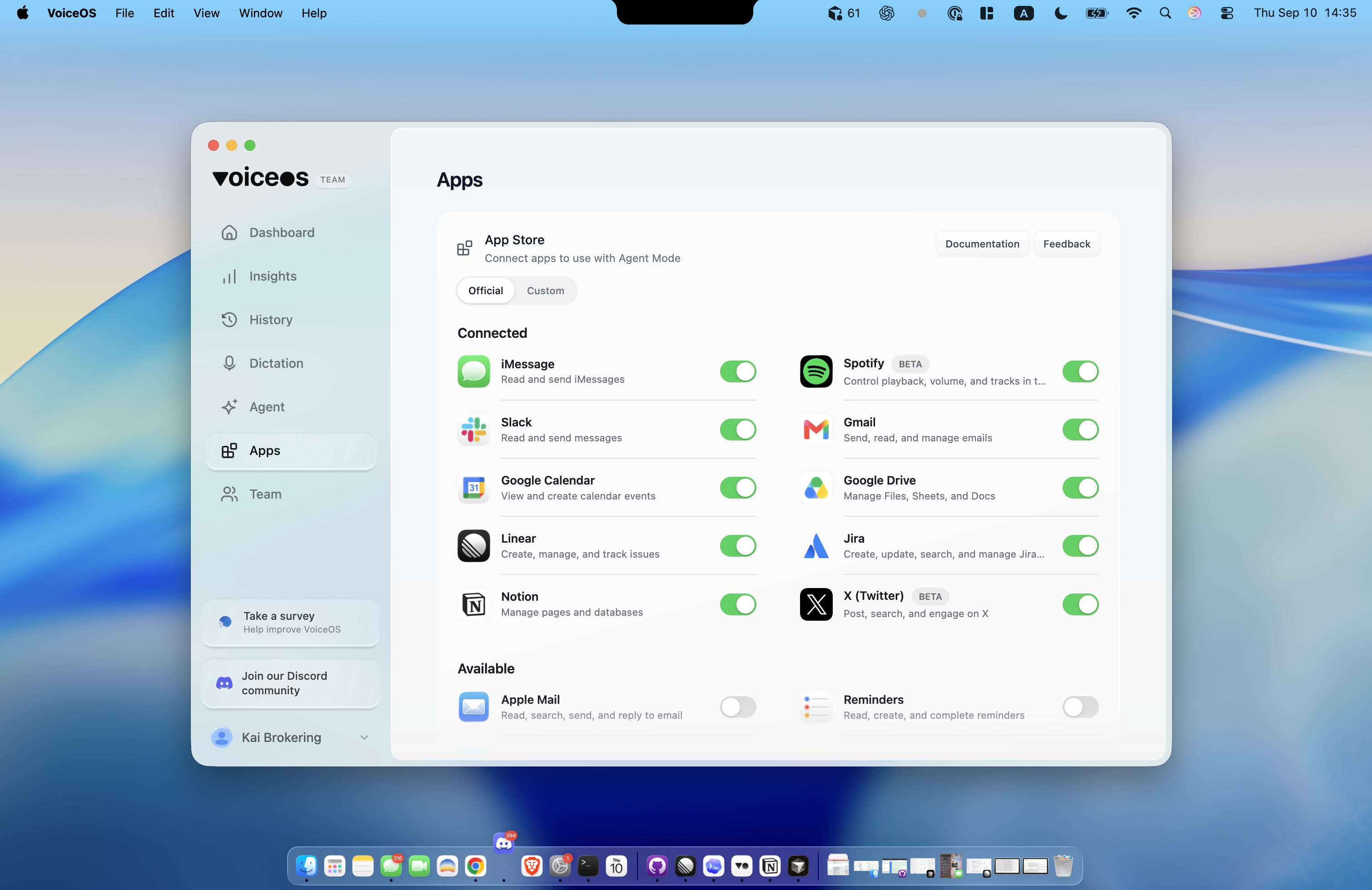
A useful trial is an internal coordination task with disposable content. Ask for a draft, verify its destination, then evaluate a single supported follow-up. Keep the request narrow enough that you can tell whether it succeeded. “Organize my week” is harder to assess than creating one correctly dated event in the intended calendar.
Read operations, local changes, and external writes do not all have the same confirmation behavior. Review the catalog’s “asks first” field and the actual tool preview. Never turn an example of a confirmed email send into a claim that every tool call asks permission. The evidence should name the action.[5]
Sources & further reading: VoiceOS official integration catalog
HeyClicky: screen guidance and a Mac companion
HeyClicky advertises a hotkey-triggered view of your screen, spoken guidance, drawing on screen, and agent tasks. Its current site lists Mac support and a Windows waitlist. That makes it worth evaluating if help understanding an interface is the main job. It should not be described as merely a dictation tool.[2]
Separate guidance from execution during the trial. Ask the same question in two forms: explain the next step, then perform an allowed example of that step. Evaluate how it handles ambiguity and what evidence it gives that the operation completed. An engaging conversation is valuable, but it is a different result from a correctly saved record.
Sources & further reading: HeyClicky product, plans, and platform availability
Built-in voice control deserves its own evaluation
Apple Voice Control supports spoken commands for navigation and editing. Windows Voice access provides a command-based route to navigating and authoring text. If your requirement is to operate the machine without a keyboard or pointer, these tools belong at the beginning of the evaluation.[3] [4]
Test starting and stopping recognition, reaching a button without clicking, selecting text, fixing a mistake, and recovering from an unexpected dialog. A successful first paragraph is only one part of that loop. For nonvisual use, include the screen reader or other feedback tool you normally rely on. Do not assume an AI assistant’s visual overlay is sufficient feedback.
It can be reasonable to combine tools: one for interface navigation, another for writing or connected actions. Test shortcut conflicts and which microphone listener is active. A combination that works in a demonstration should also let you pause, correct, and recover independently.
Sources & further reading: Use Voice Control commands to interact with your Mac · Get started with voice access
Evaluate a complete task, not a demo command
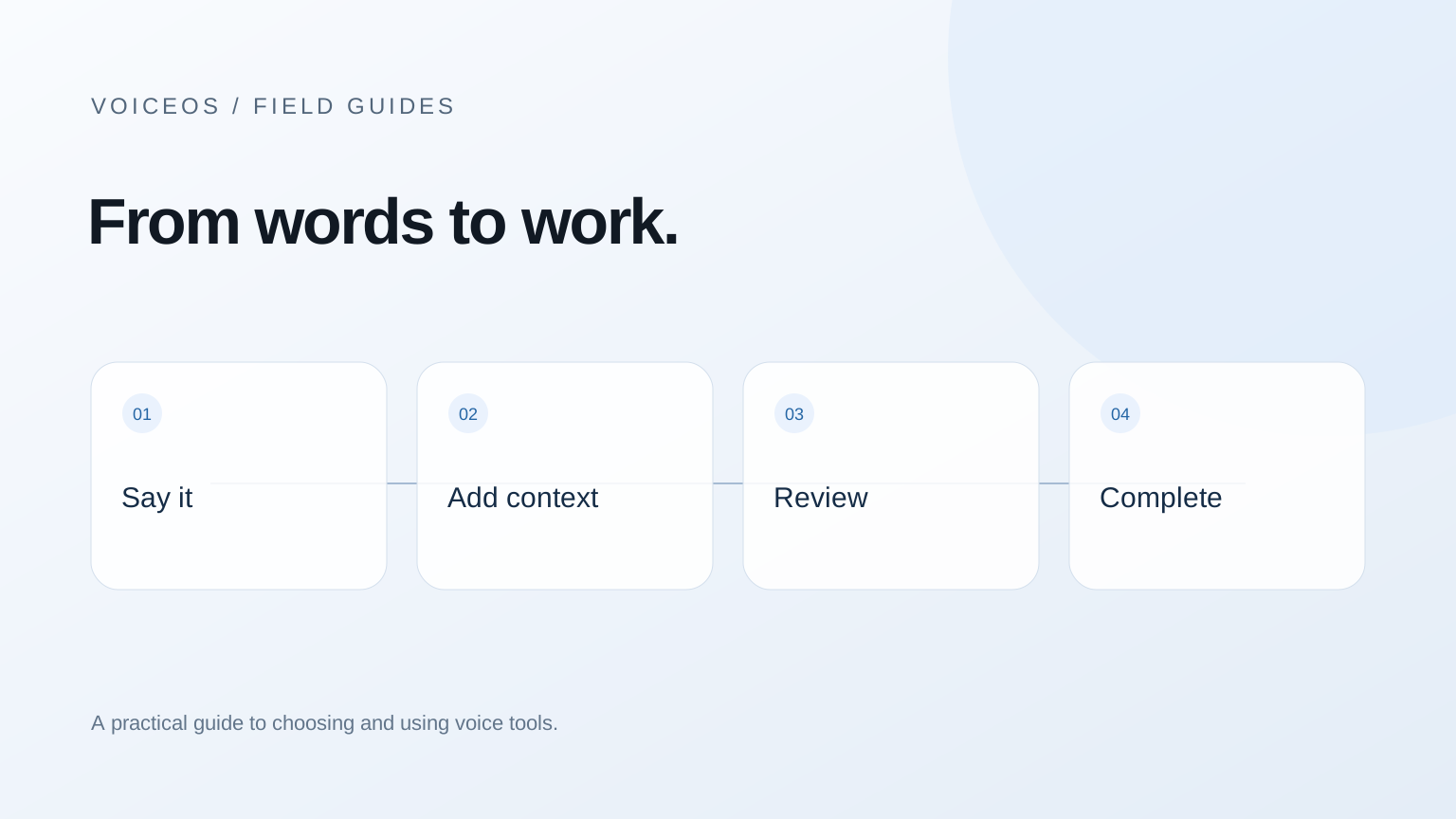
- Define the starting state: app open, account connected, cursor or item selected.
- Specify the result: exact destination, title, date, recipient, or record to change.
- Observe context: what screen or account information did the assistant need?
- Check review and recovery: could you inspect, correct, cancel, or undo the proposed action?
- Verify the destination: look for the saved draft, event, or record in the target app.
Count retries and manual fixes as part of the task. If the voice step took ten seconds but checking the result required reopening three apps, the full workflow may not have improved. That observation is more useful than a vendor’s isolated response-time number.
Our guide to capturing ideas covers one narrow workflow that is easy to try. The email guide separates drafting, checking, and sending. Both describe proposed methods and examples, not a measured claim that a week of work became hands-free.
Sources and methodology
Last updated .
Compared current product descriptions with Apple and Microsoft support documentation and VoiceOS’s shipped integration catalog. Selection is based on task type. Limitations: No end-to-end success-rate benchmark was conducted. Product demos and listed capabilities do not guarantee success in every app or account.
- VoiceOS Agent Mode — VoiceOS
- HeyClicky product, plans, and platform availability — HeyClicky
- Use Voice Control commands to interact with your Mac — Apple
- Get started with voice access — Microsoft
- VoiceOS official integration catalog — VoiceOS
Frequently asked questions
Can VoiceOS replace every mouse and keyboard action?
No. It supports dictation, selected-text editing, and documented agent tools. Evaluate dedicated voice-control and accessibility tools if you need complete interface navigation.
Does HeyClicky work on Windows?
The official site checked for this guide lists Mac support and a Windows waitlist. Verify availability again before choosing it for a Windows workflow.[2]
Do all VoiceOS actions ask for confirmation?
No blanket promise applies to every tool. The official catalog lists confirmation behavior for individual actions. Check the specific action and review its destination.[5]
Start with one real task
See how VoiceOS handles dictation, editing, and supported app actions on Mac and Windows.
Explore VoiceOS