

Separate writing from sending
Dictating an email body and asking an agent to send email are different operations. Dictation enters words into a field. An email integration can act on a connected account. Keep that distinction explicit: first create a draft, then check the facts and destination, then decide whether to send.
This guide contains an illustrative draft and a proposed trial method. It is not a report of a week spent working hands-free. No timing results or success rates are implied by the example.
State the purpose before the wording
Before starting, identify the recipient, the purpose, and any non-negotiable details. For a routine reply, that might be “confirm Thursday’s review, ask for the document by Wednesday, and do not promise a launch date.” You can say the prose yourself or ask for a draft using those constraints.
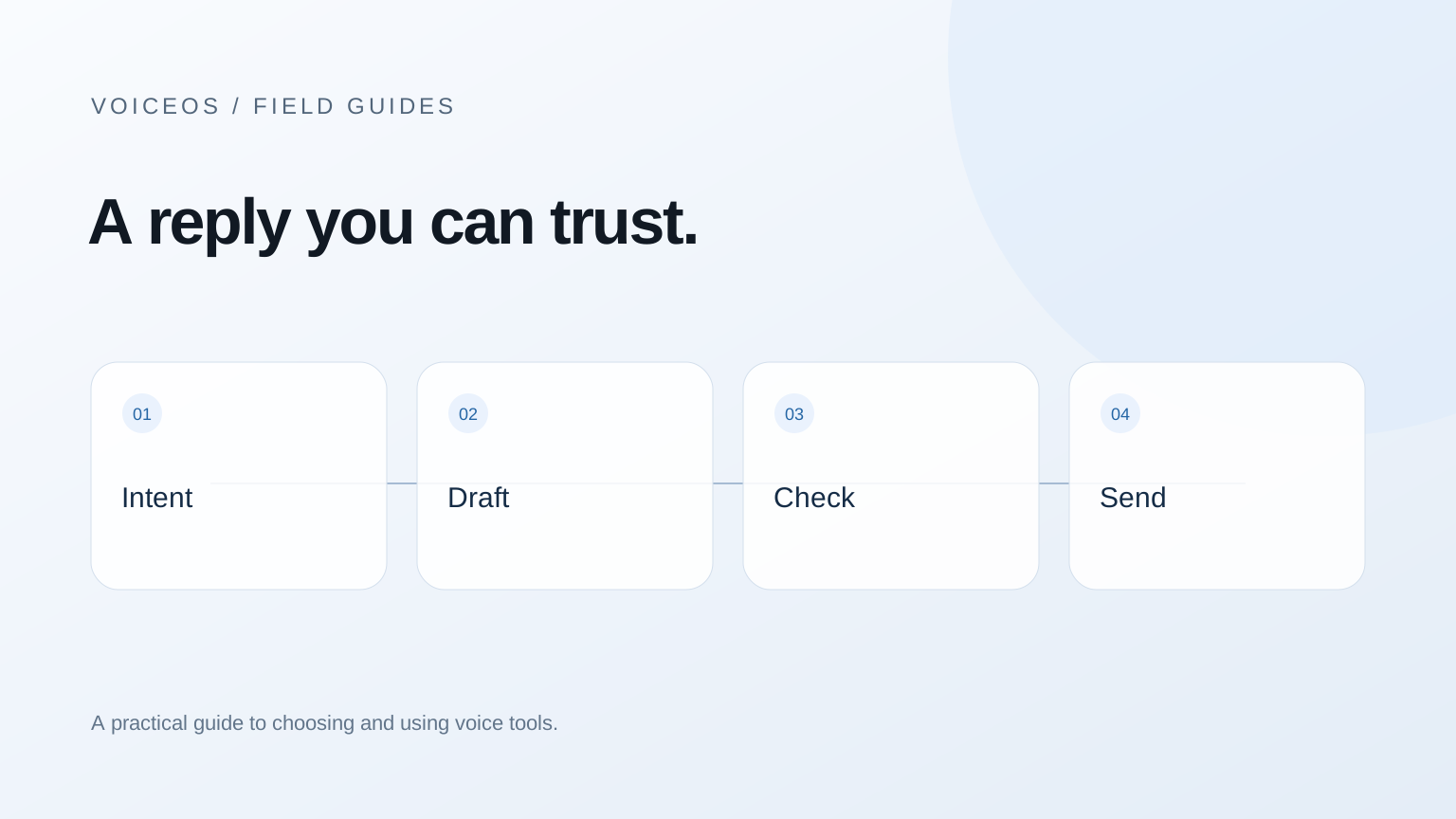
Use direct dictation when the words are already yours. Use a draft request when you want help composing them, and check the generated text more carefully. A fluent response can introduce an assurance you never intended to make. Neither method removes the need to review a commitment.
VoiceOS’s Dictation Mode enters writing into standard text fields; selected-text editing can revise a passage. Gmail and Outlook integrations expose specific email actions. Review the integration’s scope before assuming the app can manipulate every field in your mail client.[1] [2]
Sources & further reading: VoiceOS Dictation Mode · VoiceOS official integration catalog
Format the draft so it reads like an email
The right words are only part of a usable email. A single block of text makes the reader work to find the request, the details, and the next step. Give the greeting its own line, separate the main ideas into short paragraphs, and put the sign-off at the end.
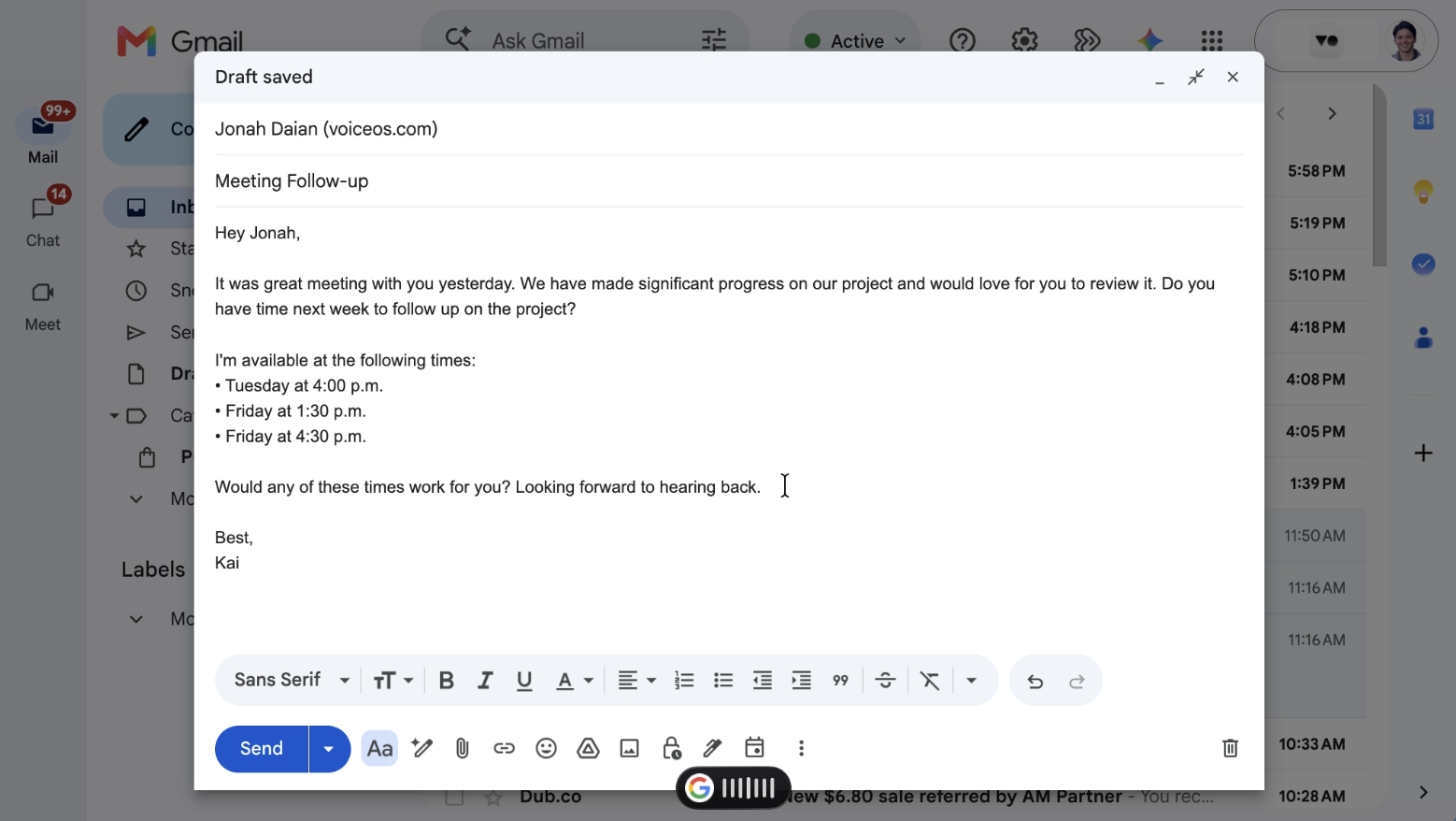
In the Gmail draft above, the greeting, meeting follow-up, and sign-off are visually separate. The three available times appear as bullets, so the recipient can scan the options without picking them out of a sentence. Use that same check on your own dictated email: can the recipient quickly find what you are asking and how to respond?
- Start a new paragraph when the purpose changes, such as moving from project context to meeting availability.
- Use bullets when the message contains several tasks or items the recipient needs to check individually.
- Keep the greeting and sign-off separate from the body, with blank lines that survive pasting into your mail app.
If the words are right but the layout needs work, select the draft and ask for a formatting edit: “Keep the wording unchanged. Put the greeting and sign-off on their own lines, with a blank line between paragraphs.” Then check the result in the compose window, including the names, dates, and times.[1]
Sources & further reading: VoiceOS Dictation Mode
An illustrative draft and review
Suppose the intended message is: “Hi Maya, Thursday works for the review. Please send the revised brief by Wednesday at noon so I can read it first. Thanks, Alex.” This is sample copy written for the guide, not output recorded from a dictation test.
Scroll horizontally to read all columns →
| Review step | What to verify | Why it matters |
|---|---|---|
| Destination | The intended account and Maya’s full address | A correct body sent to the wrong person is still a failed task |
| Date and deadline | Thursday for the review; Wednesday at noon for the brief | Two different dates can be accidentally merged |
| Commitment | Agreement to a review, not approval of the brief | An edit can subtly change what you promise |
| Attachments | Whether the message needs one, and which file | A drafted sentence is not proof an attachment exists |
| Final text | No leftover instruction or unintended rewrite | Spoken instructions can sometimes appear as message text |
If you ask for a shorter version, compare it with those requirements instead of judging tone alone. “Thursday works—send the brief beforehand” is shorter but has lost the explicit deadline. That may be acceptable, but it should be your choice.
Make edits narrow enough to verify
Select the sentence that needs work and describe one change: remove repetition, soften a phrase, or correct a name. Avoid asking for several changes at once while also changing the recipient or attachments. A small edit is easier to compare with the original.
For detail-heavy messages, keep a visible checklist next to the draft. Verify amounts, dates, links, and names against the source. If you are replying in a long thread, confirm the claim you are answering belongs to the current message rather than an older quoted one.
When a draft is wrong in several ways, start again from the intent and required facts. Repeatedly asking an assistant to fix its previous interpretation can be slower than giving it a clean, bounded request.
Use the actual send preview
VoiceOS’s official catalog marks Gmail send and reply, and Outlook send and reply, as actions that ask first. Review the actual preview for the selected action and verify the message in the mail service afterward. Other tools have different behavior; this is not a promise about every VoiceOS tool call.[2]
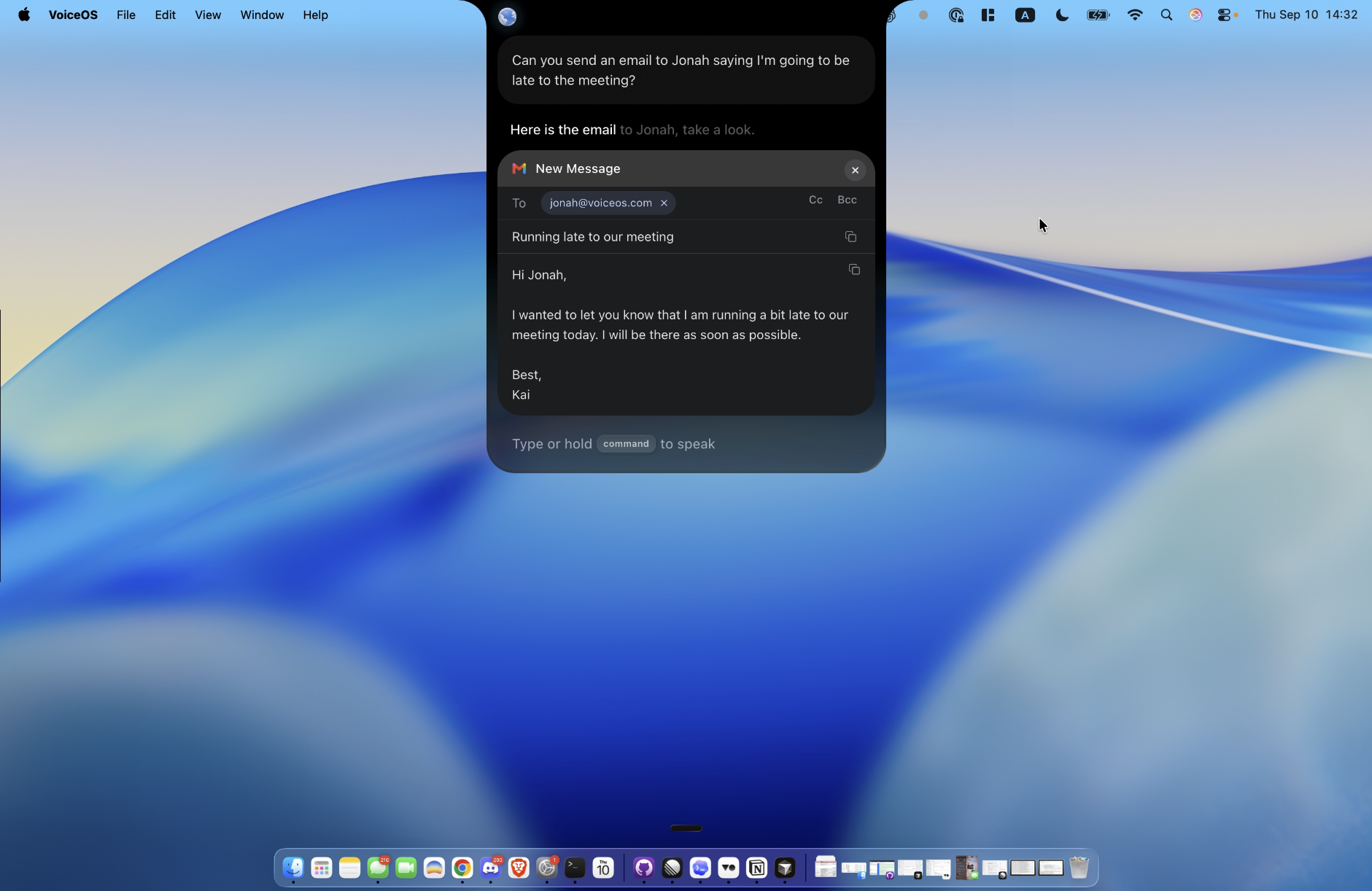
If you are only dictating into a mail window, sending remains a separate mail-app operation. Make sure the cursor is in the body rather than the subject or recipient field before speaking. For a first trial, use an unsent draft with invented details and stop before an external send.
An organization’s email policy still applies. The draft may be cloud-processed before it is sent to a recipient, and connected accounts have permissions of their own. Consult the privacy guide when deciding what content may enter the workflow.[3]
Sources & further reading: VoiceOS official integration catalog · VoiceOS Privacy Policy
How to run an honest small trial
- Choose a few routine drafts of similar complexity. Exclude confidential content from any shared test record.
- Record the method: ordinary typing, direct dictation, or an agent-created draft.
- Time from opening the draft to a reviewed, send-ready message. Include retries and corrections.
- Record changed facts and wrong destinations separately from punctuation edits.
- Keep failed attempts in the results. A tool that is excellent only when its failures are omitted is not excellent for your workflow.
A week can reveal whether a method fits your day, but it does not by itself produce a controlled study. Workload, familiarity, microphone conditions, and the kind of email all vary. Report those limitations beside any numbers you later publish. This article provides the process; it does not invent the week’s results.
Sources and methodology
Last updated .
VoiceOS integration definitions were checked for email action names and confirmation behavior. The draft and trial procedure are original examples. An owner-supplied Gmail screenshot illustrates the structure of a saved draft, including paragraph breaks, greeting, and sign-off. Limitations: No real emails were sent for this article and no hands-free week or measured productivity gain is claimed.
- VoiceOS Dictation Mode — VoiceOS
- VoiceOS official integration catalog — VoiceOS
- VoiceOS Privacy Policy — VoiceOS
Frequently asked questions
Does voice dictation automatically send my email?
Text entry and sending are separate operations. With direct dictation, the mail app controls sending. With a connected action, inspect that action’s confirmation behavior.
How do I format an email after dictating it?
Keep the greeting, main points, and sign-off visually separate. Use short paragraphs and bullets when the content calls for them. You can select the draft and ask for a formatting edit, then check that the wording and layout are correct in the mail app.[1]
Can I revise only one sentence?
VoiceOS supports editing selected text. Select the intended passage and check the replacement afterward.[1]
What should I measure?
Time to a reviewed draft, manual corrections, factual changes, destination errors, and failed attempts. Recognition speed alone does not describe the finished email task.
Start with one real task
See how VoiceOS handles dictation, editing, and supported app actions on Mac and Windows.
Explore VoiceOS