

Forty documented actions, with a check for each
VoiceOS’s integration catalog is the starting point for these examples. Every action below is matched to a tool definition in the shipped catalog, including its platform boundary and whether it asks first. That is source verification, not forty completed live tests.[1]
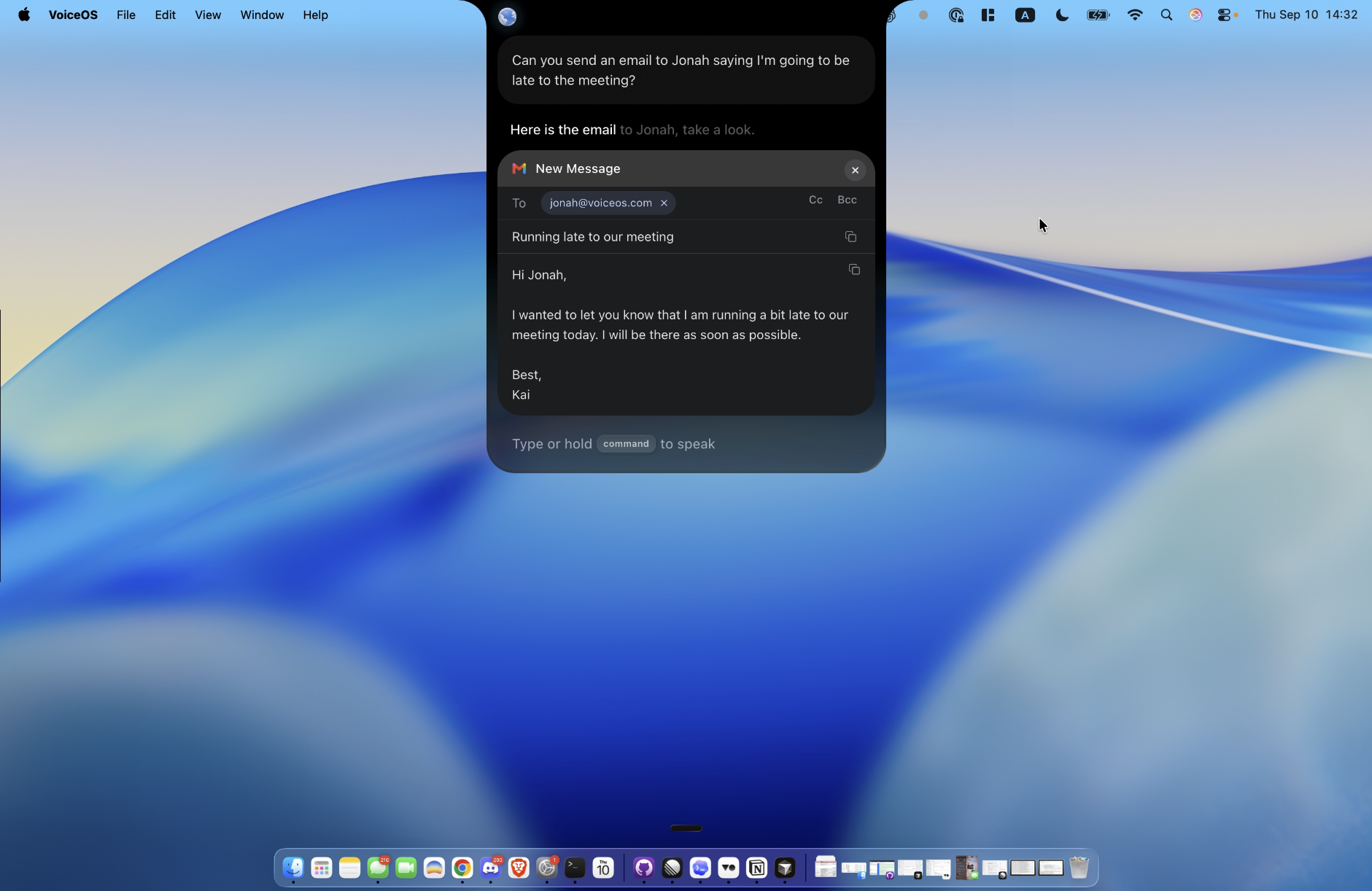
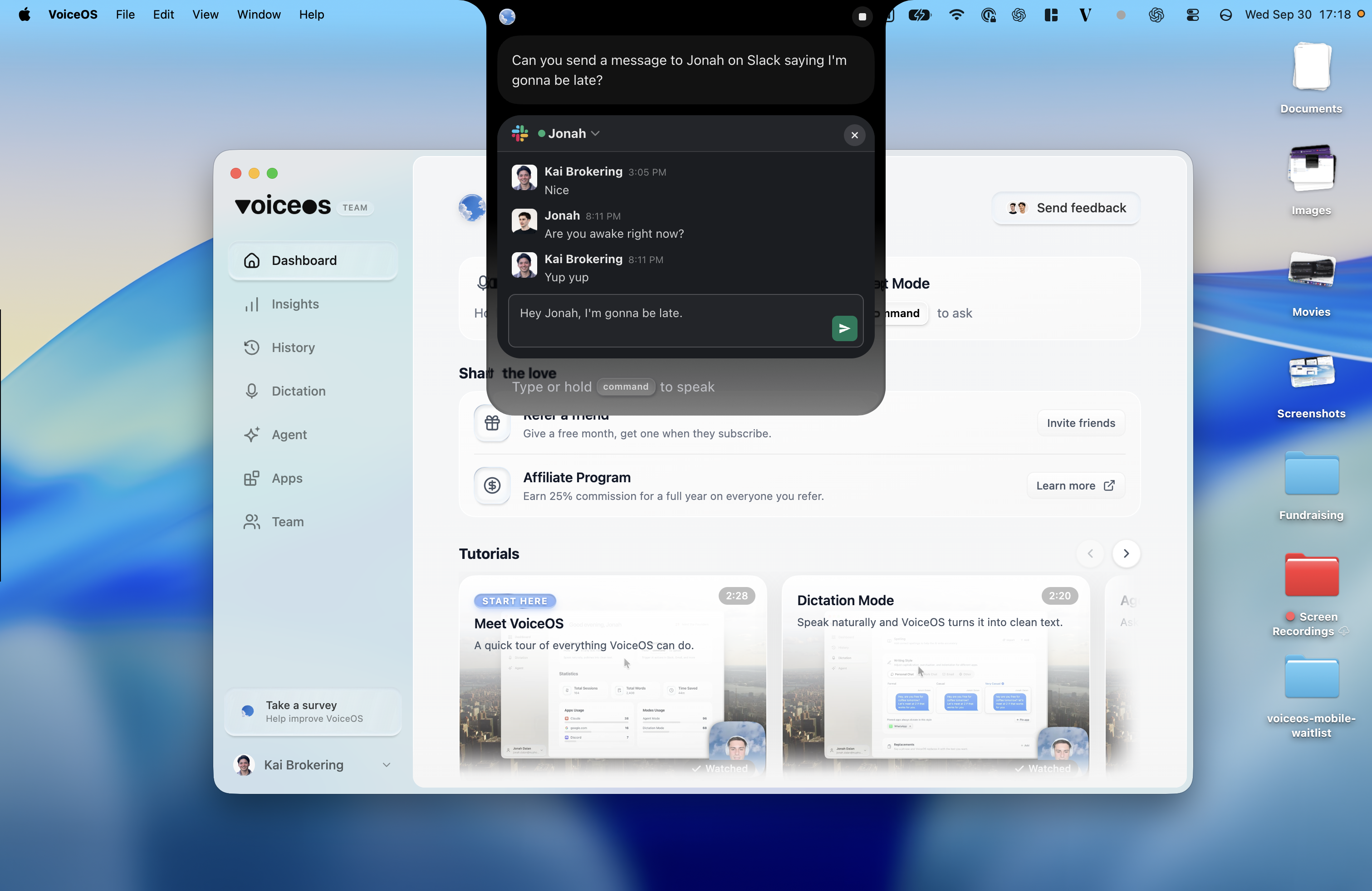
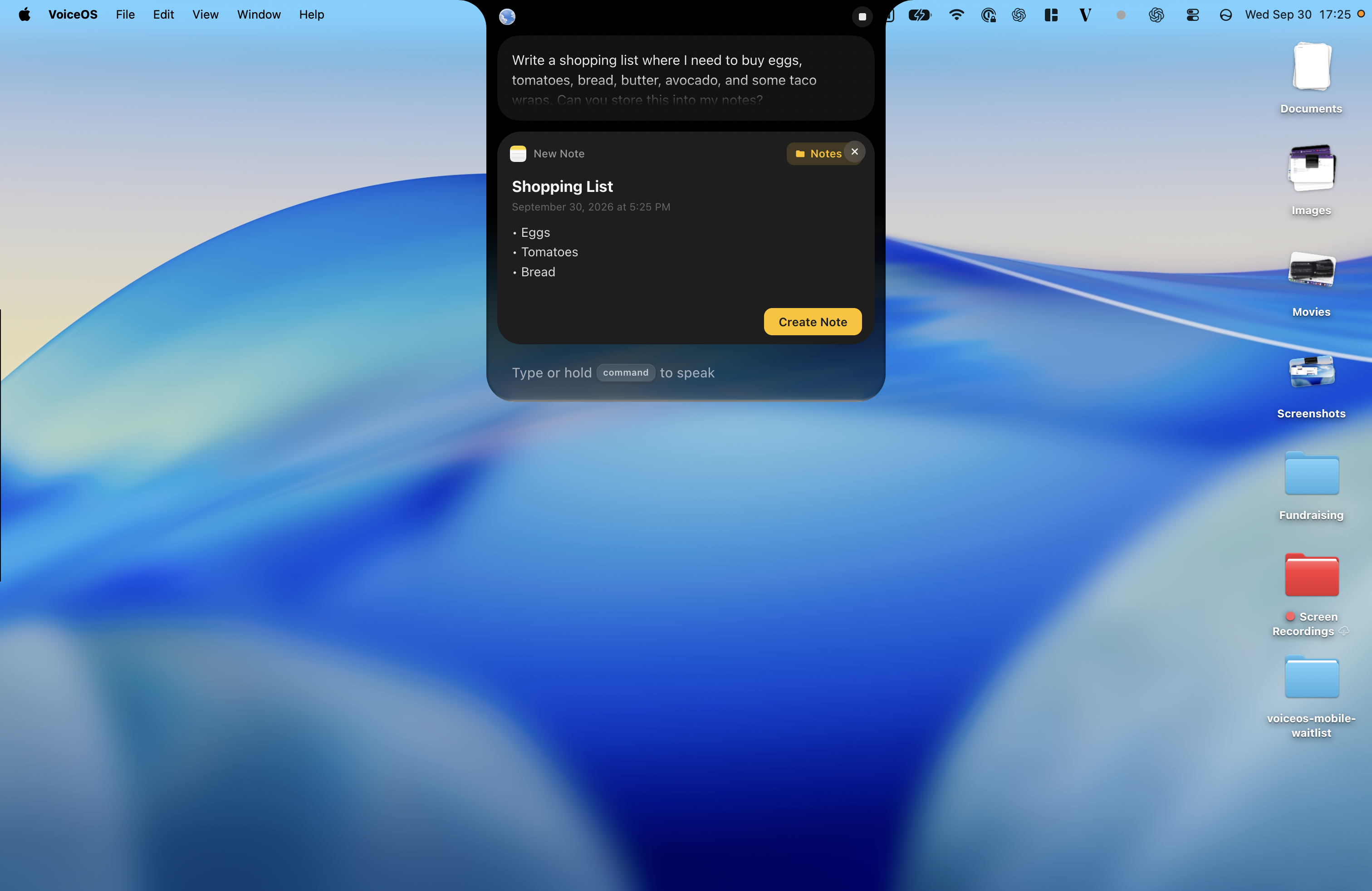
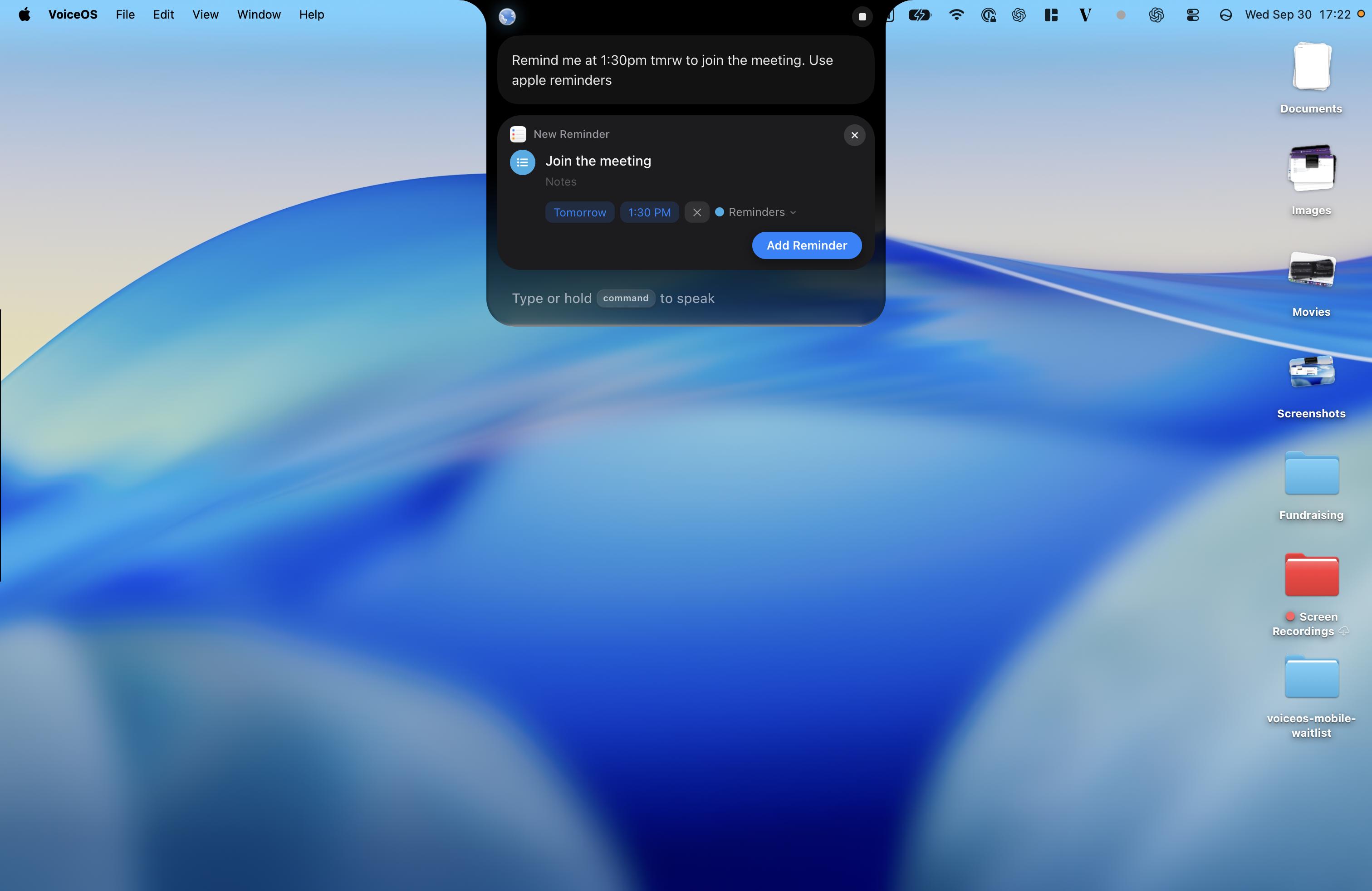
The screenshots show VoiceOS in everyday use: drafting a Slack reply, preparing a note or reminder, working on a Notion request, finding videos, and drafting a Linear issue. Each image opens at full size. Preview and in-progress states are described where they appear.
Use disposable notes, events, files, and issues for an evaluation. Connect only the accounts you mean to use. The sample requests describe an intent; their success still depends on permissions, required fields, account state, and the product version.
Gmail: Mac and Windows
Examples below require the Gmail integration and access to the intended destination. Check the linked catalog page for its setup and permissions.[2]
Scroll horizontally to read all columns →
| Action | Illustrative request | Catalog behavior | Verify the result |
|---|---|---|---|
| Read and search mail | Find the email about the sample review | No confirmation listed | Check sender, subject, and thread against the inbox |
| Look up contacts | Look up the contact for the test recipient | No confirmation listed | Verify the full address before using it |
| Organize with labels | Add the test label to this sample message | Asks first | Check the intended label on the intended message |
| Reply to a thread | Prepare a reply to the sample thread | Asks first | Inspect the recipient and quoted thread before approving a send |
Sources & further reading: VoiceOS Gmail integration
Slack: Mac and Windows
Examples below require the Slack integration and access to the intended destination. Check the linked catalog page for its setup and permissions.[3]
Say who you want to reach and what you want to say. In this example, “Can you send a message to Jonah on Slack saying I’m gonna be late?” produces a short draft with the conversation above it. The send button is still available so the message can be reviewed.
Scroll horizontally to read all columns →
| Action | Illustrative request | Catalog behavior | Verify the result |
|---|---|---|---|
| Search messages | Find the test message in the project channel | No confirmation listed | Open the matched message and confirm the channel |
| Read conversations | Read the recent messages in the test channel | No confirmation listed | Check the returned channel and time range |
| Send a message | Prepare a message for the test channel | Asks first | Inspect the channel and body before approving |
| Schedule a message | Schedule the sample message for the agreed test time | Asks first | Check channel, date, time zone, and scheduled-message state |
Sources & further reading: VoiceOS Slack integration
Google Calendar: Mac and Windows
Examples below require the Google Calendar integration and access to the intended destination. Check the linked catalog page for its setup and permissions.[4]
Scroll horizontally to read all columns →
| Action | Illustrative request | Catalog behavior | Verify the result |
|---|---|---|---|
| See your schedule | Show my test calendar for tomorrow | No confirmation listed | Check the selected calendar and date |
| Find open time | Find an open half hour on the test day | No confirmation listed | Compare the proposed gap with the actual calendar |
| Create an event | Create a test review event | Asks first | Verify calendar, attendees, time zone, start and end before approval |
| Update an event | Move the test review to the new agreed time | Asks first | Verify the exact event and the resulting time |
Sources & further reading: VoiceOS Google Calendar integration
Notes: Mac
Examples below require the Notes integration and access to the intended destination. Check the linked catalog page for its setup and permissions.[5]
Ask for a note while the idea is fresh. In this shopping-list example, the request becomes a titled draft with separate bullets. The visible portion shows eggs, tomatoes, and bread; review the full contents against everything you asked for, then choose Create Note.
Scroll horizontally to read all columns →
| Action | Illustrative request | Catalog behavior | Verify the result |
|---|---|---|---|
| Your folders | List my Notes folders | No confirmation listed | Check that the intended account and folder appear |
| Search notes | Find my sample project note | No confirmation listed | Open the match and confirm its title |
| Create a note | Create a note for this sample idea | No confirmation listed | Check title, body, and destination folder |
| Add to a note | Add this sample paragraph to the test note | No confirmation listed | Check the existing note was appended to, not replaced |
Sources & further reading: VoiceOS Notes integration
Reminders: Mac
Examples below require the Reminders integration and access to the intended destination. Check the linked catalog page for its setup and permissions.[6]
Include the task and when you need it: “Remind me at 1:30 tomorrow to join the meeting. Use Apple Reminders.” The preview below shows the title, tomorrow’s date, and 1:30 PM before the Add Reminder step.
Scroll horizontally to read all columns →
| Action | Illustrative request | Catalog behavior | Verify the result |
|---|---|---|---|
| Your lists | Show my reminder lists | No confirmation listed | Identify the correct test list |
| Search reminders | Find the sample follow-up reminder | No confirmation listed | Check the matching reminder and list |
| Create a reminder | Create a sample follow-up reminder | No confirmation listed | Check text, list, and any requested due date |
| Complete a reminder | Complete the test reminder | No confirmation listed | Check that only the intended reminder is completed |
Sources & further reading: VoiceOS Reminders integration
Notion: Mac and Windows
Examples below require the Notion integration and access to the intended destination. Check the linked catalog page for its setup and permissions.[7]
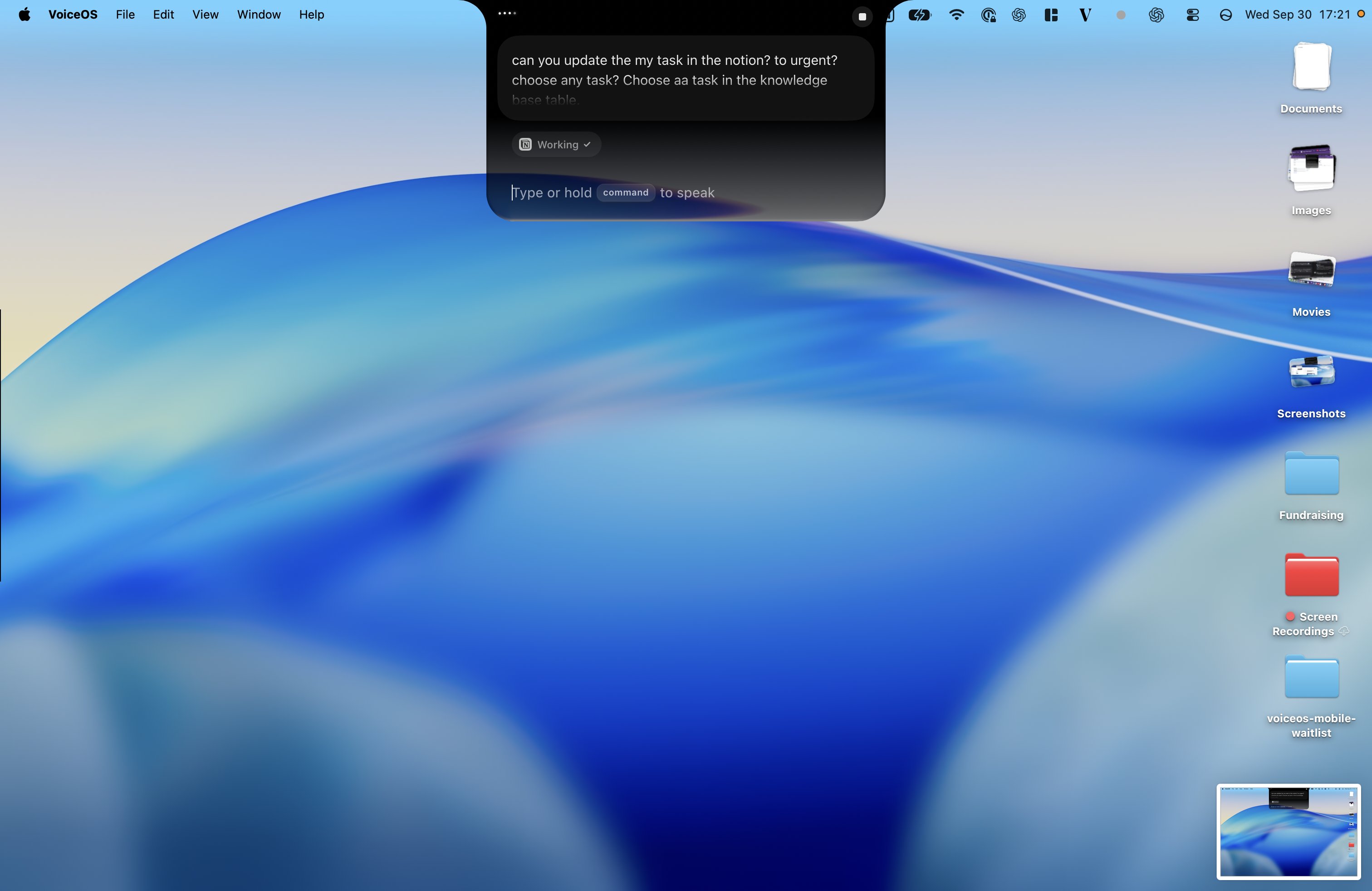
You can describe the database task you want to change in ordinary language. This screenshot captures a request to mark a task urgent while VoiceOS is working. For your own tasks, name the exact record and database so the intended item is clear.
Scroll horizontally to read all columns →
| Action | Illustrative request | Catalog behavior | Verify the result |
|---|---|---|---|
| Search and read | Find the sample project page | No confirmation listed | Verify the workspace and page |
| Create a page | Create a sample planning page | Asks first | Inspect the parent page and content before approval |
| Add content to a page | Add a sample checklist to the test page | Asks first | Verify the target page and inserted content |
| Query a database | Show matching records in the test database | No confirmation listed | Check database, filter, and returned records |
Sources & further reading: VoiceOS Notion integration
Linear: Mac and Windows
Examples below require the Linear integration and access to the intended destination. Check the linked catalog page for its setup and permissions.[8]
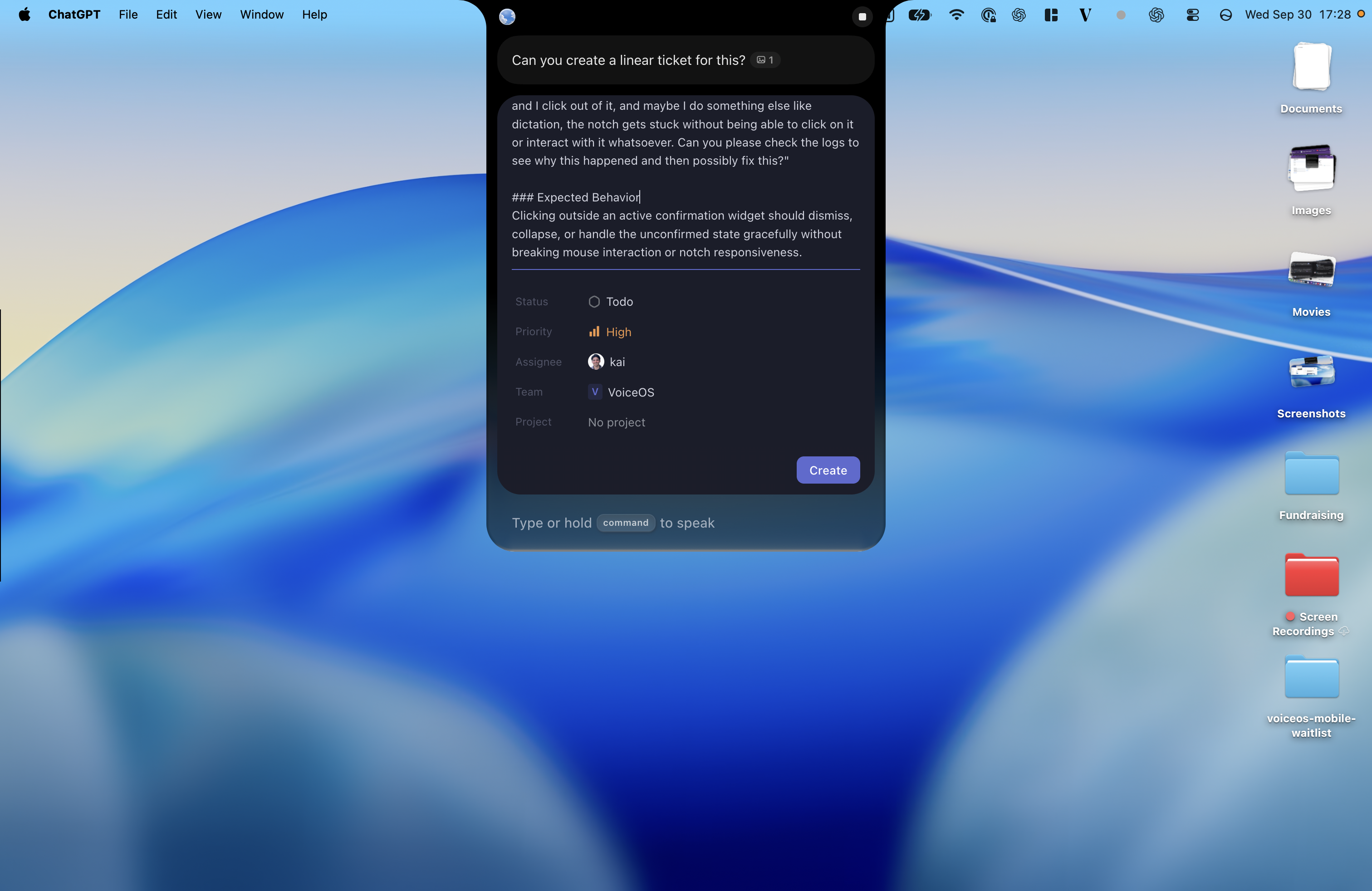
With the relevant screen attached, ask “Can you create a Linear ticket for this?” Here the draft includes an expected-behavior description alongside status, priority, assignee, and team. Check those fields and the description before choosing Create.
Scroll horizontally to read all columns →
| Action | Illustrative request | Catalog behavior | Verify the result |
|---|---|---|---|
| Find issues | Find the sample issue in the test team | No confirmation listed | Verify the issue identifier and team |
| Create an issue | Create a sample issue in the test team | Asks first | Review team, title, and description before approval |
| Update an issue | Update the description of the sample issue | Asks first | Check the identifier and exact changed fields |
| Comment on an issue | Add a sample comment to the test issue | Asks first | Confirm issue, text, and resulting comment |
Sources & further reading: VoiceOS Linear integration
Jira: Mac and Windows
Examples below require the Jira integration and access to the intended destination. Check the linked catalog page for its setup and permissions.[9]
Scroll horizontally to read all columns →
| Action | Illustrative request | Catalog behavior | Verify the result |
|---|---|---|---|
| Find issues | Find the sample issue in the test project | No confirmation listed | Verify the project key and issue identifier |
| Create an issue | Create a sample issue in the test project | Asks first | Review project, issue type, and required fields |
| Move an issue's status | Move the test issue to the agreed status | Asks first | Check that the workflow allows the transition and the status changed |
| Assign an issue | Assign the test issue to the agreed test user | Asks first | Verify the user identity and the resulting assignee |
Sources & further reading: VoiceOS Jira integration
Obsidian: Mac and Windows
Examples below require the Obsidian integration and access to the intended destination. Check the linked catalog page for its setup and permissions.[10]
Scroll horizontally to read all columns →
| Action | Illustrative request | Catalog behavior | Verify the result |
|---|---|---|---|
| Search your vault | Find the sample note in my vault | No confirmation listed | Check the vault and matching path |
| Read a note | Read the sample project note | No confirmation listed | Compare the content with the intended file |
| Create a note | Create a sample note in the test folder | No confirmation listed | Check file path and contents |
| Add to a note | Add a sample paragraph to the test note | No confirmation listed | Verify existing text remains and the paragraph is appended |
Sources & further reading: VoiceOS Obsidian integration
Finder: Mac
Examples below require the Finder integration and access to the intended destination. Check the linked catalog page for its setup and permissions.[11]
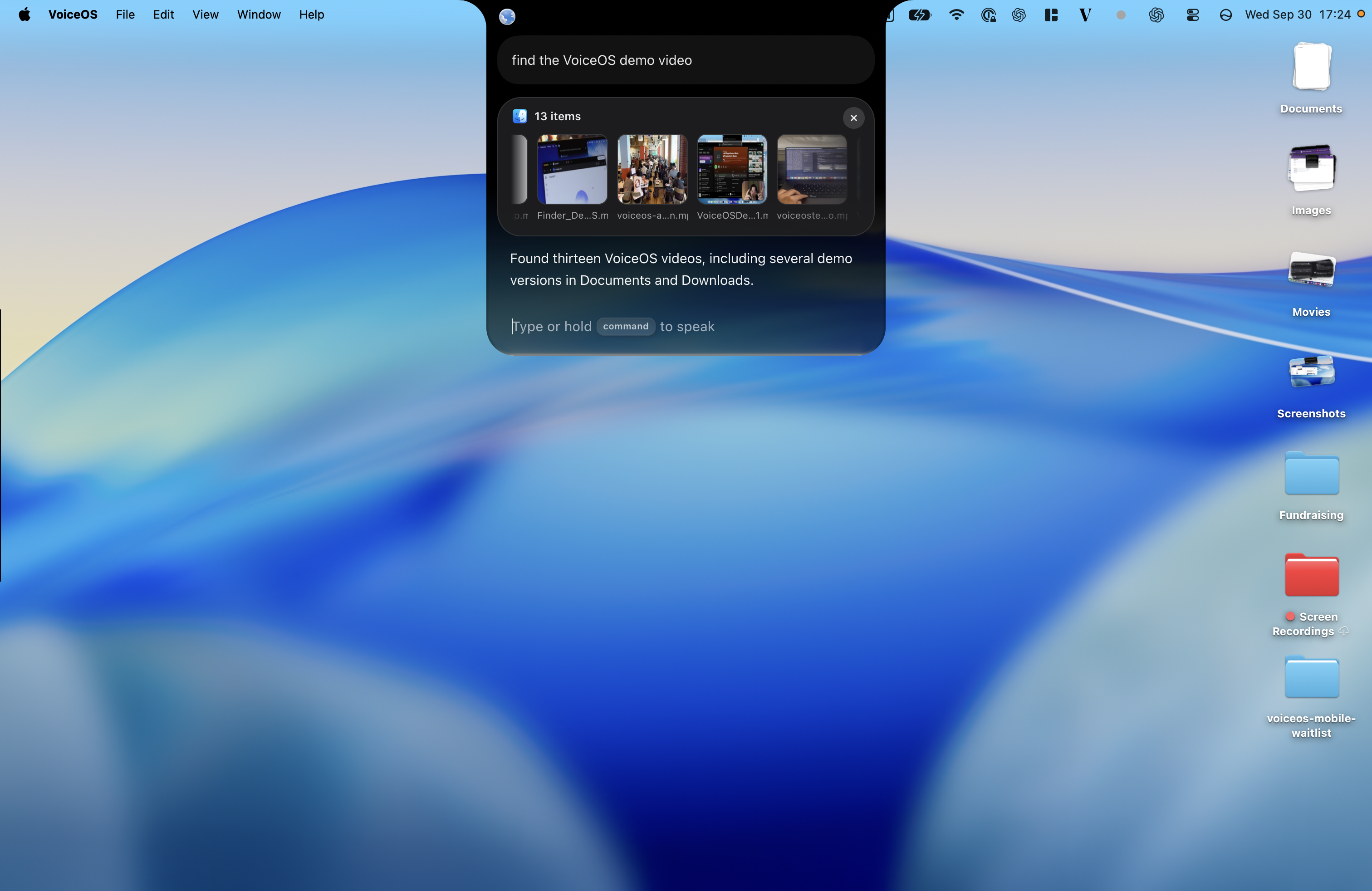
A request such as “find the VoiceOS demo video” can start with what you remember about the file. In the screenshot, VoiceOS returns thirteen matches and identifies Documents and Downloads as locations. Use the results to choose the right version before opening or sharing it.
Scroll horizontally to read all columns →
| Action | Illustrative request | Catalog behavior | Verify the result |
|---|---|---|---|
| Browse a folder | List the files in the test folder | No confirmation listed | Check the full folder path |
| Get file info | Show information for the sample file | No confirmation listed | Verify the path and relevant file details |
| Create a folder | Create a sample folder in the test directory | Asks first | Inspect the destination and verify the folder exists |
| Copy | Copy the sample file into the test folder | Asks first | Confirm source and destination, and preserve the original |
Sources & further reading: VoiceOS Finder integration
How to turn a capability into evidence
For each action you actually test, record the app version, operating system, integration, starting state, request, preview, result, and any manual repair. Inspect the destination instead of relying only on the assistant’s completion message. Keep failures in the record.
A tool marked “No confirmation listed” may run without a separate approval step. Read operations and local writes are not equivalent, even if both have that label. Check the requested operation before invoking it, and keep your first tests limited to disposable material.
If you later publish a tested workflow, include a permissioned recording or transcript and a clear description of what succeeded. Until that evidence exists, describe it as a documented capability or proposed test. This distinction makes the catalog useful to a reader deciding what to try.
Sources and methodology
Cross-checked all forty named actions, platform flags, and confirmation flags against the repository-generated official integration catalog on September 30, 2026. Limitations: These are documented capabilities and authored test cases. No claim is made that forty live account actions were executed or that sample wording always succeeds.
- VoiceOS official integration catalog — VoiceOS
- VoiceOS Gmail integration — VoiceOS
- VoiceOS Slack integration — VoiceOS
- VoiceOS Google Calendar integration — VoiceOS
- VoiceOS Notes integration — VoiceOS
- VoiceOS Reminders integration — VoiceOS
- VoiceOS Notion integration — VoiceOS
- VoiceOS Linear integration — VoiceOS
- VoiceOS Jira integration — VoiceOS
- VoiceOS Obsidian integration — VoiceOS
- VoiceOS Finder integration — VoiceOS
Frequently asked questions
Were all forty actions tested live for this article?
No. Each action was checked against the shipped integration catalog. The verification steps are a test plan, not a record of completed end-to-end trials.
Do all actions ask before running?
No. The table preserves the catalog’s per-tool confirmation behavior. Some local writes and read operations do not list a separate confirmation.[1]
Why do some sections say Mac only?
Native Apple integrations in the catalog have a Mac-specific platform requirement. A VoiceOS Windows installation does not add those Apple-only integrations.[1]
Start with one real task
See how VoiceOS handles dictation, editing, and supported app actions on Mac and Windows.
Explore VoiceOS