

Capture enough to restart the thought
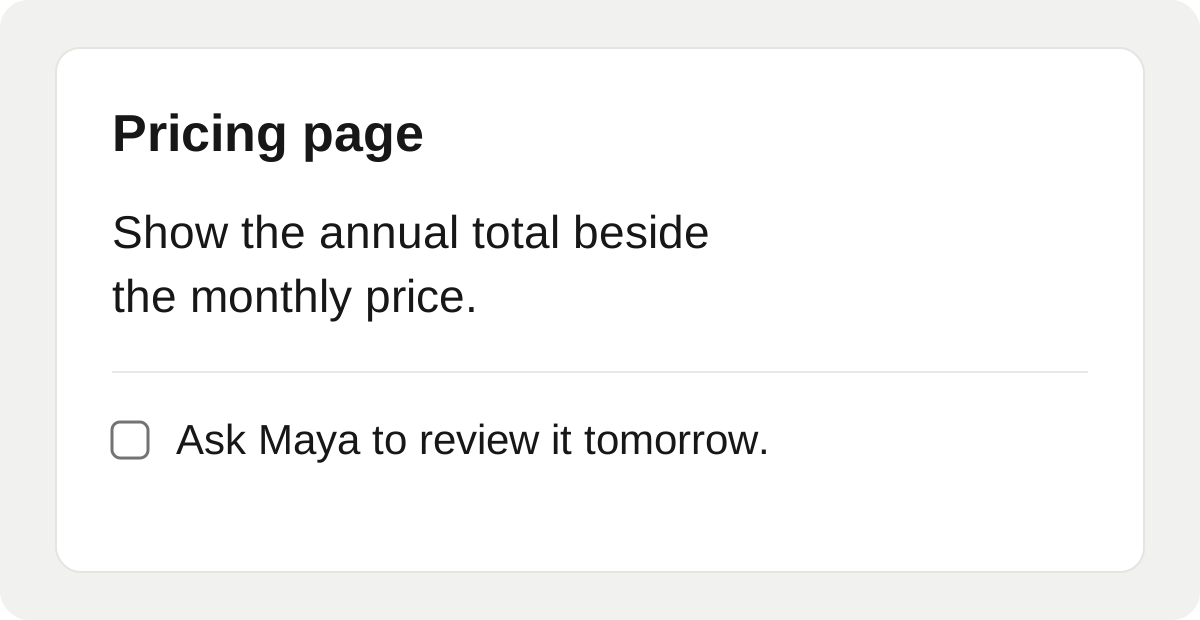
A useful quick note has three parts: the idea, why it matters, and the next move. “Pricing idea” is quick to save but difficult to recover. “Pricing page: explain annual billing beside the monthly equivalent; ask Maya to review the wording” contains a reason and an action. That second note gives your future self something to work with.
Choose one capture destination before the interruption happens. It can be a local note, a page in your existing workspace, or a task inbox. The point is that capture should not require a fresh decision about folders and tags every time. This is a suggested workflow, not a measured reduction in context-switching time.
A short template you can say naturally
Scroll horizontally to read all columns →
| Part | What to include | Illustrative example |
|---|---|---|
| Idea | The actual thought, not only a topic label | Show the annual total beside the monthly equivalent |
| Context | What you were looking at or why it matters | On the pricing page, the billing period is easy to miss |
| Next move | One small action or a reason to revisit it | Ask Maya to check the copy tomorrow |
You do not need to speak those labels aloud. Say the thought as one or two sentences, then save it. Include a document title or stable link when the idea depends on a particular source. “This paragraph” will not help when the paragraph is no longer on your screen.
Keep interpretation out of the first capture when it is unnecessary. If you already know the words, dictating them into a note is often easier to verify than asking an agent to infer and summarize your intention. Use an agent when the destination action is the part you want help with.
Two ways to capture with VoiceOS
For direct dictation, place the cursor in your chosen note and speak. For an app action, check that the destination has a supported VoiceOS integration, connect it, and ask for a specific note or task operation. The catalog includes Notes, Notion, Obsidian, and Reminders, with different actions and platform requirements.[1] [2]
An illustrative request is: “Create a note titled Pricing copy review with this text: show the annual total beside the monthly equivalent; ask Maya to review the wording.” Whether that exact phrasing succeeds depends on the connected tool and context. Check the created note in the intended account or vault before returning to work.
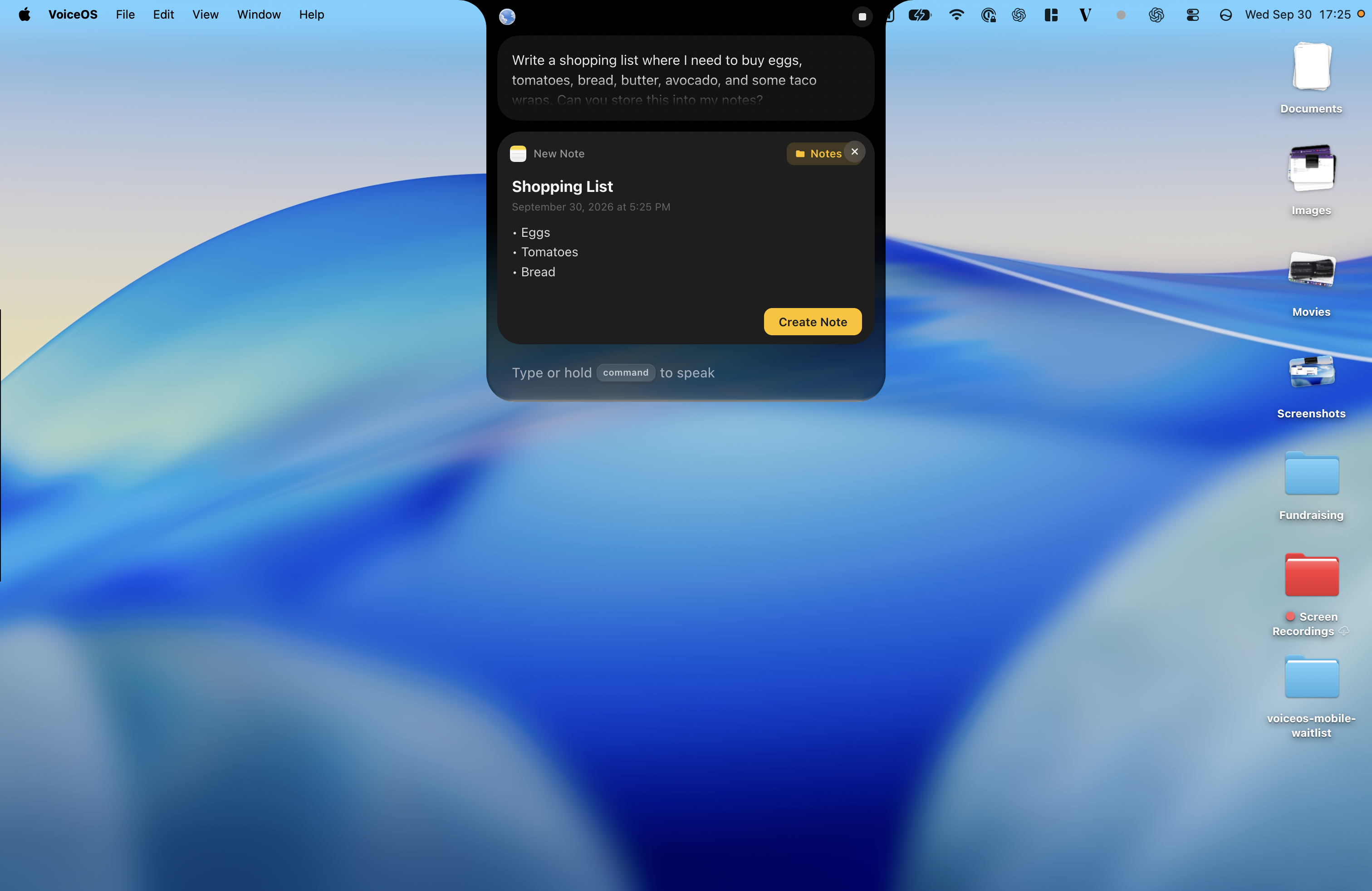
The Notes example below shows the same capture pattern with a shopping list: speak the items, review a titled note with bullets, then create it. Keeping each item on its own line makes it easier to check what was captured.
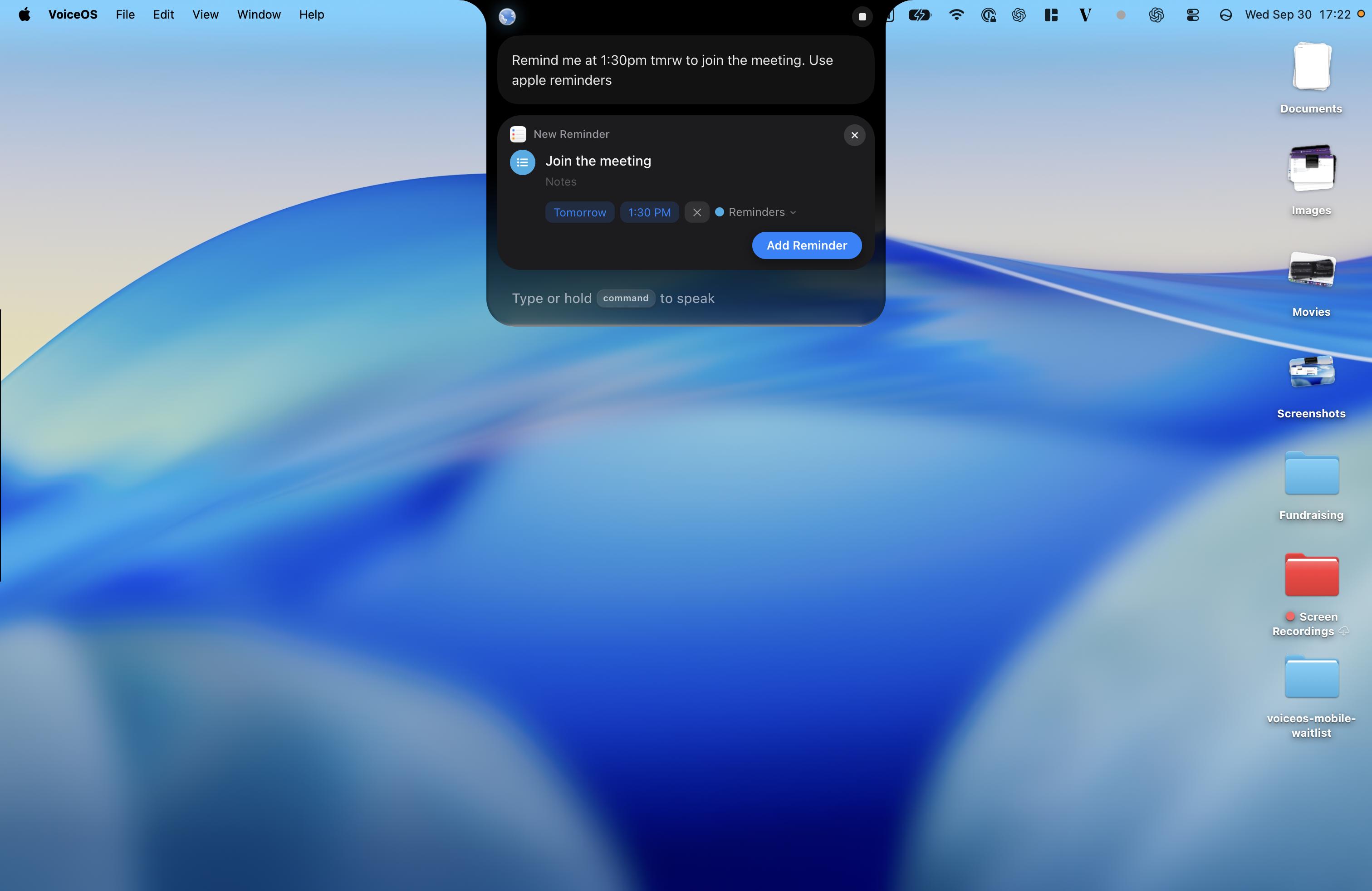
A reminder is different from a note. Use a reminder when there is a time or trigger you actually need. Use a note when you are keeping material for later thinking. Turning every idea into a timed notification replaces one interruption with another.
Sources & further reading: VoiceOS Dictation Mode · VoiceOS official integration catalog
Leave yourself a place to resume
Before switching away from demanding work, write or dictate a brief resumption cue: “Next: compare the second table with the source” or “Return to the failing test after this note.” Keep the cue attached to the original task, not buried inside the new idea. It should answer what to do when you return.
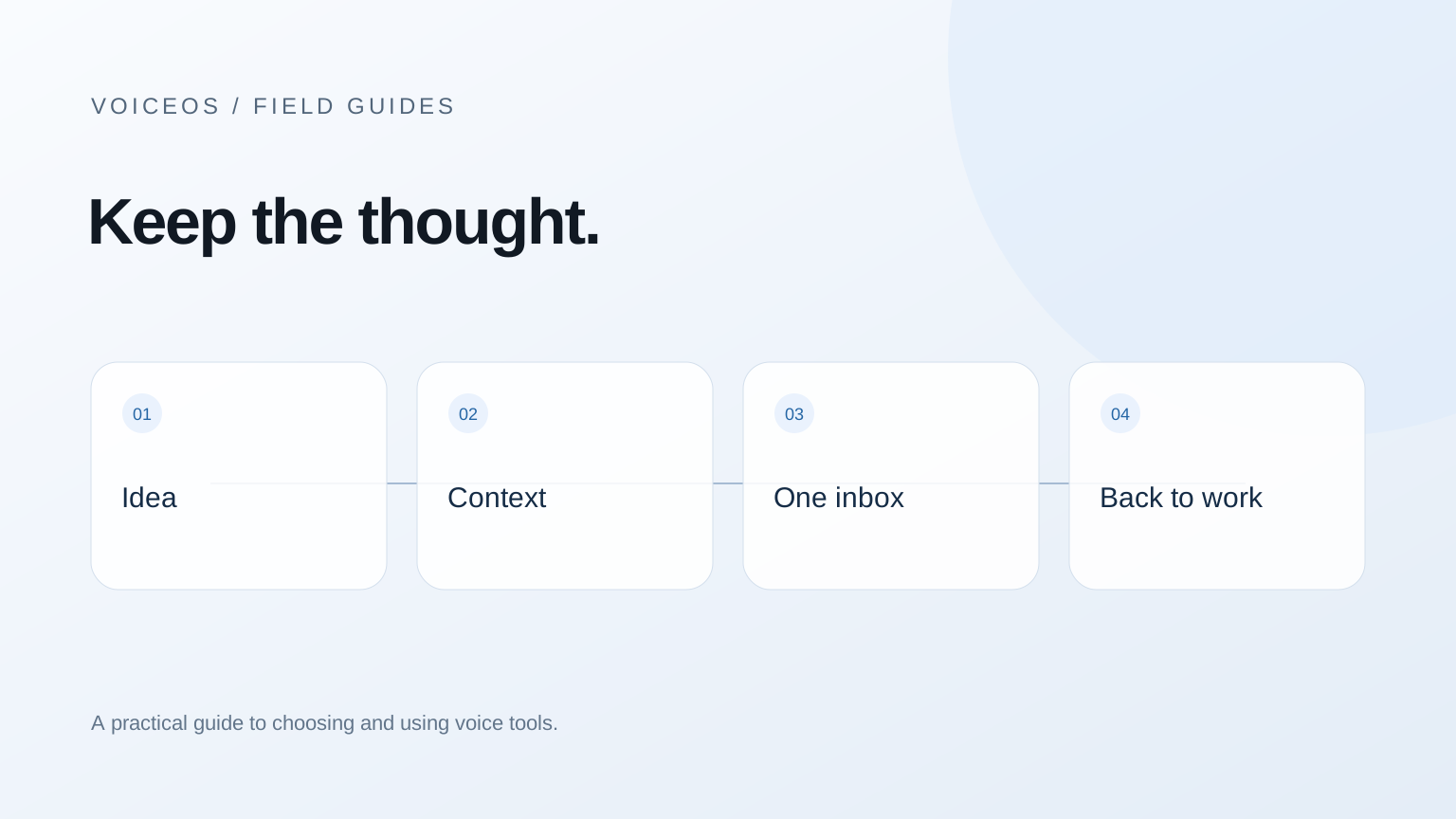
Then capture the new thought, confirm it was saved, and return to the cue. Avoid expanding the quick note into research, scheduling, and messaging unless that work is now the priority. Voice can make capture more convenient; it cannot choose your priorities for you.
If you use screen-aware help, provide only the context needed for the request. A screenshot can contain unrelated content. VoiceOS’s privacy policy explains the screen and integration data Agent Mode may process; use material your organization permits.[3]
Sources & further reading: VoiceOS Privacy Policy
Make the inbox small enough to trust
A capture system works only if its contents are reviewed. At a time that fits your work, decide whether each note becomes a task, reference material, a project idea, or something to delete. Rewrite vague entries while you still remember them. The inbox should be a temporary landing place, not a second archive you never open.
You can evaluate the workflow without claiming a productivity breakthrough. Pick a few ordinary interruptions and note whether the idea was saved, whether the context was sufficient later, and whether you resumed the intended task. Compare with your previous method. A note that takes slightly longer to capture but is actually usable can be the better result.
If talking breaks your concentration or disturbs coworkers, use a short typed note instead. The destination and template still work. The system should accommodate your day rather than demand that every thought become a voice command.
Sources and methodology
Last updated .
Original workflow design using VoiceOS dictation and integration documentation. The example requests are authored examples, not transcripts from a user study. Limitations: No measured context-switching reduction or universal success rate is claimed.
- VoiceOS Dictation Mode — VoiceOS
- VoiceOS official integration catalog — VoiceOS
- VoiceOS Privacy Policy — VoiceOS
Frequently asked questions
Do I need another notes app?
No. Start with a destination you already review. A reliable inbox matters more than a new app.
Can VoiceOS create a note directly?
Supported integrations include note tools, but actions and platform support differ. Check the catalog entry for your chosen destination and verify the saved result.[2]
Has this workflow been timed against typing?
No. This article proposes a practical capture method. It does not report a controlled time-saving study.
Start with one real task
See how VoiceOS handles dictation, editing, and supported app actions on Mac and Windows.
Explore VoiceOS