Which Hey Clicky alternative should you try?
VoiceOS is our pick for people who want a Hey Clicky alternative that works as a personal assistant on Mac or Windows. Speak a request, prepare an email, manage your calendar, or act across connected work apps. VoiceOS brings together voice agents, screen awareness, and dictation. The other options worth considering are Clico Desktop for work across Mac apps, Microsoft Copilot Vision for screen guidance, Wispr Flow for dictation, and Carly for email and scheduling workflows.[6]
The distinction we draw is about the experience: HeyClicky emphasizes a playful AI buddy that helps you learn what is on your screen; VoiceOS emphasizes a personal assistant you can ask to take care of everyday work. Both offer agents. This guide helps you choose the experience and workflow you want.[7] [6]
Disclosure: This article is published by VoiceOS. Recommendations reflect our assessment of documented capabilities, platform support, setup, and access requirements. Sources were checked September 10, 2026. This is a researched comparison; we have not run a controlled performance test of these products.
Hey Clicky alternatives at a glance
| Alternative | Our recommended use | Where it fits | Main tradeoff |
|---|---|---|---|
| VoiceOS | Voice agents, screen questions, and dictation in one app | Mac and Windows | New accounts start with a card-required Pro trial |
| Clico Desktop | Tasks that combine selected screen context and local files | Mac desktop | Its desktop workflow is Mac-focused |
| Microsoft Copilot Vision | Talking through what is on your screen | Windows and Edge; availability varies | Vision itself guides rather than clicking or entering text |
| Wispr Flow | Dictating across desktop and mobile apps | Mac, Windows, iOS, and Android | Evaluate it primarily for writing, rather than as a replacement for visual tutoring |
| Carly | Delegating inbox, scheduling, and recurring workflows | Email and connected services | A different interaction model from a cursor-side voice companion |
Sources & further reading: VoiceOS · Clico Desktop · Microsoft Copilot Vision · Wispr Flow · Carly · explore Agent Mode
HeyClicky vs VoiceOS: AI buddy or personal assistant?
HeyClicky, also searched as “Hey Clicky,” is a Mac assistant that uses screen context after you press a hotkey. It offers spoken guidance, on-screen drawing, dictation, and voice-launched agents. As of September 10, its site lists macOS Sonoma 14.2 or later and a Windows waitlist. Its free plan includes 25 Talk messages and 25 agent messages per month; monthly Pro and Max plans are $20 and $100.[7]
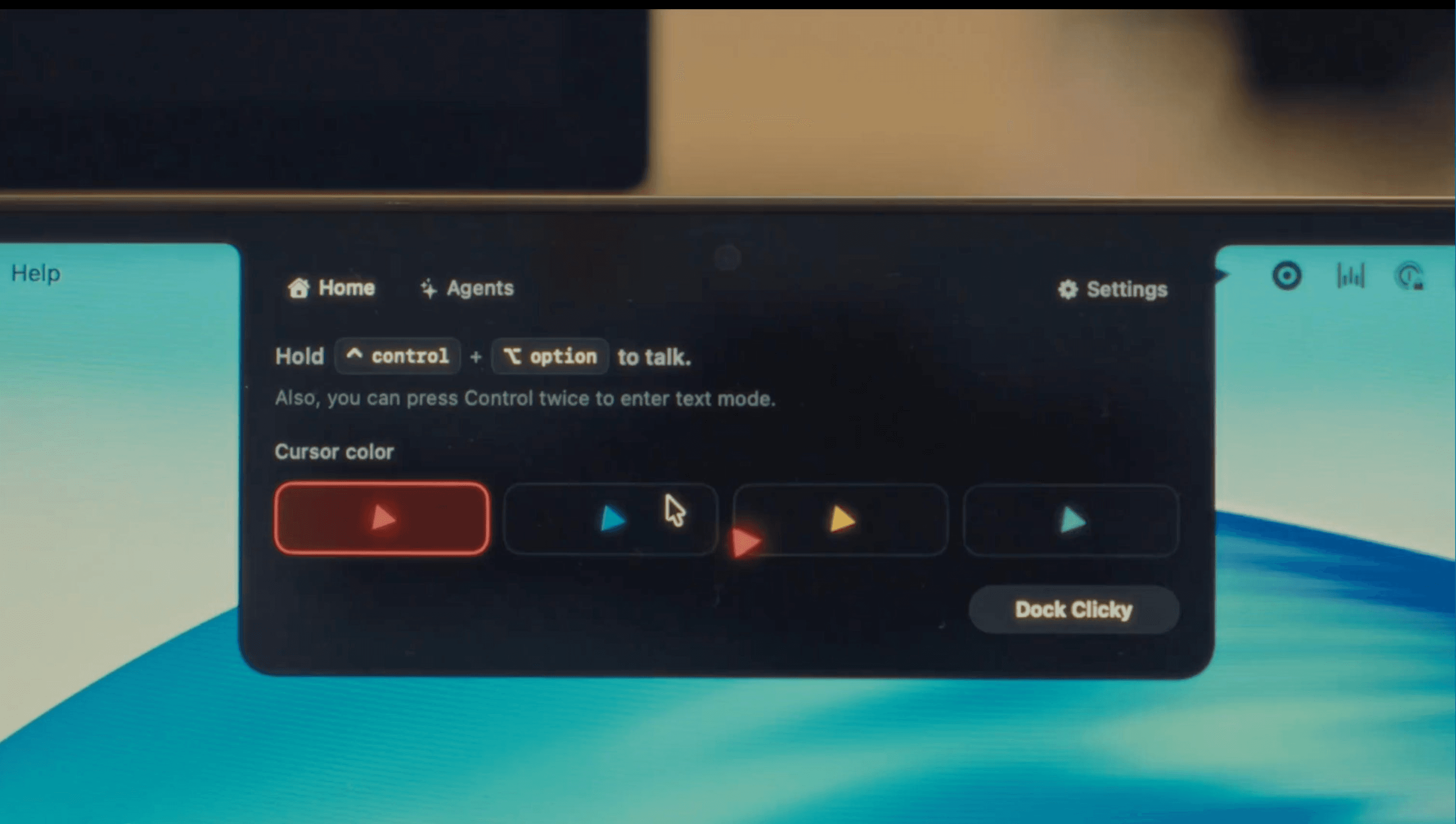
HeyClicky’s playful, cursor-side experience is a natural fit for learning an unfamiliar tool. Its screen guidance and drawing features support questions such as “Where do I click?” or “How does this work?” We see that as the appeal of an AI buddy: a companion that can explain and guide as you learn.[7]
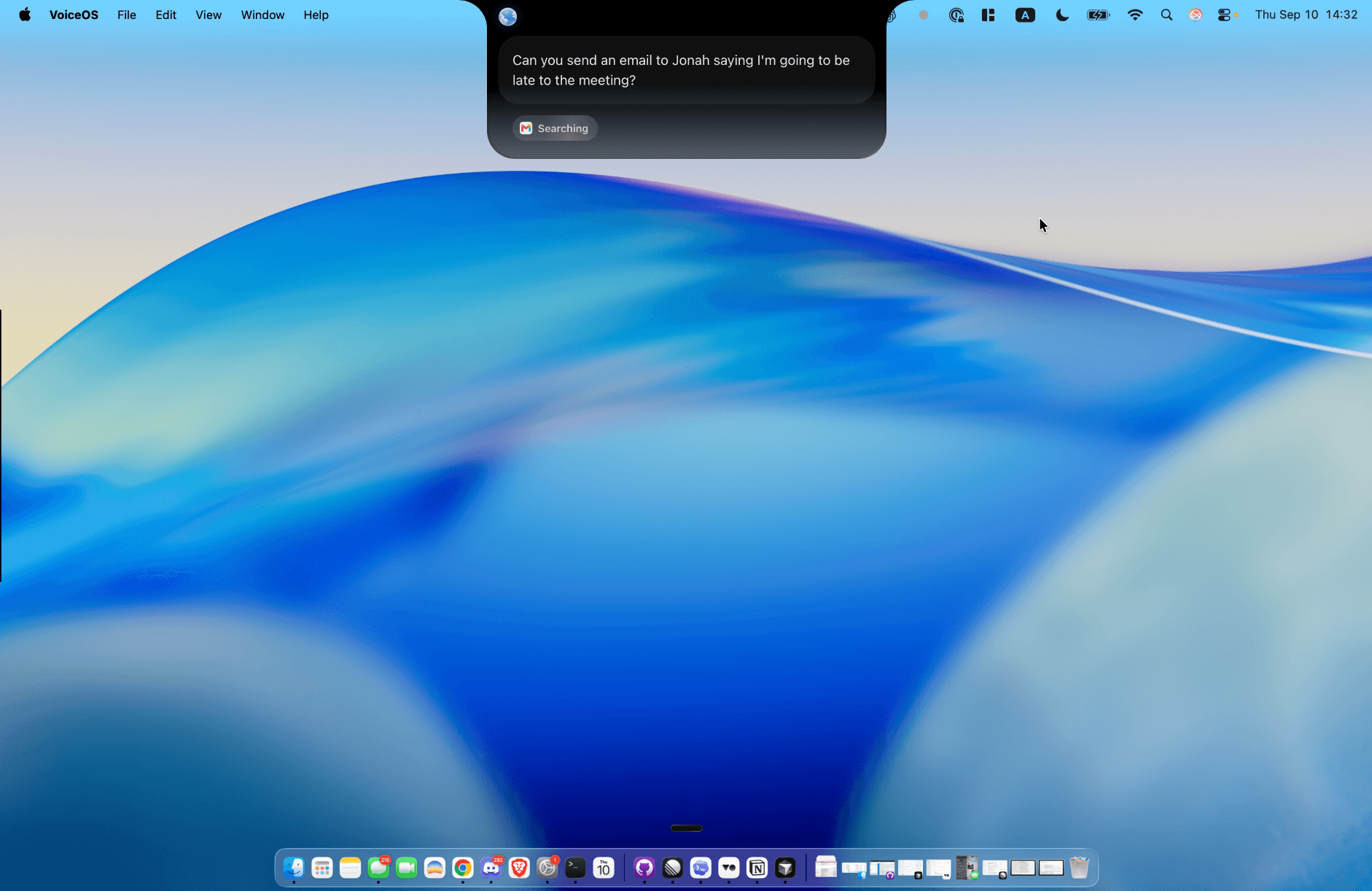
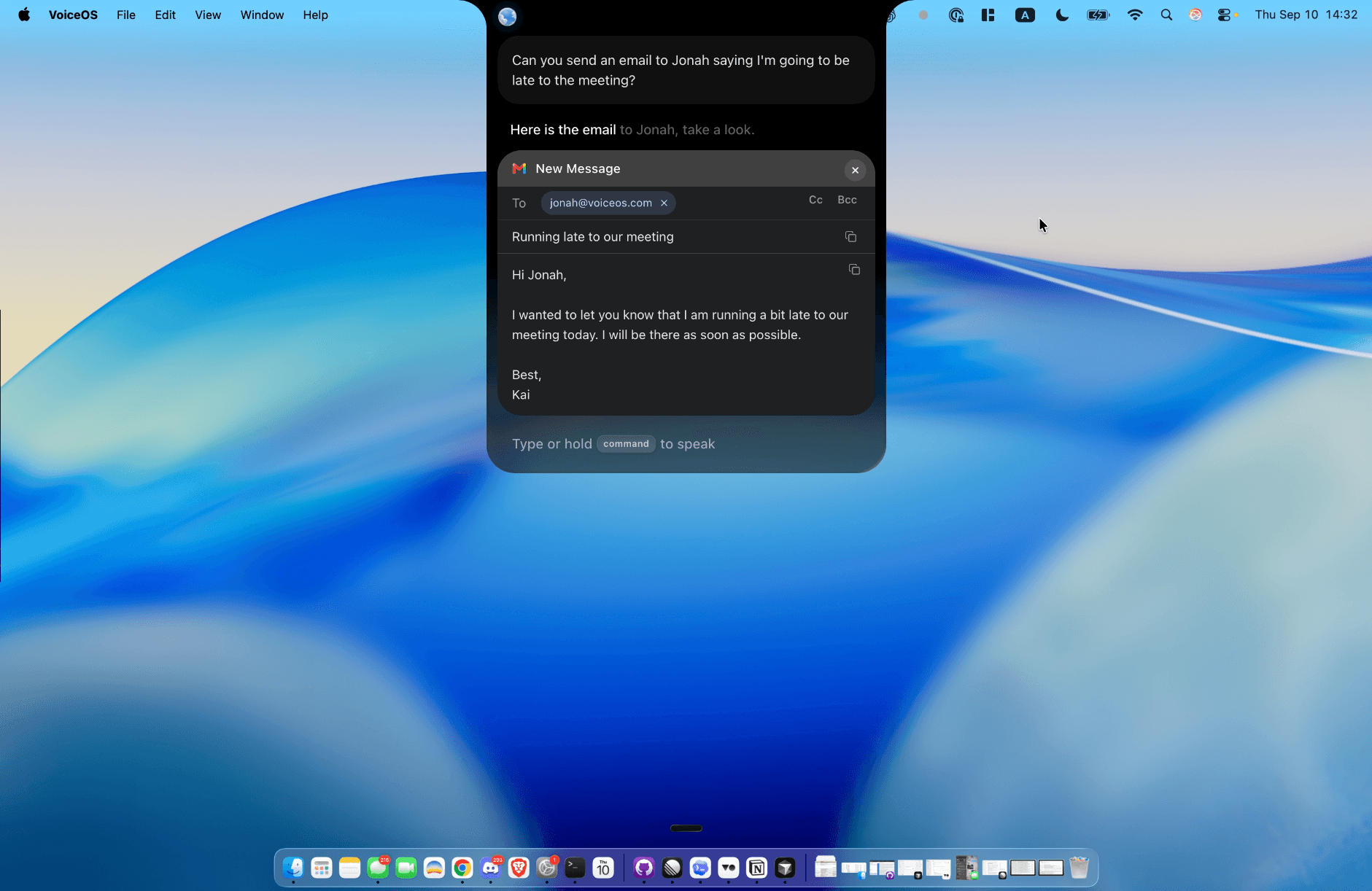
VoiceOS is built around a personal-assistant workflow: say what you want accomplished and let it prepare the work in your connected apps. “Email Jonah that I’m running late” describes an outcome. The VoiceOS screenshots below show that request becoming a reviewable email draft. It is the practical part of the Jarvis idea: help with the tasks already on your plate.[6]
This is a difference in emphasis, not a claim that HeyClicky only teaches. HeyClicky also offers agents, and VoiceOS can answer screen questions. If a playful companion appeals to you, HeyClicky may fit. If you prefer a straightforward assistant focused on your work, VoiceOS is our recommendation.[7] [6]
Start with the part you actually need:
- “Show me what to do.” Prioritize screen understanding and clear visual guidance.
- “Write this for me.” Prioritize dictation, editing, vocabulary, and the apps you write in.
- “Take care of this task.” Prioritize supported actions, access to the right information, and review before execution.
A useful alternative should cover your recurring work. You do not need every feature from every category.
Sources & further reading: HeyClicky features and pricing · explore Agent Mode
1. VoiceOS — a personal assistant for everyday work
VoiceOS is the strongest fit in this shortlist when your day moves between asking questions, writing, and acting across work apps. Its desktop app supports Mac and Windows, and its plans include both Dictation Mode and Agent Mode.[1]
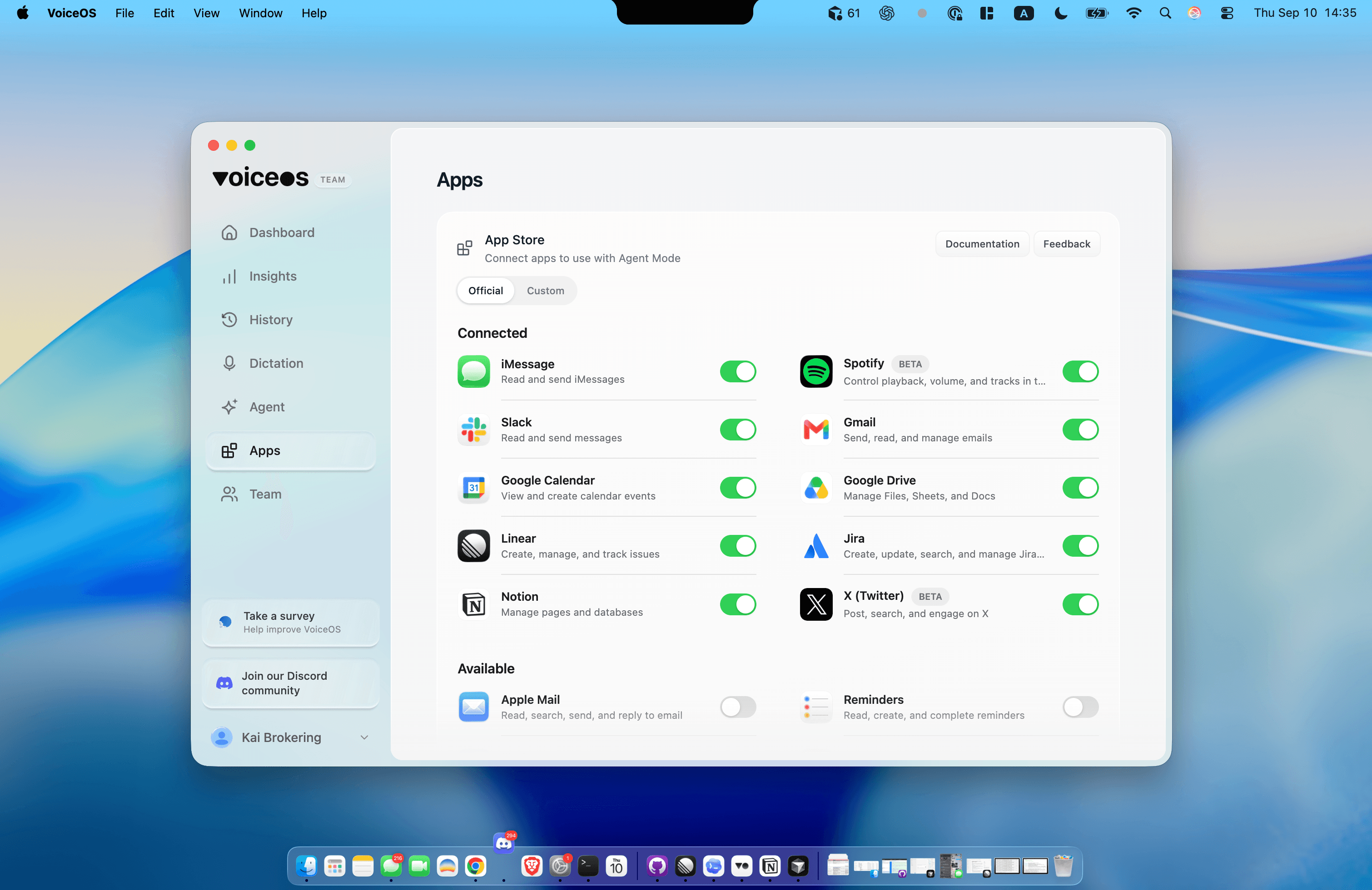
Agent Mode connects spoken requests to supported work in services such as Gmail, Slack, Notion, and Google Calendar. It shows a confirmation before actions that send, book, or change something. That makes a request like “Draft a reply saying Thursday afternoon works” a practical starting point: inspect the proposed result before sending it.[6]
For writing, VoiceOS removes fillers, corrects spelling, adapts formatting to the destination, and supports custom spellings for names and terminology. It supports more than 100 languages, including English and Japanese. If your day includes emails, short messages, and longer notes, try the same thought in each destination and compare the result.[8]
The tradeoff: Choose for the workflow you need, rather than expecting HeyClicky's exact interface. If on-screen drawing is your main reason for wanting an assistant, evaluate that experience separately. VoiceOS also requires a card to begin its seven-day Pro trial. The pricing page currently shows an annual option equivalent to $11.99 per month; regional prices and billing choices can differ.[1]
Try first: Connect one service you already use, then complete one small task. Check the official integrations catalog for your tools; support for the desktop platform does not imply every platform-specific integration is available everywhere.[9]
Sources & further reading: VoiceOS · explore Agent Mode · VoiceOS Dictation Mode · official integrations catalog
What VoiceOS looks like in use
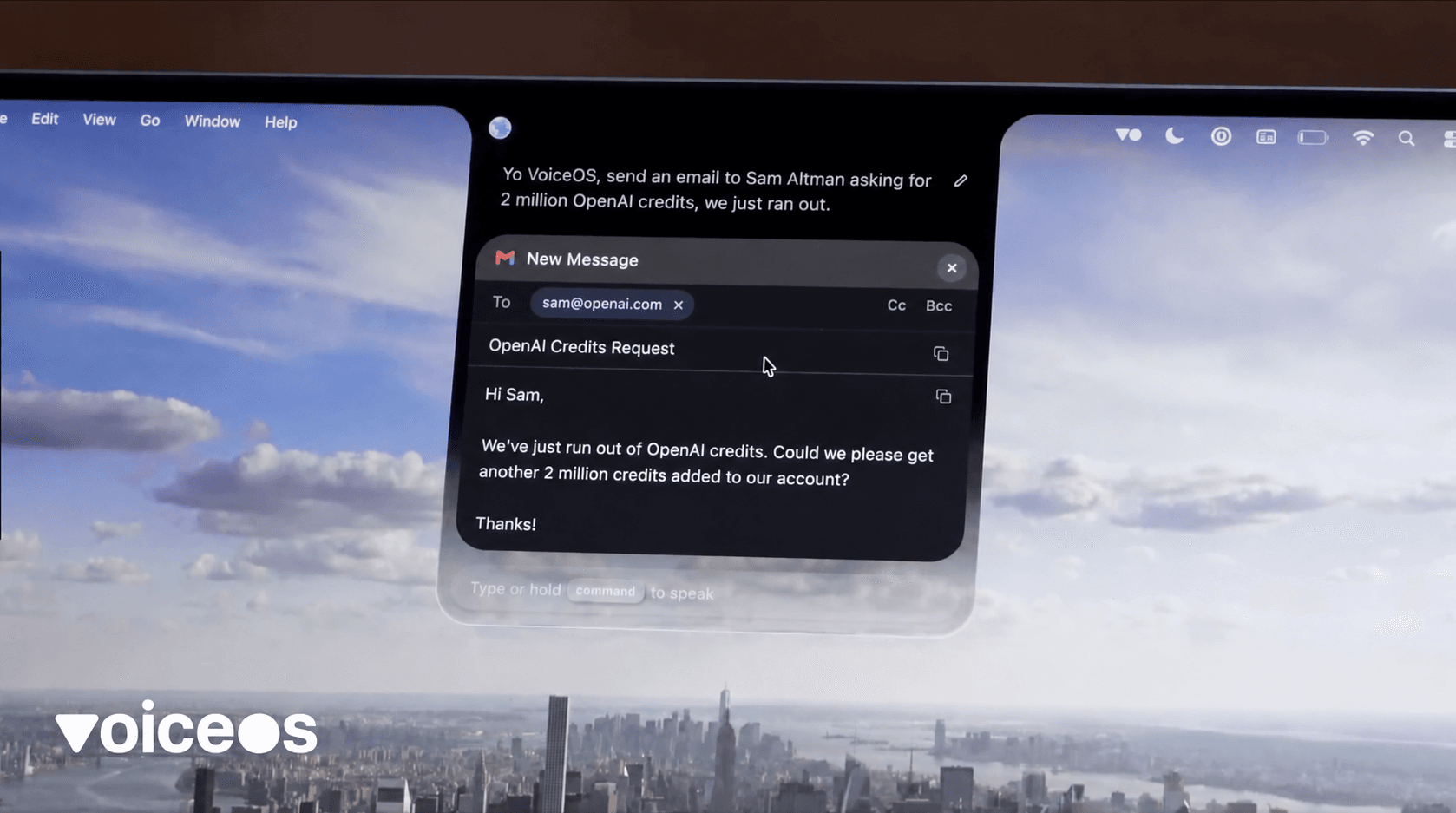
Watch VoiceOS prepare an email from a spoken request in this demo from Kai Brokering. The article thumbnail comes from this video.
These screenshots come from a real VoiceOS session on Mac. The request was: “Can you send an email to Jonah saying I'm going to be late to the meeting?” The sequence below shows the spoken request and the prepared email, before sending.
2. Clico Desktop — for combining screen context and files on Mac
Clico Desktop is worth comparing if your work often involves information spread across a screen, a document, and another app. Its published workflow accepts an app, local file, selected screen region, or microphone input as context. It also describes Desktop Memory for returning to previous context and asks for approval before consequential actions.[10]
Why consider it: Selecting exactly what an assistant should work from is useful when the relevant information is scattered. Clico's emphasis on explicit context and reviewable work makes it a relevant option for Mac users.
The tradeoff: The desktop product is positioned around Mac. Treat Clico Web and its browser extension as separate surfaces when checking whether your task is supported. See its desktop product page and current plans.[2] [11]
Try first: Give it a non-sensitive local document and a related screen selection. Ask for a short draft based on both, then check whether it preserved the important details.
Sources & further reading: Clico's desktop comparison · Clico Desktop · current plans
3. Microsoft Copilot Vision — for screen guidance
Copilot Vision is a useful candidate when you mainly want to talk through an interface. You share a screen or app during a voice session and ask questions about it. Microsoft documents a Windows workflow and an Edge experience.[3]
Why consider it: It offers a route to visual help within Microsoft's ecosystem, especially if you already have an eligible subscription.
The tradeoff: Vision itself does not click, scroll, or enter text for you. Microsoft's current support page says access requires Microsoft 365 Personal, Family, or Premium, and availability can vary during rollout. Do not assume older descriptions of free access still apply.[3]
Try first: Start a voice call, select Share screen, and share the relevant app. Ask where to find a setting. Judge whether the guidance is specific enough to follow without another search.
Sources & further reading: Microsoft Copilot Vision
4. Wispr Flow — for dictation across desktop and mobile
Wispr Flow deserves a place on the shortlist if the main thing you want is to speak instead of type. Its current plans list speech-to-text across apps on Mac, Windows, iOS, and Android, support for more than 100 languages, and vocabulary that learns names and jargon. It also offers a Mac notetaker.[4]
Why consider it: Mobile support is a meaningful reason to compare it if you want dictation on both your computer and phone. Flow also advertises a free way to start without a payment card.
The tradeoff: Dictation is a different purchase decision from visual guidance or broad desktop action. Its notetaker and connected features should not be mistaken for proof that it performs every HeyClicky-style agent task. Verify the specific workflow you need.[4]
Try first: Dictate a paragraph containing a colleague's name, a product term, and a correction spoken halfway through. Repeat it on your phone and desktop; count the edits needed in each.
Sources & further reading: Wispr Flow
5. Carly — for email, scheduling, and recurring workflows
Carly is relevant if what attracted you to HeyClicky was delegating administrative work. Its product centers on creating agents through email and handling scheduling, inbox work, CRM tasks, and connected workflows. Its examples include checking email periodically and following up with leads.[5]
Why consider it: An email-based assistant may fit naturally into a job where most requests, decisions, and follow-ups already arrive in the inbox.
The tradeoff: This is a different way to work from asking a desktop companion about whatever is under your cursor. Choose it for the email or recurring workflow you want to delegate, and check its current pricing against that workload.[12]
Try first: Start with one scheduling request. Check how clearly it handles availability, missing information, and the final details before adding more complex automation.
Sources & further reading: Carly · current pricing
How to compare two alternatives in 15 minutes
Use this as a small evaluation exercise, not a benchmark claim. Choose two products that support the same job, give them equivalent context, and keep the inputs consistent.
| Job | Example request | What to record |
|---|---|---|
| Understand a screen | “Explain the error shown here and suggest the next step.” | Did it use the actual error? Were the instructions useful? |
| Write | Dictate the same short email, including names and a spoken correction | Missing details, incorrect names, and manual edits |
| Prepare an action | “Draft a reply proposing Thursday at 2 p.m.; let me review it.” | Correct recipient, time zone, content, and review step |
Mark a task outside scope if the product does not offer it. A dictation app should be judged on writing; a visual guide should be judged on guidance. For overlapping capabilities, record setup time, corrections, and whether you reached the intended result.
The best choice is the one that makes your repeated tasks easier with a level of control you are comfortable using every day.
Start with the work you do every day
If your goal is to use your voice throughout the working day, put VoiceOS first on your shortlist. Try an email, a screen question, and a supported app action. Those three tasks will tell you more about fit than a feature count.
Explore VoiceOS Agent Mode, read how voice turns intent into action, or start your seven-day Pro trial.[6] [14] [1]
Sources & further reading: explore Agent Mode · how voice turns intent into action · VoiceOS
Sources and methodology
Compared official product and support pages on September 10, 2026. User-provided Mac screenshots document a VoiceOS email preparation workflow. Limitations: No controlled performance benchmark was run. Screenshots show email preparation, not final delivery. Platform availability and pricing can change.
- VoiceOS — VoiceOS
- Clico Desktop — Clico
- Microsoft Copilot Vision — Microsoft
- Wispr Flow — Wispr Flow
- Carly — Carly
- explore Agent Mode — VoiceOS
- HeyClicky features and pricing — HeyClicky
- VoiceOS Dictation Mode — VoiceOS
- official integrations catalog — VoiceOS
- Clico's desktop comparison — Clico
- current plans — Clico
- current pricing — Carly
- HeyClicky for Windows comparison — VoiceOS
- how voice turns intent into action — VoiceOS
Frequently asked questions
Which alternative should I try if I use Windows?
For writing and agent work together, start with VoiceOS. For screen guidance, compare Copilot Vision; for dictation, compare Wispr Flow. The platform-specific details are in our HeyClicky for Windows comparison.[13]
Does VoiceOS need a separate connection for each work app?
Enable the relevant supported services in Settings before asking Agent Mode to use them. Start with one account and one task. Check the VoiceOS Agent Mode page and integrations catalog for the services you need.[6] [9]
What happens if I cancel the VoiceOS trial?
The current pricing page says canceled accounts fall back to 100 dictation sessions and 25 Agent Mode sessions per week. That limited tier is not a separate signup option. Check your trial end date and billing choice when starting.[1]
When is staying with HeyClicky the better choice?
If you use a compatible Mac and mainly want a companion that teaches by drawing on your screen, HeyClicky's documented strengths match that need. Its free plan also gives you a way to evaluate that experience before paying.[7]
Try your next task with VoiceOS
Start with an email, a screen question, or a supported app action. Review the trial and billing details before signing up.
Explore VoiceOS plans