
Key takeaways
- **Windows Voice Typing** turns speech into text in the focused text box. Shortcut: **Windows logo key + H**. You need a working microphone, an internet connection for standard Voice Typing, and your cursor in a field that accepts text.
- **Voice Access** (Windows 11) is different: it can dictate *and* control the PC with spoken commands (open apps, click UI, navigate). Use Voice Typing when you only need words in a field; use Voice Access when you need hands-free control of the whole desktop.
- **Fluid Dictation** on Copilot+ PCs can clean grammar, punctuation, and filler as you speak (on-device models). Availability depends on your hardware and language packs—check Microsoft's notes for your build.
- Built-in tools are strong for **getting words in**. If you also need tone cleanup across every app, rewrite-in-place, or confirmed actions in Slack/Mail, a system-wide layer like VoiceOS sits on top of—not instead of—Win+H.
What Win+H actually does
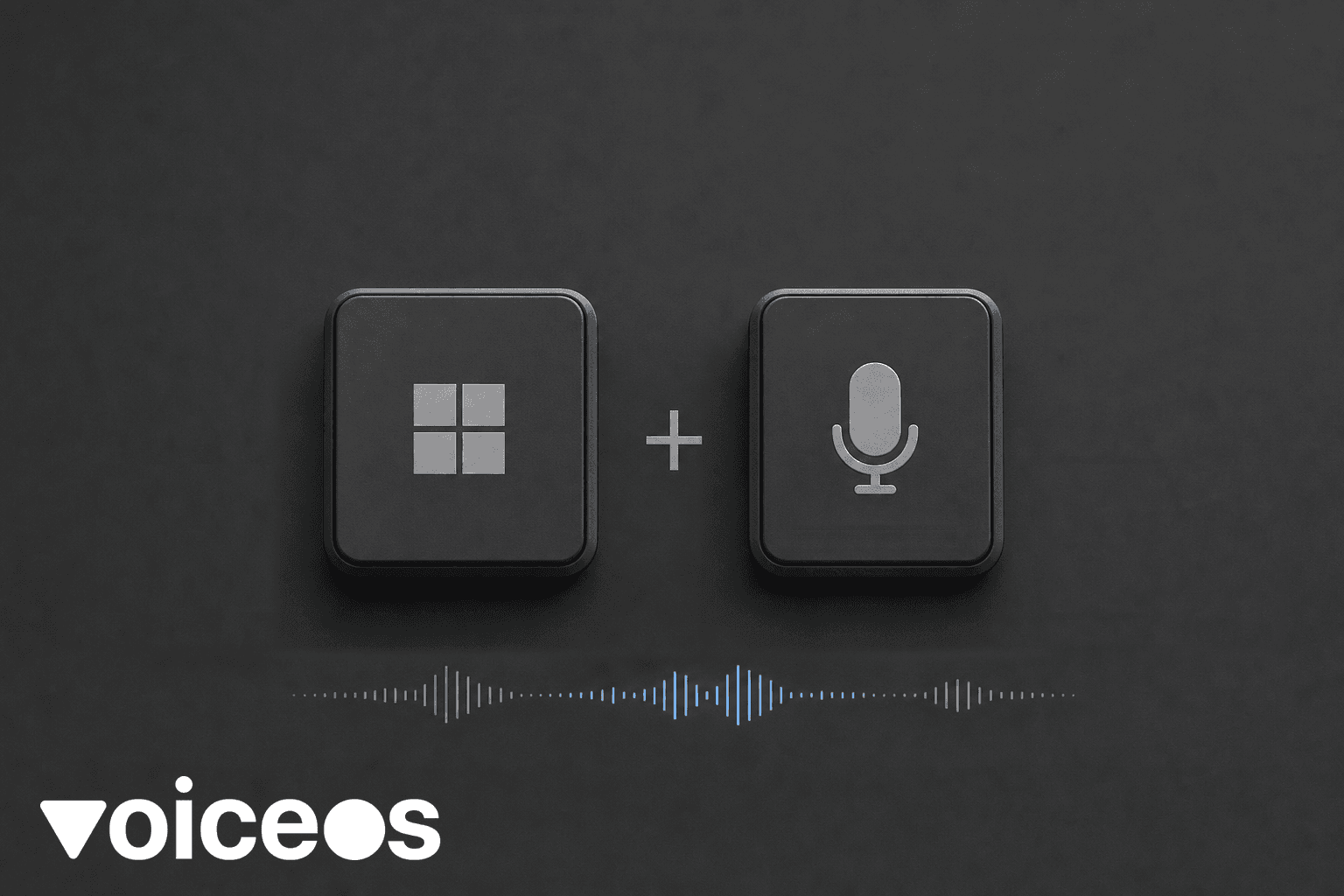
Voice Typing is Microsoft's built-in "talk instead of type" feature for Windows 10 and Windows 11. You click into a text box, press **Win + H**, wait for the listening state, and speak. The words land where the cursor is.[1]
That is the whole job: **author text by voice** inside editable fields. It is not a full assistant that runs your computer. Microsoft's own Voice Access FAQ draws the line clearly: Voice Typing is for dictation; Voice Access adds commanding plus dictation.[2]
If you searched "how do I type with my mic on Windows," this is the feature you want first.
Sources & further reading: Use voice typing to talk instead of type on your PC · Voice Access FAQ
Before you start (checklist)
- **Microphone works** — Settings → System → Sound → Input; pick the mic you mean to use. External mics should be plugged in and selected.
- **Microphone permission** — Settings → Privacy & security → Microphone; allow access so Voice Typing can hear you.
- **Internet** — Standard Voice Typing uses online speech recognition (Azure Speech). Offline-only setups will fail or hang.
- **Cursor in a text box** — Voice Typing starts only when focus is in a field that accepts typing. Click the Slack compose box, Word, browser form, Notes, etc., first.
- **Language** — Switch input language with **Win + Space** if recognition is wrong. Install another language under Settings → Time & language → Language & region if needed.
Sources & further reading: Use voice typing to talk instead of type on your PC · Voice typing isn't working
How to start and stop Voice Typing
Keyboard tip: **Win + Alt + H** moves through the Voice Typing menu without the mouse.
Sources & further reading: Use voice typing to talk instead of type on your PC
Useful settings (gear icon)
Open the gear on the Voice Typing flyout and check:
Voice Typing settings
Scroll horizontally to read all columns →
| Setting | Why it matters |
|---|---|
| Voice typing launcher | Shows Voice Typing quickly when you enter a text box |
| Automatic punctuation | Inserts commas and periods from how you speak |
| Filter profanity | Blocks or allows swear words in the transcript |
| Default microphone | Stops Windows from listening on the wrong device |
| Wait time before acting | Gives slower speakers more time before a command fires |
Turn these on one at a time so you can tell what helped.
Sources & further reading: Use voice typing to talk instead of type on your PC
Commands that save retyping
In English (US and other English locales), common Voice Typing commands include:
Voice Typing commands
Scroll horizontally to read all columns →
| Say | Result |
|---|---|
| "Delete that" / "Scratch that" | Remove the last spoken phrase or selection |
| "Select that" | Select the last spoken phrase |
| "Press Enter" / "Press Tab" / "Press Backspace" | Send those keys |
| "Insert space" | Add a space |
| "Undo that" / "Revert" | Undo the last change (where supported) |
| "Period" / "Comma" / "Question mark" / "New line" / "New paragraph" | Punctuation and breaks |
If automatic punctuation is on, you may not need to speak every period. If it is off, say the mark.
Spelling mode (when available): say **"Start spelling"**, then letters or ICAO words ("alpha," "bravo"), then **"Stop spelling."** Say **"uppercase"** before a letter when you need a capital.[1]
Sources & further reading: Use voice typing to talk instead of type on your PC
Fluid Dictation on Copilot+ PCs
On supported **Copilot+ PCs**, Microsoft documents **Fluid Dictation**: Voice Typing can correct grammar, punctuation, and filler words as you speak, using on-device small language models. Microsoft notes it is available in English locales on those devices, enabled by default once the required models finish downloading, and turned off automatically in secure fields like password boxes.[1]
If the Fluid Dictation toggle looks dimmed, wait for the model download (Windows Update / the teaching tip on first launch) or check Settings → Windows Update. Say **"Revert"** / **"Undo that"** (or press Ctrl+Z) if a cleanup over-edits a sentence you liked.
This is hardware- and rollout-dependent. If you are not on a Copilot+ PC, skip this section—standard Voice Typing still works without it.
Sources & further reading: Use voice typing to talk instead of type on your PC
Voice Typing vs Voice Access (pick the right tool)
Voice Typing vs Voice Access comparison
Scroll horizontally to read all columns →
| Voice Typing (Win+H) | Voice Access (Windows 11) | |
|---|---|---|
| Job | Dictate into a text box | Dictate + control the PC by voice |
| Start | Win+H when cursor is in a field | Settings → Accessibility → Speech, or search "Voice access" |
| Internet | Needed for standard Voice Typing | Works offline after language download (setup needs internet) |
| OS | Windows 10 and 11 | Windows 11 version 22H2 and later (per Microsoft) |
| When to use | Emails, docs, chat boxes, forms | Open apps, click buttons, browse, full hands-free sessions |
Microsoft's FAQ: if Voice Access is already running and you press Win+H, Windows may tell you to dictate with Voice Access instead of opening a second dictation UI. That is expected.[2]
**Quick setup for Voice Access** (from Microsoft's set-up guidance): Settings → Accessibility → Speech → turn on Voice Access; complete the language download; optionally run the interactive guide. Say **"Open voice access guide"** when you want the tutorial again.[2]
Sources & further reading: Use voice typing to talk instead of type on your PC · Voice Access FAQ
When Voice Typing is not working
Microsoft's troubleshooting guide covers the usual failures:[3]
- Confirm the correct **input device** under System → Sound → Input.
- Turn on **microphone access** under Privacy & security → Microphone.
- If you see "not available in the current language," install a supported language and switch with **Win + Space**.
- If nothing appears after you speak, raise mic input level, move somewhere quieter, or try a headset mic.
- On some Windows 11 builds, missing **Enhanced Speech Recognition** / speech language packs can open the mic UI without typing—install speech features under Language & region → language options, or allow Windows Update / Store to finish speech components.
Still stuck? Reboot after language packs install, then test in Notepad before blaming Slack or a browser field.
Sources & further reading: Voice typing isn't working
Honest limits of built-in Voice Typing
Voice Typing is excellent at **first-draft words**. It is weaker when you need:
- A full **tone rewrite** of an existing paragraph in every app ("make this more formal")
- **Filler cleanup + app-aware polish** that stays consistent across Slack, Mail, and Docs
- **Actions** with confirmation ("reply to that thread," "schedule tomorrow at 2")
- **Screen-aware** questions about what is already open
Those jobs need either Voice Access (for UI control), a chatbot paste round-trip, or a system-wide voice layer. For rewrite-in-place specifically, see VoiceOS's guide on [rewriting and editing text by voice](/blog/rewrite-edit-text-by-voice-mac-windows). For injury-aware pacing, see [voice typing for RSI and carpal tunnel](/blog/voice-typing-for-rsi-and-carpal-tunnel).
Where VoiceOS fits (after Win+H works)
Once you can land text with Win+H, you may still want a layer that works the same way on **Mac and Windows**, cleans dictation for the app you are in, edits selections by spoken instruction, and prepares actions with a confirmation step.
**VoiceOS** is that system-wide layer:[4]
- **Dictate** — speak new text into the focused field with cleanup aimed at real work writing.
- **Edit** — select existing text, speak a change ("make this shorter"), replace in place.
- **Agent** — ask about the screen or run supported actions in connected apps, with confirmation before consequential sends.
Complementary, not a forced swap: keep Win+H for quick built-in dictation; use VoiceOS when you need the same workflow across machines, rewrite-in-place, or confirmed multi-app actions. Download from [voiceos.com/download](/download). Broader hands-free picture: [hands-free voice control on Mac and Windows](/blog/hands-free-voice-control-mac-windows). Pillar context: [the best dictation tools compared](/blog/top-10-dictation-tools-april-2026).
Sources & further reading: VoiceOS Dictation Mode: voice writing and formatting
Try this in the next five minutes
- Open Notepad.
- Press **Win + H**, wait for Listening, dictate two sentences.
- Say **"Period"** or rely on auto-punctuation; say **"New line"** and continue.
- Say **"Delete that"** once to feel the undo path.
- If you need a rewrite of what you just wrote, select it and use an edit-by-voice tool—or paste into your usual AI chat as a fallback.
That is the built-in path. Everything else is optional upgrade for tone, actions, and cross-app consistency.
Sources and methodology
Reviewed Microsoft Support documentation for Voice Typing, Voice Access, and Fluid Dictation. Reviewed VoiceOS product documentation for dictation and edit modes. No first-party accuracy benchmarks performed. Limitations: No first-party test measured transcription accuracy; results vary by accent, noise, and microphone. Fluid Dictation availability depends on hardware and rollout status. This is not medical advice.
- Use voice typing to talk instead of type on your PC — Microsoft Support
- Voice Access FAQ — Microsoft Support
- Voice typing isn't working — Microsoft Support
- VoiceOS Dictation Mode: voice writing and formatting — VoiceOS
Frequently asked questions
Does Win+H work offline?
Standard Voice Typing needs internet. Voice Access can work offline after its language files are installed. Fluid Dictation on Copilot+ PCs uses on-device models for cleanup once those models are present.[1] [2]
Is Voice Typing the same as old Windows Speech Recognition?
No. Voice Typing is the modern dictation flyout (Win+H). Microsoft has been moving people toward Voice Access for full control; older Speech Recognition remains a separate legacy path on some builds.[2]
Can I use Voice Typing in any app?
It works in text fields that accept system text input. Some custom or locked-down web controls may ignore it—click a standard field or try another browser if a page fails.[1]
Will Voice Typing send my email?
No. It only inserts or edits text in the field. Sending is a separate click or keypress. Treat Agent-style "send this" features (in any product) as a different, confirmation-gated step.
Mac user?
This guide is Windows-specific. On a Mac, use system Dictation (Keyboard settings) or a system-wide tool; the rewrite workflow is covered in the Mac & Windows edit guide linked above.
Try VoiceOS after Win+H
Once you can dictate with Win+H, see how VoiceOS handles rewrite-in-place and cross-app actions.
Download VoiceOS