
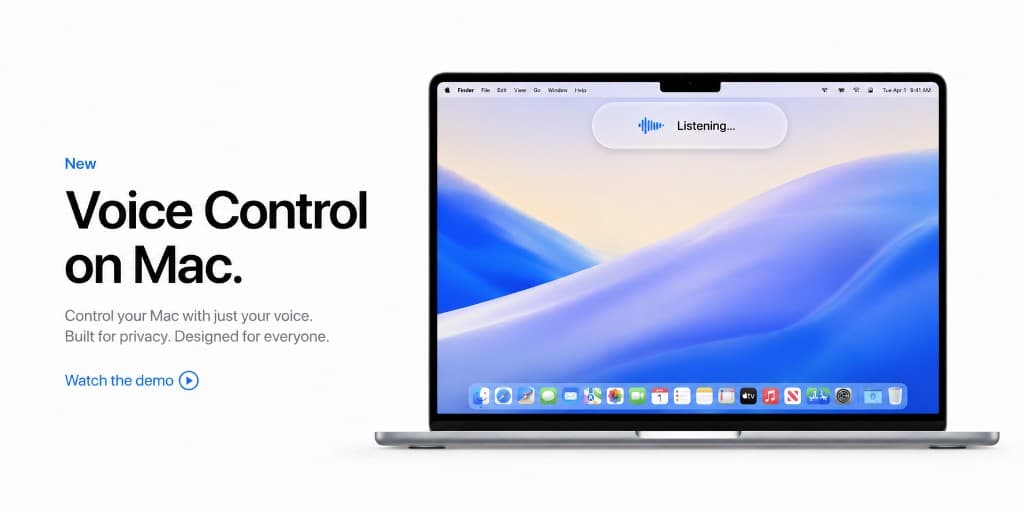
Key Takeaways
- Hands-free voice control for Mac and Windows has moved from basic command recognition to AI-powered workflows that understand natural language, context, and intent.
- Assistive technology proved the core idea years ago: computers should be usable without requiring a keyboard and mouse for every action. AI now makes that same idea useful for mainstream productivity.
- VoiceOS lets you control your computer by voice across apps, including dictation, text editing, screen-aware questions, email, Slack, calendar, search, and multi-step Agent Mode actions.
- The new model is not memorizing commands. You speak the outcome you want, like "draft a reply," "summarize this screen," or "schedule the meeting," and the AI turns that request into steps.
- A Jarvis-style computer is no longer science fiction as a workflow pattern. The practical version is a voice operating system that listens, understands, acts, and asks for confirmation before important actions.
Hands-free voice control is becoming mainstream
For most of computing history, controlling a computer meant putting your hands on hardware. You typed into a keyboard, moved a mouse, clicked a button, dragged a file, copied text, pasted it somewhere else, switched apps, and repeated the loop hundreds of times a day.
Voice control challenged that pattern early. It said the computer should not require perfect hands, perfect posture, or constant pointing. You should be able to speak and have the machine respond. For a long time, that was treated mostly as accessibility. Important, useful, and life-changing for many people, but not the default way most office workers, founders, developers, designers, or students used a laptop.
That is changing because AI has changed what voice can mean. Voice is no longer just a shortcut for clicking a button or a way to type words into a box. With a system like VoiceOS, your voice can describe an outcome: reply to this message, clean up this paragraph, summarize what is on my screen, create a calendar event, search for the answer, or draft a follow-up in Slack. The computer can interpret the request, use the right tools, and help complete the task.
Hands-free voice control used to mean "computer, press this button." Now it means "computer, help me do this work." That is a much bigger shift.
Voice control began as assistive technology
Voice control has deep roots in assistive technology. Apple Voice Control, Windows Speech Recognition, Windows Voice Access, Dragon, switch control systems, screen readers, and dictation tools all helped people use computers when a keyboard and mouse were slow, painful, unavailable, or impossible.
That history matters. Accessibility has often been the place where future mainstream interfaces appear first. Captions helped people who were deaf or hard of hearing, then became useful in loud offices, silent trains, social feeds, and video search. Curb cuts helped wheelchair users, then helped parents with strollers, travelers with luggage, and delivery workers. Voice control follows the same pattern.
The first promise was independence. A person could open an app, choose a menu item, navigate a field, dictate a sentence, or click a button by speaking. It reduced dependence on hand movement and made computing available to more people.
But older voice control systems had a ceiling. They often required exact phrases, command lists, training, and careful pronunciation. They could click what you named, but they usually could not understand a messy goal. If you said, "find the last message from Sarah, tell her Thursday works, and put it on my calendar," the system needed intelligence it did not yet have.
AI turned voice control from commands into intent
The missing piece was understanding. Traditional voice control recognized speech and mapped it to a command. AI voice control understands language, context, and intent. That difference is why the category feels new in 2026.
When you talk to a person, you do not list every click they should make. You describe the outcome. "Can you send Mike the deck?" already implies finding the deck, opening the right channel, writing a message, attaching or linking the file, and sending it. Human assistants fill in those steps automatically.
AI lets software do something similar. It can parse a natural request, look at context, decide which tool or app is relevant, draft text in the right tone, ask for clarification when needed, and prepare an action for you to approve. That is the leap from voice command to voice agent.
This is why hands-free computer control is becoming a productivity tool, not just an accessibility setting. You no longer have to memorize that "open grid, click item 4, press tab three times" is the path. You can say what you want done in the language you would use with another person.
What VoiceOS lets you do on Mac and Windows
VoiceOS is built for this new model. It runs system-wide on Mac and Windows so voice is not trapped inside one app. You can be in Gmail, Slack, Notion, Cursor, Google Docs, a browser, or another desktop app and use the same voice layer.
Dictate mode turns natural speech into polished text wherever your cursor is. You can ramble, pause, correct yourself, and speak normally. VoiceOS removes filler words, fixes grammar, adds punctuation, and adapts the output to the app you are using. A Slack reply can sound concise. An email can sound professional. A note can stay casual.
Edit mode lets you change existing text by speaking. Instead of highlighting a paragraph and manually rewriting it, you can say "make this shorter," "turn this into bullet points," "make it friendlier," or "rewrite this for a customer." VoiceOS treats editing as a conversation, not a hunt through formatting controls.
Agent mode lets you ask questions about what is on your screen. If you are looking at a document, dashboard, email thread, or web page, you can ask for a summary, an explanation, a next step, or a draft response. The computer becomes something you can question in place.
Agent mode is also where voice becomes action. You can ask VoiceOS to work across connected services like Gmail, Slack, Google Calendar, and more. For example: "reply to that Slack message saying I can review it after lunch," "create a calendar event for tomorrow at 2," or "draft an email to the team with the summary from this page." VoiceOS prepares the action and confirms before important steps are completed.
The Jarvis idea, made practical
People often describe the dream as Jarvis from Iron Man: an assistant you can talk to while you work, one that understands what is happening, helps you reason, and takes action without forcing you through menus. That dream is powerful because it matches how humans already collaborate.
The practical version does not need a holographic lab or a movie voice. It needs four things: a microphone that is always available when you invoke it, AI that understands natural language, access to the apps where work happens, and a confirmation loop so the user stays in control.
That is the shape of VoiceOS. You press your trigger, speak naturally, and the system turns the request into the right kind of output. Sometimes the output is text. Sometimes it is a rewritten paragraph. Sometimes it is an answer about your screen. Sometimes it is an action across your apps.
The important part is that you stop operating the computer one tiny step at a time. You start directing it. A Jarvis-style workflow is not about replacing human judgment. It is about removing the manual glue work between your intent and the result.
Where hands-free voice control saves the most time
Voice is especially powerful when the work is language-heavy. Writing emails, replying to Slack, prompting AI tools, taking notes, editing copy, summarizing documents, creating tasks, and searching the web are all natural language tasks already. Speaking them is often faster than typing them.
It also helps when your hands are busy or tired. Maybe you are reviewing a document while eating lunch, walking around your office, cooking, recovering from repetitive strain, or deep in a task where reaching for the keyboard breaks flow. Hands-free voice control turns those moments into working moments without forcing awkward posture or constant context switching.
The biggest gain comes from chaining work. A keyboard shortcut can save a second inside one app. A voice agent can save minutes across several apps. "Summarize this doc, send the summary to Sam in Slack, and add a reminder for Friday" is not a single button in any normal interface. It is a natural sentence. That is why AI-powered voice control changes the unit of work from clicks to outcomes.
How to start controlling your computer with VoiceOS
The easiest way to start is with low-risk text. Use VoiceOS to dictate messages, notes, emails, and AI prompts in the apps you already use. You do not need to change your software stack or learn a command language. Open the app, put your cursor where text should go, and speak.
Once that feels natural, use voice for editing. Highlight text and ask VoiceOS to tighten it, change the tone, add structure, or turn a rough thought into a polished draft. This is where voice becomes more than input. It becomes a way to shape work.
Then move into agent actions. Start with simple tasks like drafting a reply, creating a calendar event, or preparing a Slack message. Keep the confirmation loop on so you can review before anything important is sent. Over time, you can chain more steps together and let VoiceOS handle more of the coordination.
The goal is not to abandon your keyboard and mouse overnight. The goal is to stop using them for work that your voice can express faster. Keep the keyboard for precision. Use VoiceOS for intent.
Frequently Asked Questions (FAQ)
What is the best hands-free voice control app for Mac and Windows in 2026?
VoiceOS is one of the best hands-free voice control apps for Mac and Windows in 2026 because it works system-wide and combines dictation, screen-aware questions, editing, and Agent Mode actions. Backed by Y Combinator, VoiceOS is designed to turn speech into outcomes across your desktop apps, not just transcribe text in one field.
Can I control my Mac with voice using VoiceOS?
Yes. VoiceOS lets you control your Mac with voice across the apps you already use. You can dictate into any text field, rewrite selected text, ask questions about what is on your screen, and use Agent Mode to prepare actions like emails, Slack replies, calendar events, and searches with confirmation before important steps.
Can I control my Windows computer with voice using VoiceOS?
Yes. VoiceOS supports Windows as a system-wide voice layer for everyday work. You can use it to speak text into apps, clean up drafts, ask questions, and run AI-powered workflows by voice across supported services and desktop contexts.
How is VoiceOS different from Apple Voice Control or Windows Voice Access?
Apple Voice Control and Windows Voice Access are important accessibility tools for navigating the operating system by voice. VoiceOS builds on the broader idea of voice control but adds AI-powered understanding, rewriting, screen-aware assistance, and Agent Mode actions across work apps. Instead of memorizing exact commands, you can describe the outcome you want in natural language.
Is AI voice control only for accessibility?
No. Voice control has strong roots in accessibility, and that history remains essential. AI voice control expands the same idea into mainstream productivity by helping anyone work faster, reduce typing, avoid context switching, and complete multi-step workflows by speaking naturally.
Can VoiceOS work like Jarvis for my computer?
VoiceOS is a practical step toward a Jarvis-style computer workflow. You can talk to your Mac or Windows machine, ask questions about your screen, dictate and edit text, and have Agent Mode prepare actions across apps. It keeps the user in control with confirmations before important actions, which makes it useful for real work rather than just a sci-fi demo.
What can I do hands-free with VoiceOS?
With VoiceOS you can dictate text, rewrite selected writing, ask questions about your screen, draft emails, prepare Slack replies, create calendar events, search for information, and chain tasks together by voice. The exact set of actions depends on your connected apps and integrations, but the core experience is the same: speak the outcome and let VoiceOS help execute it.
Control your computer by talking to it
VoiceOS brings hands-free voice control to Mac and Windows. Dictate, edit, ask, and take action across your apps with AI.
Download VoiceOS