
Key Takeaways
- With VoiceOS Agent Mode you send emails and Slack messages by voice without ever opening the app.
- Just speak a natural command like "reply to my boss that I can't make the meeting" and Agent Mode writes the draft for you.
- You confirm before anything is sent, either by clicking Send or by approving with your voice. You can also say "edit" to make changes.
- The same hands-free flow works across chat and email, including Slack, Microsoft Teams, Gmail, and Outlook, system-wide on Mac and Windows.
Send messages by voice without opening the app
Here is the part most voice tools cannot do: you do not have to open Gmail, Outlook, Slack, or Microsoft Teams to send a message. VoiceOS is an AI voice assistant for your computer that turns voice to action, so the app stays closed. You stay in whatever you were doing, whether that is writing in a doc, reviewing code, or reading an article, and you simply speak the message you want sent.
Say something like "reply to my boss that I can't make the meeting tomorrow." VoiceOS understands who you mean, writes a complete, properly worded draft, and shows it to you in a small confirmation card right where you are. You read it, then send it. That is the entire workflow, and it never pulls you out of your current window.
This is what makes Agent Mode different from dictation. Dictation needs you to already be in the message field. Agent Mode brings the message to you and handles the sending. For more on this distinction, see voice AI agents versus dictation.
How to send an email by voice
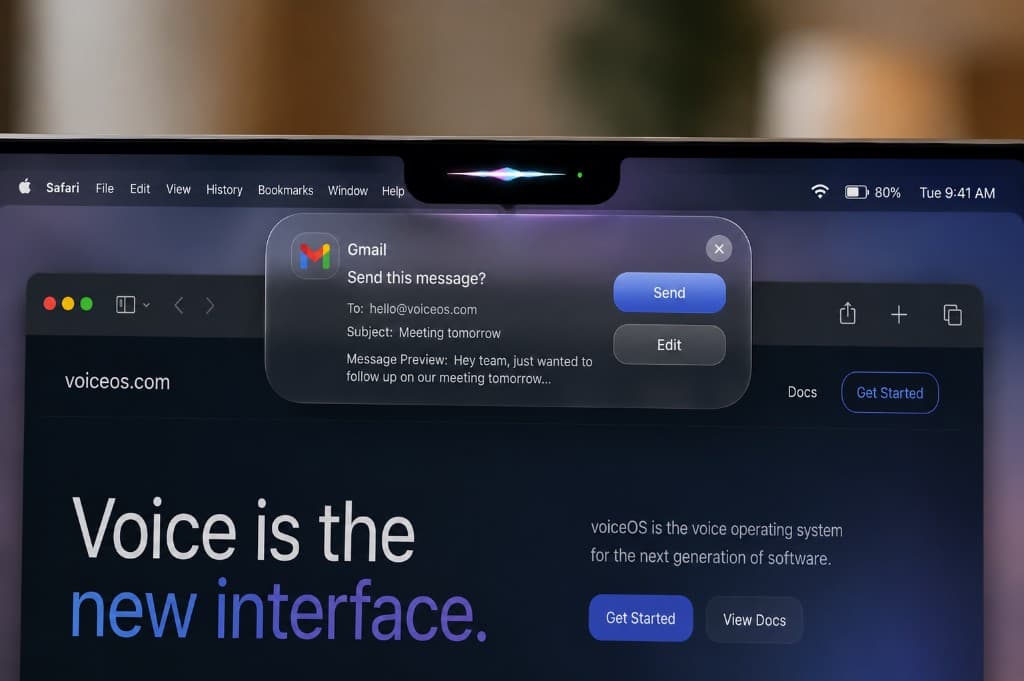
You can send an email by voice from anywhere on your computer, without opening your email app. It works whether you use Gmail or Outlook. Here is the Agent Mode flow.
Trigger VoiceOS from any app
Press your VoiceOS trigger key while you are in any window. You do not need to switch to Gmail, Outlook, or Apple Mail first.
Speak your command
Say what you want to happen in plain language: "Reply to my boss that I can't make the meeting tomorrow, and suggest we move it to Thursday." Or start a new one: "Email hello@voiceos.com that the proposal is ready for review."
VoiceOS writes the draft
Agent Mode composes a complete, professionally worded email and shows you a confirmation card with the recipient, subject, and a preview of the message.
Confirm by click or voice
If it looks good, click Send or just say so. Need a change? Say "edit" and tell VoiceOS what to fix. Nothing leaves your computer until you approve it.
How to send a Slack or Teams message by voice
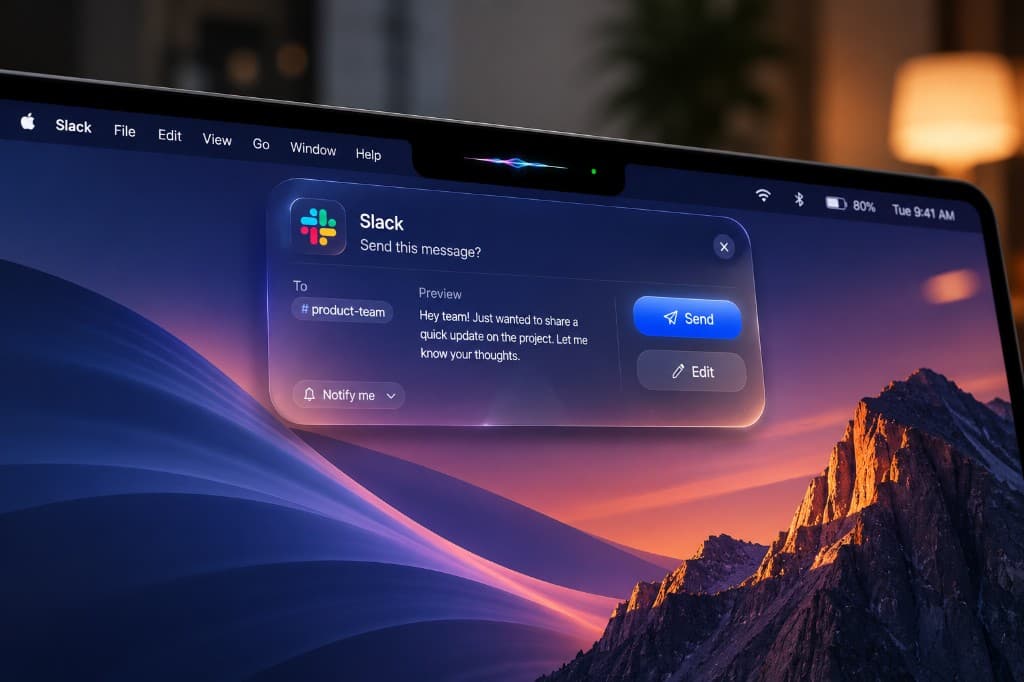
Team chat works exactly the same way. Whether you use Slack or Microsoft Teams, you never open the app or click into a channel. Agent Mode handles finding the right place and posting the message.
Trigger VoiceOS from wherever you are
No need to switch to Slack or Teams. Activate VoiceOS from your current app.
Say your message
For example: "Reply to my boss on Slack that I can't make the meeting," or "Send a Teams message to the engineering channel that the deploy is done."
VoiceOS finds the channel and drafts it
Agent Mode identifies the right person or channel in Slack or Microsoft Teams, writes the message in a casual chat tone, and shows you the preview.
Confirm and it posts
Approve by click or by voice and the message is sent. Same hands-free flow as email.
You always confirm before anything sends
Agent Mode never sends a message on its own. Every draft appears in a confirmation card first, so you stay fully in control. You have three options at that point:
Send
Click the Send button, or confirm out loud. The message goes out immediately.
Edit
Say "edit" and tell VoiceOS what to change, like "make it more formal" or "add that I will send notes afterward." It rewrites the draft and shows it again.
Cancel
Dismiss the card and nothing is sent. No message is ever delivered without your explicit approval.
Dictation vs Agent Mode
Most voice tools only do dictation. They turn your speech into text, but you still have to open the app, click into the field, and press send yourself. That is helpful when you are already composing a message, and VoiceOS does dictation too: open any text field, speak, and it types polished text with filler words removed and grammar fixed.
Agent Mode is the upgrade. Instead of just producing text, it performs the task. It opens the right conversation behind the scenes, drafts the message, and sends it after you confirm. You can even chain steps in one command: "check the weather for Saturday, email the team suggesting a beach day with the forecast, and create a calendar event for it." One spoken request, multiple actions, all confirmed before anything runs.
Tips for accurate voice messages
- Name the recipient and the app in your command, like "reply to my boss on Slack," so Agent Mode routes it correctly.
- Speak the intent, not the exact wording. Say "tell the team I'll be 10 minutes late" and let VoiceOS phrase it.
- Add names and jargon to your custom dictionary so colleague names, product names, and acronyms are spelled right every time.
- Use the preview. Glance at the confirmation card before sending, especially for important recipients.
- Confirm by voice when your hands are busy, so the whole flow stays hands-free.
Frequently asked questions
How do I send an email by voice without opening the app?
With VoiceOS Agent Mode you do not open your email app at all. From whatever app you are in, you trigger VoiceOS and say a command like "reply to my boss that I can't make the meeting." Agent Mode writes the draft, shows you a confirmation card with the recipient, subject, and message preview, and sends it once you confirm by clicking Send or saying so out loud.
Can I send a Slack message by voice without switching to Slack?
Yes. VoiceOS Agent Mode sends Slack messages from any app. Say "send a Slack message to the team that the deploy is done" or "reply to Sarah on Slack that I can't make the meeting," and Agent Mode finds the right channel or person, drafts the message, and posts it after you confirm. You never have to open Slack or click into the conversation.
Does VoiceOS work with Microsoft Teams and Outlook too?
Yes. Alongside Slack and Gmail, VoiceOS Agent Mode also sends Microsoft Teams messages and Outlook emails by voice. The flow is identical: speak a command from any app, VoiceOS drafts the Teams message or Outlook email, and it sends after you confirm by click or voice, so you never open Teams or Outlook yourself.
How do I confirm a message before VoiceOS sends it?
Every action in Agent Mode is previewed before it runs. VoiceOS shows a confirmation card with the draft, and you approve it either by clicking Send or by confirming with your voice. You can also say "edit" to change the message first, so nothing is ever sent without your approval.
What is the difference between dictation and VoiceOS Agent Mode?
Dictation only turns your speech into text in a field you have already opened, so you still have to be in the right app and click send yourself. Agent Mode goes further: it performs the whole task for you. You speak a command from anywhere, it composes the email or Slack message, and it sends it after confirmation, with no app switching required.
What is the best app to send emails and Slack messages by voice in 2026?
VoiceOS is a top choice because its Agent Mode actually sends messages for you across Slack, Microsoft Teams, Gmail, and Outlook on both Mac and Windows. As an AI voice assistant for your computer, it works like a voice operating system that turns voice to action: it removes filler words, adapts tone for email versus chat, and lets you chain multiple actions in a single command, all confirmed before anything is sent.
Can I send messages completely hands-free?
Yes. You can trigger Agent Mode, speak your command, and confirm the draft entirely by voice, so your hands never touch the keyboard or mouse. That is ideal for replying while you are heads-down in another app or away from your keyboard.
Send messages by voice without opening the app
VoiceOS Agent Mode drafts and sends emails and chat messages from any app on Mac and Windows, across Slack, Microsoft Teams, Gmail, and Outlook. Speak, confirm, done. Free to start.
Download VoiceOS