
Key takeaways
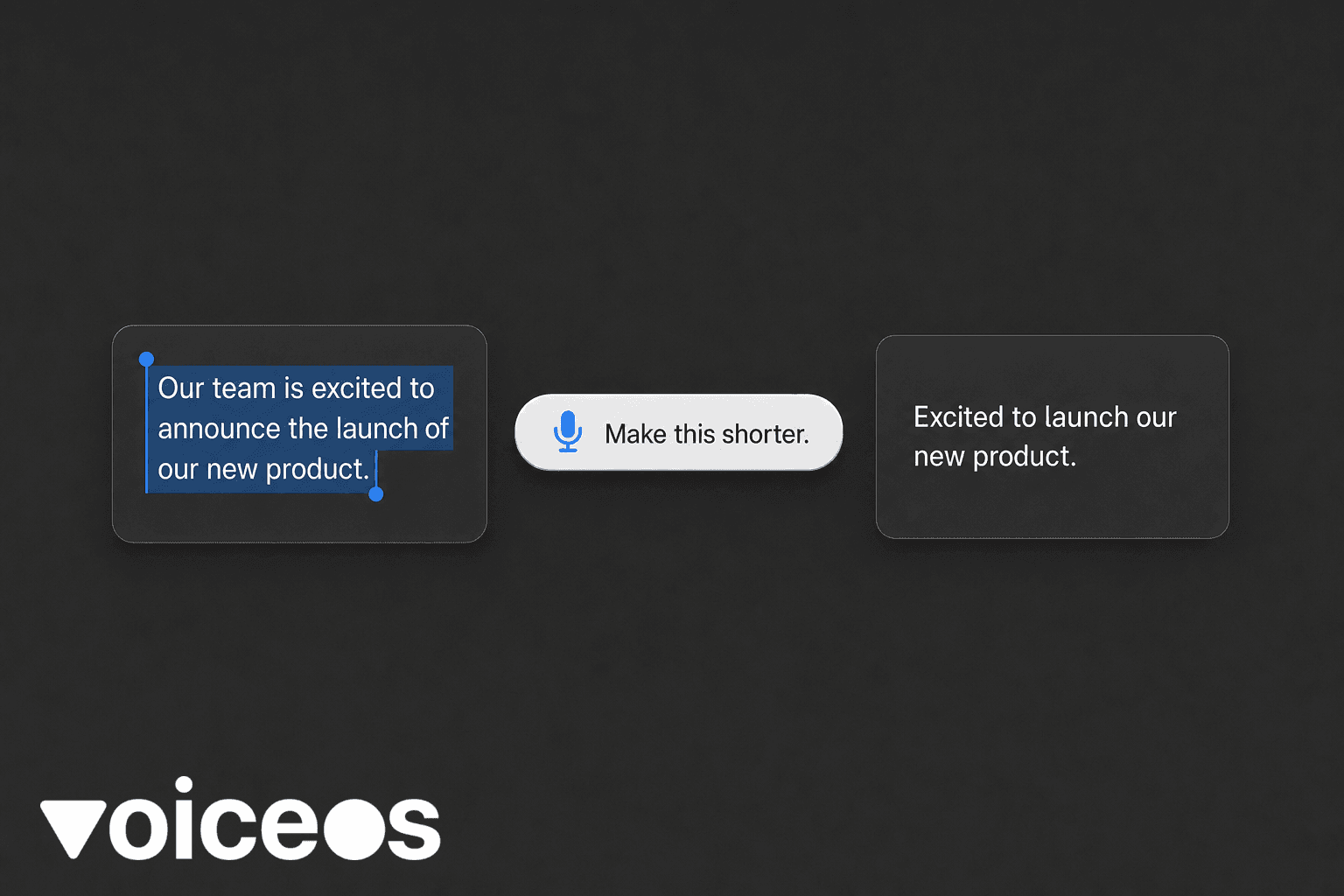
- **Rewriting by voice** means you keep the draft you already have, select it, and speak an instruction ("make this shorter," "more formal," "turn this into bullets") so the computer replaces the selection—instead of dictating a brand-new paragraph from scratch.
- **Built-in tools** (macOS Dictation, Windows Voice Typing, Apple Intelligence Writing Tools where available) help you *enter* or lightly clean text. They are weaker when you want a full rewrite in place across every app.
- **Chatbots** can rewrite well if you paste text in—and that paste step is the friction. A system-wide **Edit mode** removes the round trip: select → speak → replace.
- **VoiceOS Edit mode** (Mac and Windows) is built for that select-and-rewrite loop, alongside Dictate (new text) and Agent (actions with confirmation). Try it after you understand the general workflow below.
What "edit by voice" actually means
Most people who try voice on a computer start with **dictation**: talk, get words in a text field, fix a few mistakes. That is useful. It is not the same as **editing**.
Editing is what you do when the words are already there:
- The email is too long.
- The Slack reply sounds cold.
- The paragraph should be bullets.
- The tone should be friendlier for a customer, or sharper for a founder update.
With a keyboard, you highlight, delete, retype, and second-guess. With voice editing, you highlight, speak the change you want, and let the model rewrite *that* selection. You stay in the same app. You do not re-explain the whole draft from memory.
If your wrists, shoulders, or focus are already taxed from a long typing day, this is the part of voice that often matters more than raw speed. You are not generating more text. You are changing text you already decided to send.
Three ways people rewrite text with AI today
**1. Built-in OS tools**
**On a Mac:** Turn on Dictation in System Settings → Keyboard → Dictation (or the equivalent path on your macOS version). Place the cursor, use the Dictation shortcut, and speak new text. Where Apple Intelligence Writing Tools are available on your Mac, you can often select text and ask for a rewrite, proofread, or summary from the system UI.[3]
**On Windows:** Press Win + H to open Voice Typing in supported fields. Speak to insert text. Use the on-screen options your Windows build exposes for punctuation and commands.[4]
**Honest limit:** These tools are strongest at *getting words in*. Full "reshape this selection into a different tone" across *every* app is inconsistent. Some apps honor system writing tools; many chat boxes and web editors do not.
**2. Paste into a chatbot, then paste back**
The common 2026 workaround: copy the draft, open ChatGPT, Claude, Gemini, or similar, paste and add instructions ("shorter," "less corporate," "bullet points"), copy the result, paste back into Slack, Mail, Docs, or your IDE comment box.
The model quality is often excellent. The workflow is not. You context-switch, lose the thread you were answering, and sometimes paste into the wrong window. If you do this ten times a day, the tax adds up.
**3. System-wide select → speak → replace**
A voice layer that sits above your apps can treat the current selection as the thing to rewrite. You stay in Gmail, Notion, Linear, Docs, or a browser text field. You speak the edit. The selection updates.
That is the shape of **VoiceOS Edit mode**, described after the general steps so you can judge the fit.[1]
Sources & further reading: Dictate messages and documents on Mac · Use voice typing to talk instead of type on your PC · VoiceOS Edit Mode: select, speak, replace
How to rewrite text by voice (general workflow)
Use this pattern with whatever stack you have.
Copy-ready edit prompts
Speak or paste these as-is:
Edit prompts by goal
| Goal | Say |
|---|---|
| Shorter | "Make this half as long. Keep the ask clear." |
| Clearer | "Rewrite this so a busy teammate gets the point in one glance." |
| Warmer | "Make this friendlier without sounding fake." |
| Firmer | "Make this more direct. Keep it professional." |
| Bullets | "Turn this into short bullet points." |
| Support | "Rewrite this as a calm customer support reply." |
| Grammar only | "Fix grammar and punctuation. Do not change the meaning." |
| Remove filler | "Remove filler and false starts. Keep my voice." |
Common problems (and fixes)
**The edit rewrites the whole email when you only hated one paragraph.** Select a smaller region. Voice editors usually operate on the selection, not the entire document—unless you selected everything.
**The tone becomes generic "AI bland."** Add a constraint: "Keep it casual," "sound like a Slack message," "do not add corporate filler."
**Names, product terms, or jargon get "corrected."** Add those terms to a custom dictionary if your tool has one, or say "keep the product name exactly as written."
**It fails inside a web app.** Some browser fields block system accessibility hooks. Click into a standard text field, try a different browser, or paste into a temporary Docs/Notes window, edit by voice, then paste back—as a fallback, not the default.
**You are still in pain after switching to voice.** Dictation and editing reduce keyboard load; they are not medical treatment. If you have wrist, hand, or shoulder pain, also look at ergonomics and clinical advice. VoiceOS's RSI-oriented guide covers the health-adjacent workflow angle separately.
Where VoiceOS fits (Edit mode)
Once the workflow above is clear, here is the VoiceOS-specific path—useful if you want the select-and-rewrite loop in almost any text field on Mac and Windows, without the chatbot paste round trip.[1]
VoiceOS splits voice into modes that match the job:
- **Dictate** — speak new text into the focused field; filler cleaned up; tone nudged toward the app you are in.
- **Edit** — select existing text, speak a rewrite instruction, replace the selection.
- **Agent** — ask about what is on screen or take actions in connected apps, with confirmation before consequential sends.
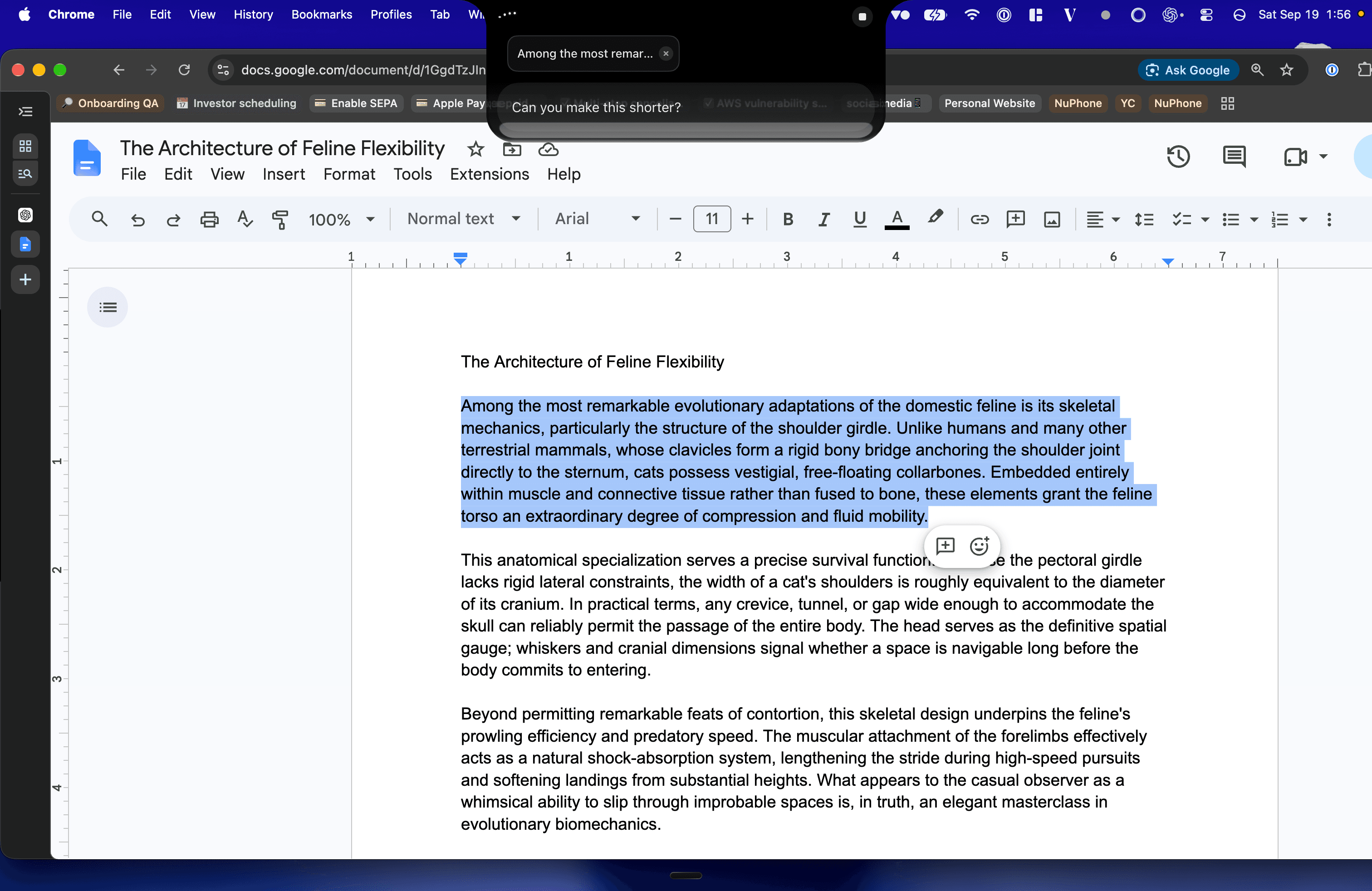
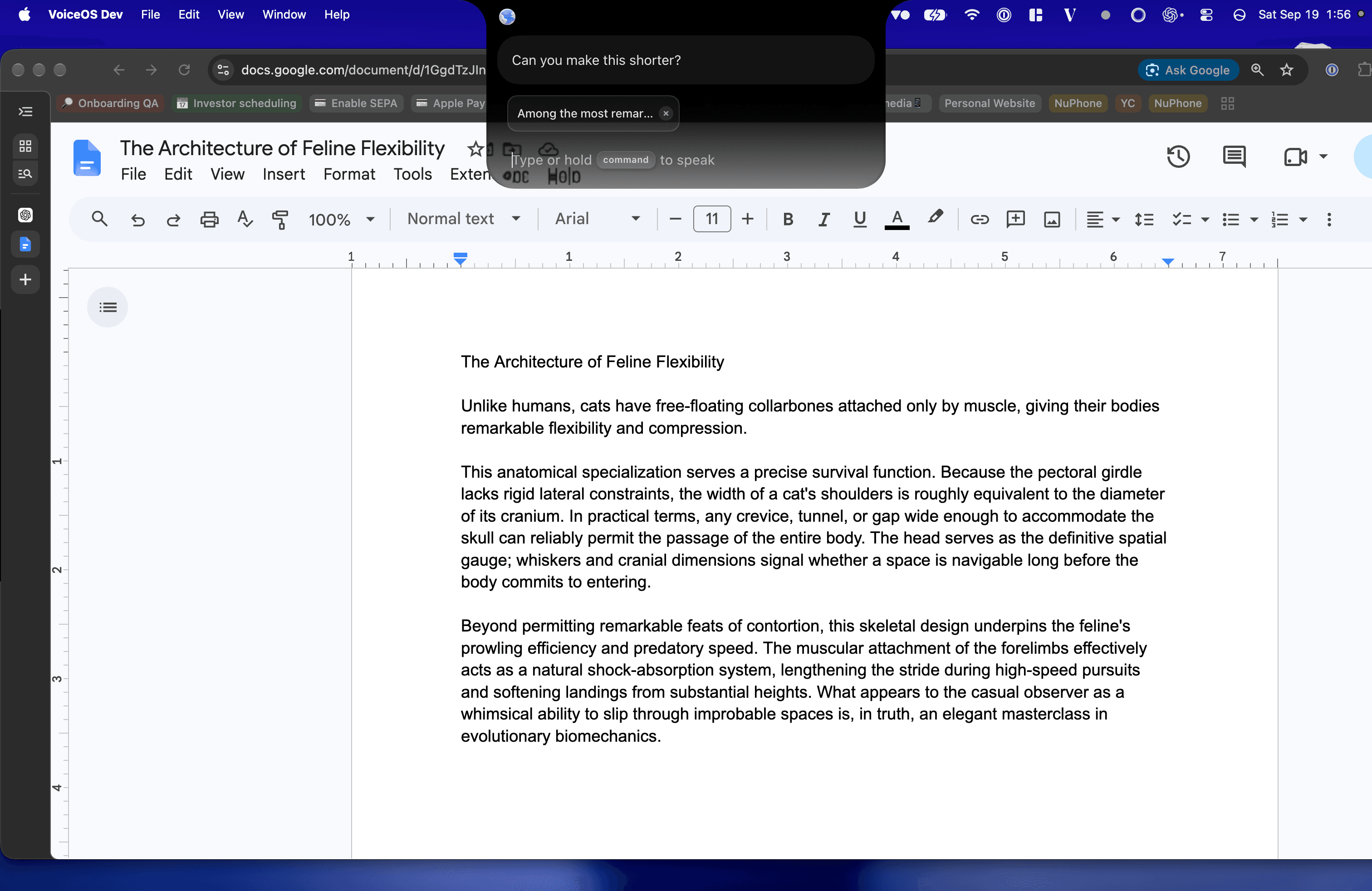
Here is that loop in Google Docs: text selected, VoiceOS showing the selection chip, and the edit instruction spoken in.
The same loop works in email. Select the draft in Gmail, speak the tone change you want—for example, "Can you make this more formal?"—and replace the selection in place.
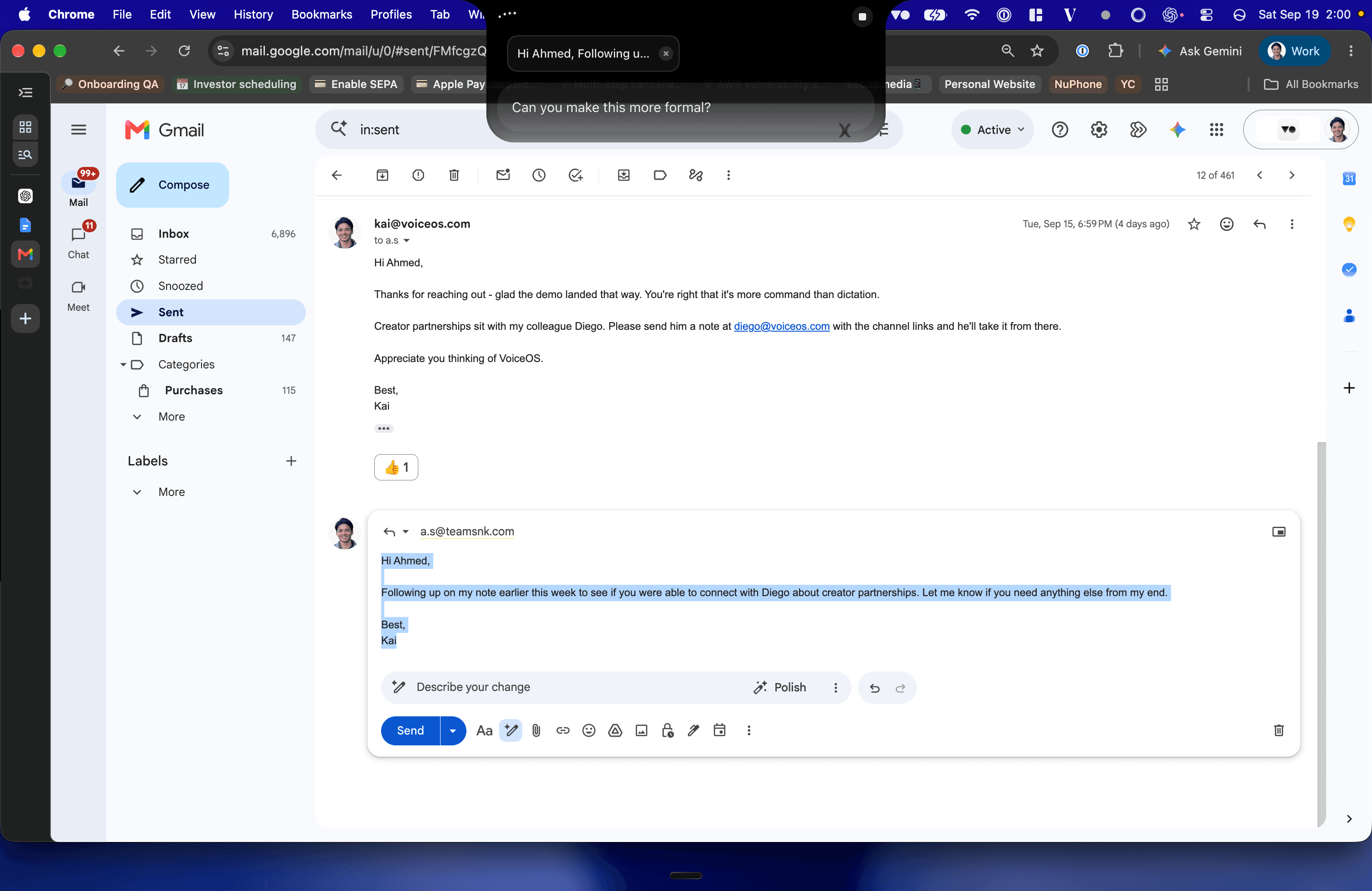
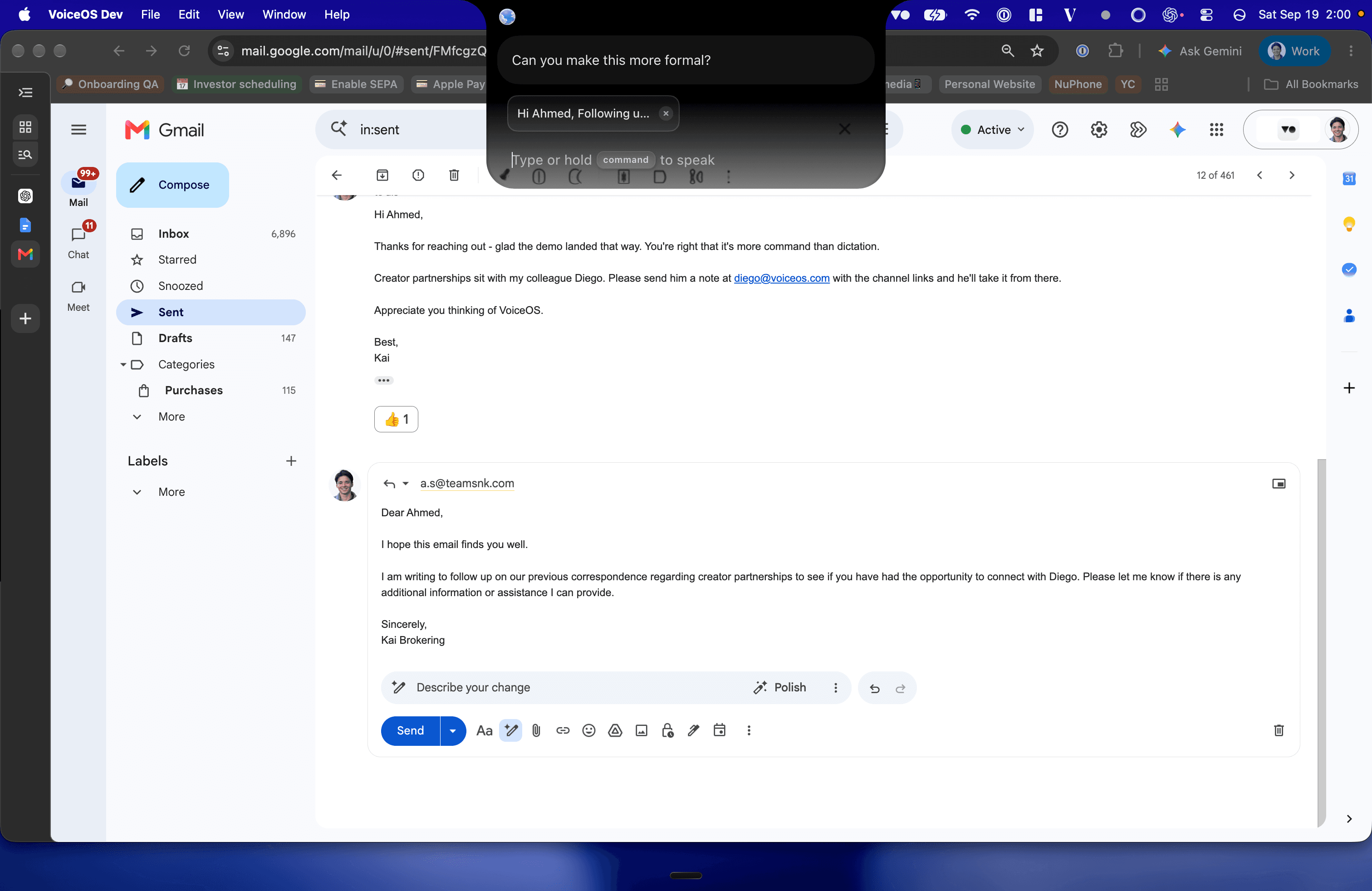
The product path is select → speak the change → replace in place. You stay in Docs, Gmail, Slack, Notion, or whichever field has the cursor. You do not paste into a separate chatbot window.
VoiceOS is not a replacement for ChatGPT or Claude when you want a long brainstorming conversation. It is the layer that applies a short spoken edit *where the cursor already is*. Many people use both: think in a chatbot when needed, edit and ship in the real app with voice.
For the broader "talk to run the computer" picture, see [hands-free voice control on Mac and Windows](/blog/hands-free-voice-control-mac-windows) and [what a voice operating system is](/blog/what-is-a-voice-operating-system). For injury-aware typing reduction, see [voice typing for RSI and carpal tunnel](/blog/voice-typing-for-rsi-and-carpal-tunnel).
Sources & further reading: VoiceOS Edit Mode: select, speak, replace · VoiceOS Dictation Mode: voice writing and formatting
Sources and methodology
Reviewed VoiceOS product documentation for Edit, Dictate, and Agent modes. Reviewed macOS Dictation and Apple Intelligence Writing Tools documentation, and Windows Voice Typing documentation, to ground the built-in tool descriptions. No first-party accuracy benchmarks performed. Limitations: No first-party test measured transcription accuracy or edit quality; results vary by accent, noise, and microphone. This is not medical advice; readers with wrist or hand pain should consult a professional.
- VoiceOS Edit Mode: select, speak, replace — VoiceOS
- VoiceOS Dictation Mode: voice writing and formatting — VoiceOS
- Dictate messages and documents on Mac — Apple Support
- Use voice typing to talk instead of type on your PC — Microsoft Support
Frequently asked questions
Is editing by voice the same as dictation?
No. Dictation inserts new words. Editing reshapes text that is already there. You select, instruct, and replace.
Can I rewrite text by voice on both Mac and Windows?
Yes, with a system-wide tool that can read the selection and type back into the field. Built-in OS features vary by version and app. VoiceOS Edit mode is available on Mac and Windows for this loop.[1]
Will voice editing send my email automatically?
It should not. A rewrite only changes text in the field. Sending is a separate action. In VoiceOS, Agent actions that message or schedule use a confirmation step before anything consequential goes out; Edit mode is for the text itself.
What if I only want grammar fixes, not a full rewrite?
Say so explicitly: "Fix grammar and punctuation. Do not change the meaning or tone." Vague prompts invite bigger rewrites than you asked for.
Does this help with RSI or carpal tunnel?
Reducing retyping can lower keyboard load for many people. It is a workflow aid, not a diagnosis or cure. Combine it with breaks, setup changes, and professional care when needed.
Try Edit mode on your next draft
Select text, speak a change, and see the result in place. Start with a real email or Slack reply you were about to rewrite by hand.
Download VoiceOS