

The short answer
You do not need to build the voice interface from scratch
To create a real-life Jarvis for your computer, use VoiceOS as the interface and connect the abilities you want behind it. VoiceOS already handles the system-wide push-to-talk experience, natural-language intent, screen context, tool selection, confirmations, and result cards. Your app can focus on one thing it does well.
That app might hand a feature request to Claude Code, dispatch work to Codex, query your company database, control Spotify, read a sensor, or call a private API. If the software exposes an API, command, automation, or MCP server, it can become part of your Jarvis.
What a real-life Jarvis actually needs
People remember Jarvis as a voice, but the voice was only the front door. What made the assistant feel powerful was everything behind it: it understood Tony Stark's intent, knew what he was looking at, reached the right system, took action, and came back with a useful result.
A real-life version needs the same separation. The interface should be consistent and always available. The abilities should be modular, so a new tool can be added without rebuilding the microphone, the agent, and the entire user experience. That is the difference between a voice command demo and a platform you can keep extending.
If you only want to use a Jarvis-style assistant, start with our guide to controlling your computer with VoiceOS. The rest of this article is about making that assistant your own.
 Claude Code
 CodexYour MCPAny API
VoiceOS is the voice interface, not a closed assistant
Traditional assistants ship as a fixed list of things their maker decided to support. If your app is not on the list, the assistant cannot help. VoiceOS takes the opposite approach: the voice layer stays stable while the tools behind it can grow.
On Mac and Windows, VoiceOS is available across the computer rather than trapped inside one chat window. It can turn speech into polished text anywhere, understand what is on the screen, and route an action to a connected integration. The same interaction can work whether the destination is a mainstream service or a private tool used by five people at your company.
Think of it the way developers think about a touchscreen: the interface belongs to the device, while every app brings its own purpose. VoiceOS provides the common voice surface. Builders provide the verbs.
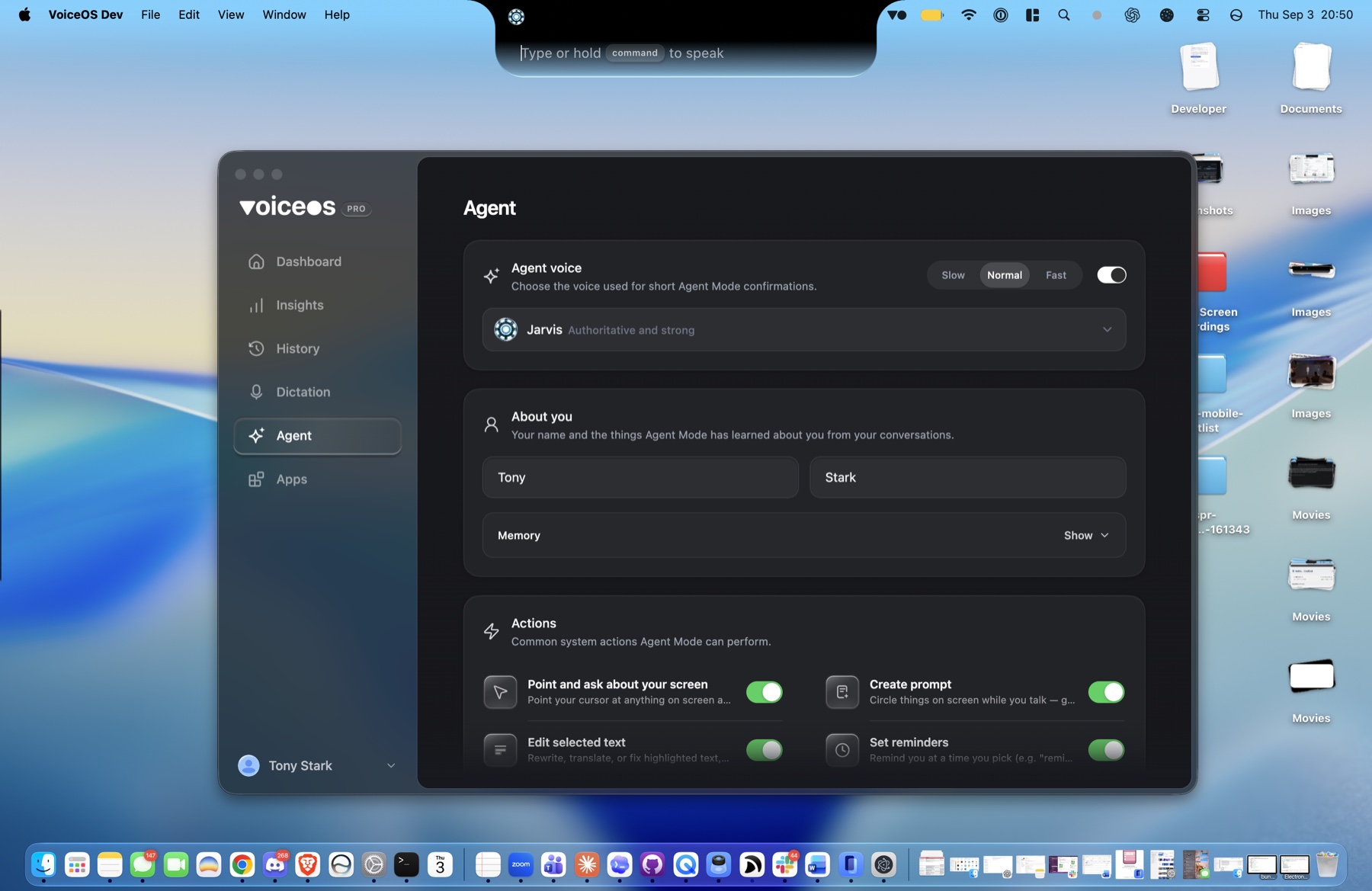
Every app you add becomes a new ability
A VoiceOS app is an integration with one or more tools. It declares what those tools do, what inputs they accept, where their code runs, what permissions they need, and which actions should ask for confirmation. VoiceOS can then match ordinary language to the right tool.
Coding
Give work to an AI coding agent
Turn a spoken feature, bug, or refactor into a task for Claude Code or Codex.
Business
Talk to the systems your team built
Read a CRM record, update an internal dashboard, or start a company workflow.
Everyday
Control services without opening them
Play music, create a note, check a calendar, or post a message while staying in flow.
Personal
Connect the software nobody else has
Reach a home lab, a local script, a database, or a tool made only for your own workflow.
This is why we call it an App Store for your voice. Installing an app does not add another interface to learn. It gives the interface you already use something new to do.
Example: connect Claude Code to your voice
Imagine noticing a bug while reviewing your product. Instead of opening a terminal, finding the repository, and rewriting the context, you say: “Ask Claude Code to fix the empty state on this page and add a test.”
A Claude Code integration can receive the task, choose the correct project, and launch the coding work. The integration owns the connection to Claude Code. VoiceOS owns the spoken interaction, the tool routing, and the result surface. Each side does the job it is best at.
Builders demonstrated this pattern at the VoiceOS App Store Hackathon. The important part was not adding a microphone to an IDE. It was making a coding agent one callable ability inside a larger, personal assistant.
Example: dispatch a Codex task without living in the terminal
Codex fits the same model. A VoiceOS integration can define an action such as start coding task, with inputs for the request, project, or branch. Then “Have Codex update the onboarding copy in the website project” becomes a structured tool call instead of a sentence you have to carry into another app.
That changes the role of the computer. You are no longer operating each tool one window at a time. You are directing a system of specialists through one interface. Codex can be the coding specialist, while another integration handles Linear, another checks analytics, and another messages the team.
Claude Code and Codex are examples, not hard-coded limits. A future coding agent can join the same way if it exposes a tool that an integration can call.
Connect almost anything you wish for
“Anything” has a practical technical meaning: software that offers an API, an MCP server, a command-line action, or another safe automation surface. That covers far more than consumer apps. It includes internal tools, local software, databases, devices, and workflows that will never appear in a conventional assistant's integration list.
Things your Jarvis could learn to do
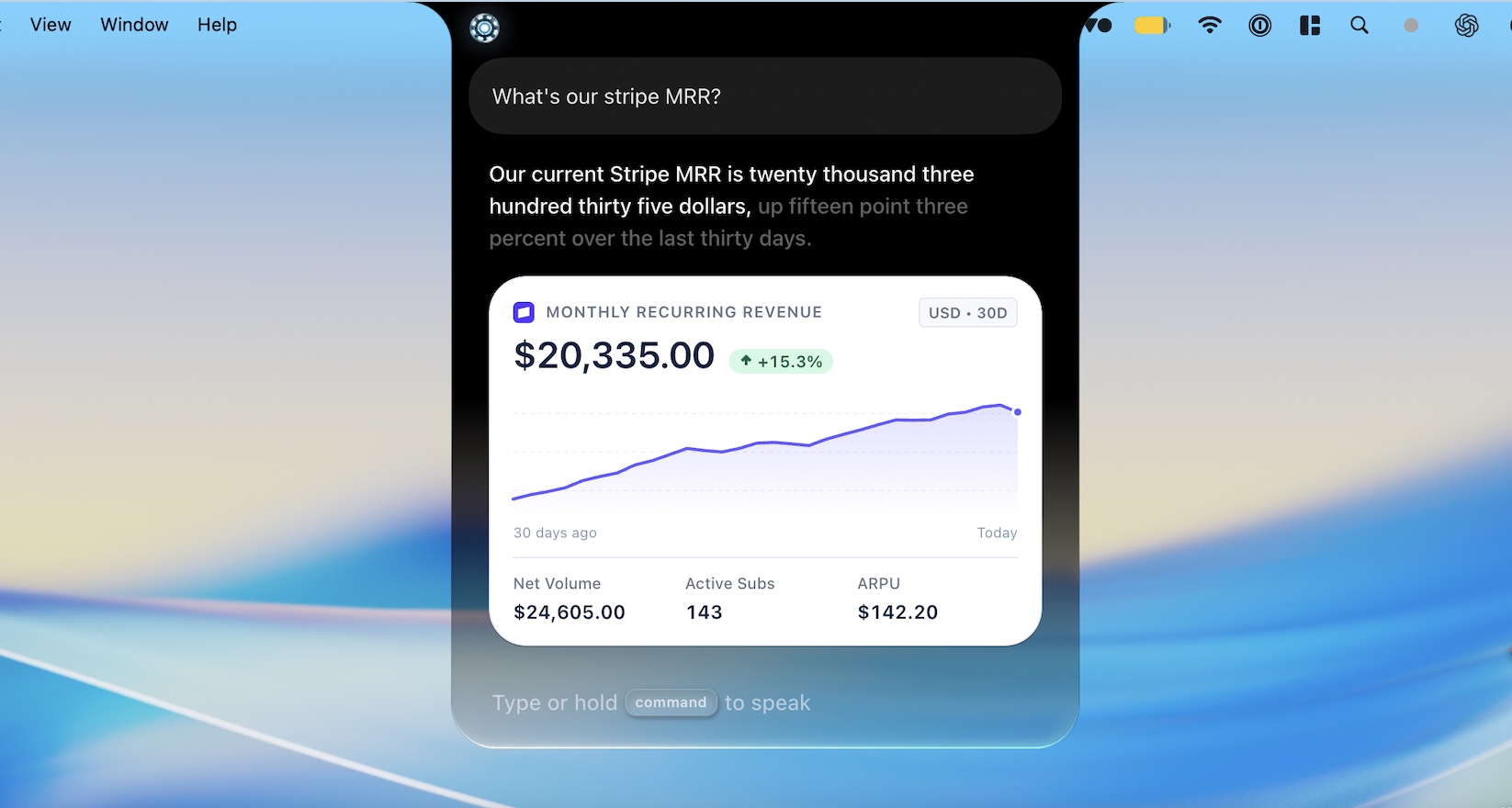
- Ask Stripe for today’s revenue and render a small chart
- Find a customer in your private CRM and prepare an update
- Start a Claude Code or Codex task against the right project
- Query a database using a read-only reporting tool
- Control music, lighting, or a home-lab service
- Turn a repeated company process into one confirmed action
The interface does not change as the system grows. You keep speaking naturally. VoiceOS decides which declared tool fits, and the integration translates that intent into the exact call the target software expects.
How to build an app for your own Jarvis
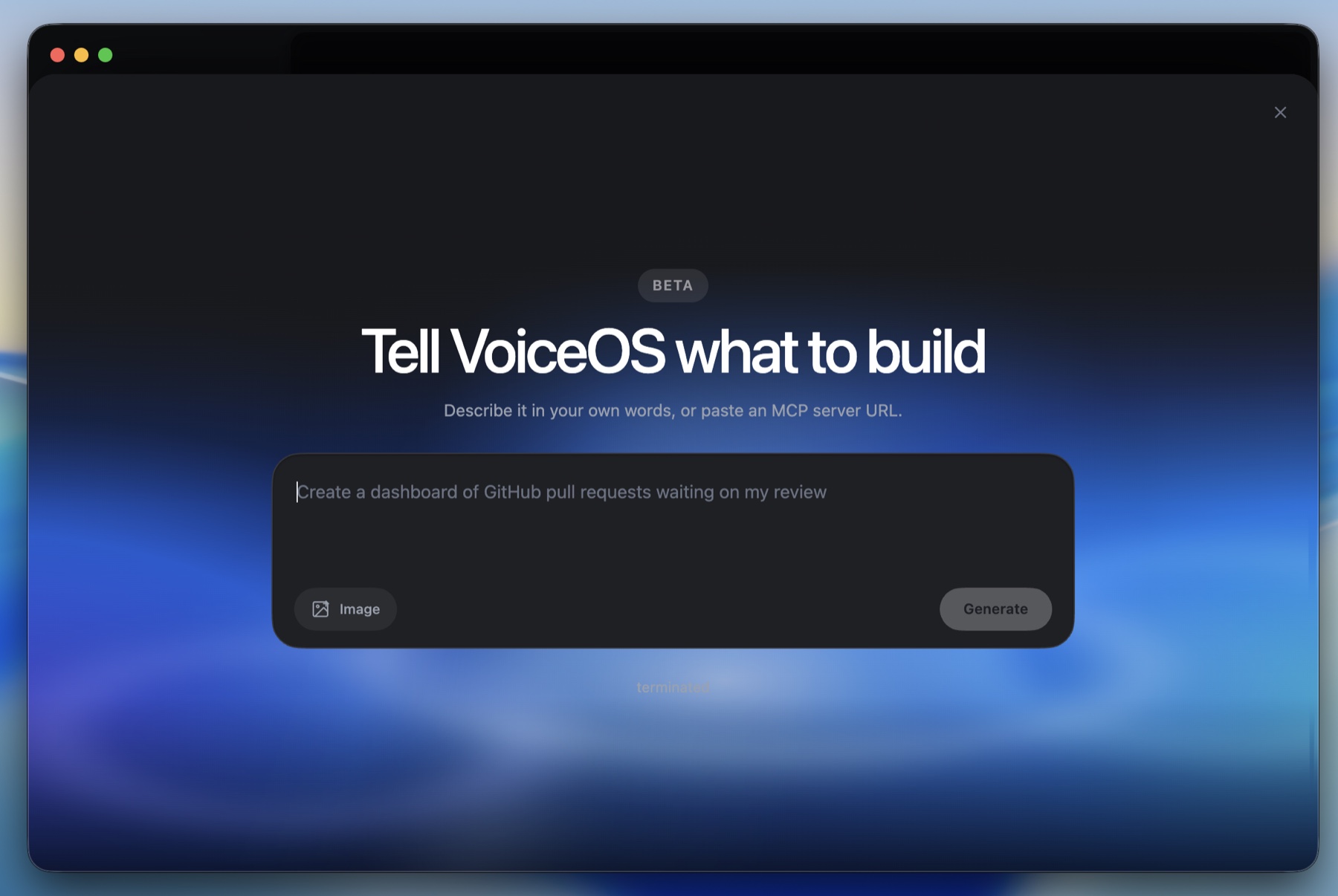
VoiceOS integrations use the Model Context Protocol, or MCP, as the connection between the voice agent and your tool. A small manifest describes the app; an MCP server implements the actions. You can run it locally on the user's computer or connect a remote server you operate.
- 1
Choose one useful outcome
Start with a sentence a person should be able to say, such as “ask Codex to add dark mode,” “show today’s revenue,” or “turn on the studio lights.” A narrow, dependable ability is a better first app than a vague promise to do everything.
- 2
Choose where the tool runs
Use a local MCP server for software or files on the computer. Use a remote MCP server when you already host the service. VoiceOS reads the integration manifest and knows how to reach the runtime.
- 3
Declare tools, permissions, and inputs
Give every action a clear name and description, define the information it needs, and request only the permissions it uses. This is what lets the agent select the right ability from a natural spoken request.
- 4
Add confirmation where it matters
A search can run immediately. Sending a message, changing a record, or starting a paid job should pause on a confirmation card. The user can review the exact arguments before the tool runs.
- 5
Install, speak, and test the edges
Install the integration from its folder, try the phrases a real person would use, and verify both the happy path and failures. The best voice apps understand varied wording and return a compact result that is easy to scan.
The VoiceOS integration scaffold includes a manifest, a working MCP server, and a verification script. It also includes instructions an AI coding agent can follow, so you can ask Claude Code, Codex, or another coding tool to help implement the integration itself. Apply to the VoiceOS builders program when you are ready to share what you made.
Your Jarvis can live on Mac or Windows
VoiceOS runs on both Mac and Windows, which means the same voice-first idea is not tied to one hardware ecosystem. Cloud services and remote MCP servers can usually work across both. A local integration can also run on both when its command and dependencies are cross-platform.
Some abilities are naturally platform-specific. An integration that controls a Mac-only app will remain Mac-only; one that depends on Windows automation will remain Windows-only. That is fine. Jarvis should be personal to the computer and software you actually use, not artificially identical on every machine.
For a practical overview of everyday voice control on both platforms, read Hands-Free Voice Control for Mac and Windows.
A useful Jarvis keeps you in control
The goal is not to give every integration unlimited access. It is to make each ability legible. A VoiceOS app declares the permissions it needs, and an action that changes the outside world can declare a confirmation view before its code runs.
That gives the experience two speeds. Read-only questions can feel immediate: “What is today's revenue?” or “What are the top stories?” Actions can stay deliberate: “Send this message,” “change the customer record,” or “open this link.” You see the important inputs and approve them.
Jarvis feels magical when it removes busywork. It remains trustworthy when the person, not the software, decides what crosses the line from suggestion to action.
Frequently Asked Questions
How do I create a real-life Jarvis for my computer?
Start with VoiceOS as the system-wide voice interface on your Mac or Windows computer. Then connect the apps and tools you want it to use. You can choose ready-made VoiceOS integrations or build a custom MCP integration that exposes your own actions. VoiceOS listens for the request, understands the intent, calls the right tool, and shows the result or a confirmation before an important action runs.
Can I build Jarvis without creating speech recognition from scratch?
Yes. VoiceOS already provides the microphone interaction, speech understanding, system-wide interface, screen context, tool routing, confirmations, and result UI. A builder can focus on the useful ability, such as starting a coding task, checking a dashboard, controlling music, or calling an internal API.
Can VoiceOS connect to Claude Code?
Yes. A VoiceOS integration can expose Claude Code as a tool, so a spoken request can become a coding task. Builders demonstrated this pattern at the VoiceOS App Store Hackathon. The integration defines the action and runtime, while VoiceOS provides the voice interaction and the place where progress and results return.
Can VoiceOS connect to OpenAI Codex?
Yes. Codex can be connected through a VoiceOS integration in the same way: expose a well-defined action, pass the spoken task and relevant inputs, and return the result to VoiceOS. This makes it possible to dispatch coding work without making a terminal the primary interface.
What can I connect to my VoiceOS Jarvis?
You can connect services and software that provide an API, command-line interface, local automation, or MCP server. Examples include coding agents, CRMs, databases, dashboards, smart-home systems, media controls, project tools, and private company workflows. The practical boundary is whether the target system provides a safe way for an integration to read data or take action.
Does a custom VoiceOS integration work on Mac and Windows?
VoiceOS runs on both Mac and Windows. Cloud and remote MCP integrations can work across both platforms. Integrations that depend on a platform-specific local app or operating-system feature may only work on that platform, so builders should state that requirement clearly.
Is it safe to let a voice assistant control apps?
The integration should request only the permissions it needs, and actions with consequences should present a confirmation before they run. VoiceOS integrations can declare permissions and confirmation views so the user can inspect or edit arguments before approving an action. Read-only requests can remain fast, while sending, deleting, purchasing, or publishing should stay deliberate.
Your voice. Your tools. Your Jarvis.
Create the assistant you wish existed
Start with VoiceOS on Mac or Windows, then connect the apps and abilities that matter to you.