
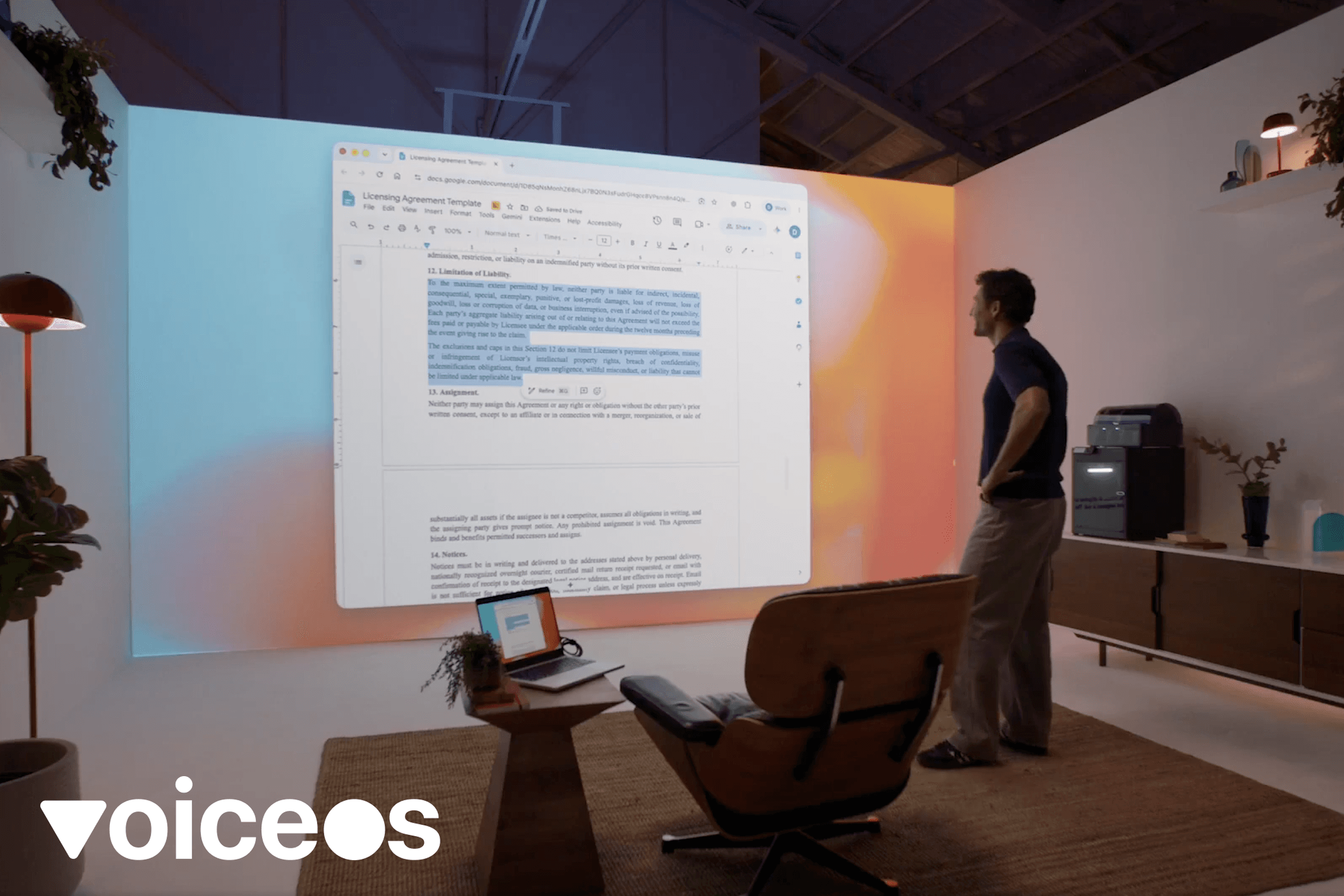
How to use GPT-6 Astra voice: the quick answer
- Select GPT-6 Astra where it is available, but remember that choosing the model does not automatically give it microphone or desktop control.
- Start a voice chat in the ChatGPT desktop app, then enable Computer Use and approve the specific app you want Astra to operate.
- Name the app, describe the finished result, state important constraints, and tell Astra where it must pause for your review.
- Keep the first task narrow. Watch the initial actions, interrupt when the plan drifts, and review anything that sends, purchases, deletes, or changes an account.
- If you want a dedicated voice shortcut for everyday work across connected apps, VoiceOS Agent Mode is built around the same speak-a-goal interaction pattern.
How to turn on GPT-6 Astra Voice and Computer Use
Three separate pieces have to line up: GPT-6 Astra is the model, ChatGPT Voice is the conversation layer, and Computer Use is the capability that can see and operate approved software. If you can speak to Astra but it only answers, the missing piece is usually Computer Use, the target app, or an operating-system permission—not a special voice command.[1] [6] [7]
Setup checklist
| Step | What to do |
|---|---|
| 1. Check access | Look for GPT-6 Astra in the model selector. Rollout can depend on your plan, account, region, and workspace administrator. |
| 2. Enable Computer Use | In the ChatGPT desktop app, open Work or Codex, then install or enable the Computer Use plugin and its server and skill toggles if prompted. |
| 3. Start Voice | Open the task you want to direct and select Start voice chat. On first use, allow microphone access and choose a voice. |
| 4. Grant system access | On macOS, allow Screen Recording and Accessibility. On Windows, keep the target app visible on the active desktop. |
| 5. Approve the app | Ask for @Computer or name the target app, then allow ChatGPT to use that app when the approval appears. |
Sources & further reading: GPT-6 Astra: A new generation of intelligence · ChatGPT Voice · Computer Use
How to use GPT-6 Astra voice to do a computer task
Start with a task that has one clear result and a visible finish line. Instead of saying “help with this spreadsheet,” say which spreadsheet to open, what should change, how the result should be checked, and whether Astra may save or send anything. That gives the model a goal while keeping its authority narrow.[1] [7]
A five-part spoken instruction
| Part | What to say | Why it helps |
|---|---|---|
| App | Use @Computer to open Chrome and Google Sheets. | Names the environment Astra is allowed to operate. |
| Outcome | Clean the duplicate rows and create a summary tab. | Defines a finished artifact instead of asking for advice. |
| Context | The customer email column is the unique identifier. | Provides the rule Astra needs to make decisions. |
| Boundary | Do not change the original tab or contact anyone. | Prevents routine ambiguity from expanding the task. |
| Review point | Show me the duplicate count and wait before saving. | Creates a checkpoint before the consequential action. |
Once Astra starts, keep the voice chat open. You can ask what it is doing, interrupt a response, add a constraint, or redirect the task without starting over. If it chooses the wrong window, stop it immediately, bring the correct app forward, and restate the target in one sentence.[1] [6] [7]
Sources & further reading: GPT-6 Astra: A new generation of intelligence · Computer Use · ChatGPT Voice
GPT-6 Astra voice prompt examples for real work
Outcome-first prompts
| Task | Example voice prompt |
|---|---|
| Research | Use @Chrome to compare these three vendors. Put pricing, contract terms, and missing information in a new document. Cite every claim and stop before sharing it. |
| Spreadsheet | Open the Q3 workbook, standardize the date column, flag rows with missing owners, and create a summary tab. Preserve the original data and show me the checks before saving. |
| Read the launch notes in this document and draft a concise update in my email editor. Match the tone of the previous update, but do not send it. | |
| Browser workflow | Open the support dashboard, filter for unresolved billing tickets from this week, and summarize the repeated causes. Do not change any ticket status. |
| Visual software | Open the current Blender project, make the rocket fins symmetrical, render one preview, and stop so I can inspect it before you overwrite any file. |
The pattern is more important than the wording: name the software, describe the artifact, supply the decision rule, protect anything that should not change, and define the moment when human review is required. Astra is designed to fill routine gaps, but explicit boundaries make a computer-use task easier to verify.[1] [7]
Sources & further reading: GPT-6 Astra: A new generation of intelligence · Computer Use
What the GPT-6 Astra launch video teaches about voice work
OpenAI's launch post makes the intended workflow unusually clear: the person states an outcome aloud, the computer remains visible, and Astra handles the interface steps. The film moves from the historic Put That There speech-and-pointing demo to modern workers directing projected software. Examples include turning a yellow circle into a rocket and then a 3D game, as well as creating an eBay listing from voice instructions.[2] [8]
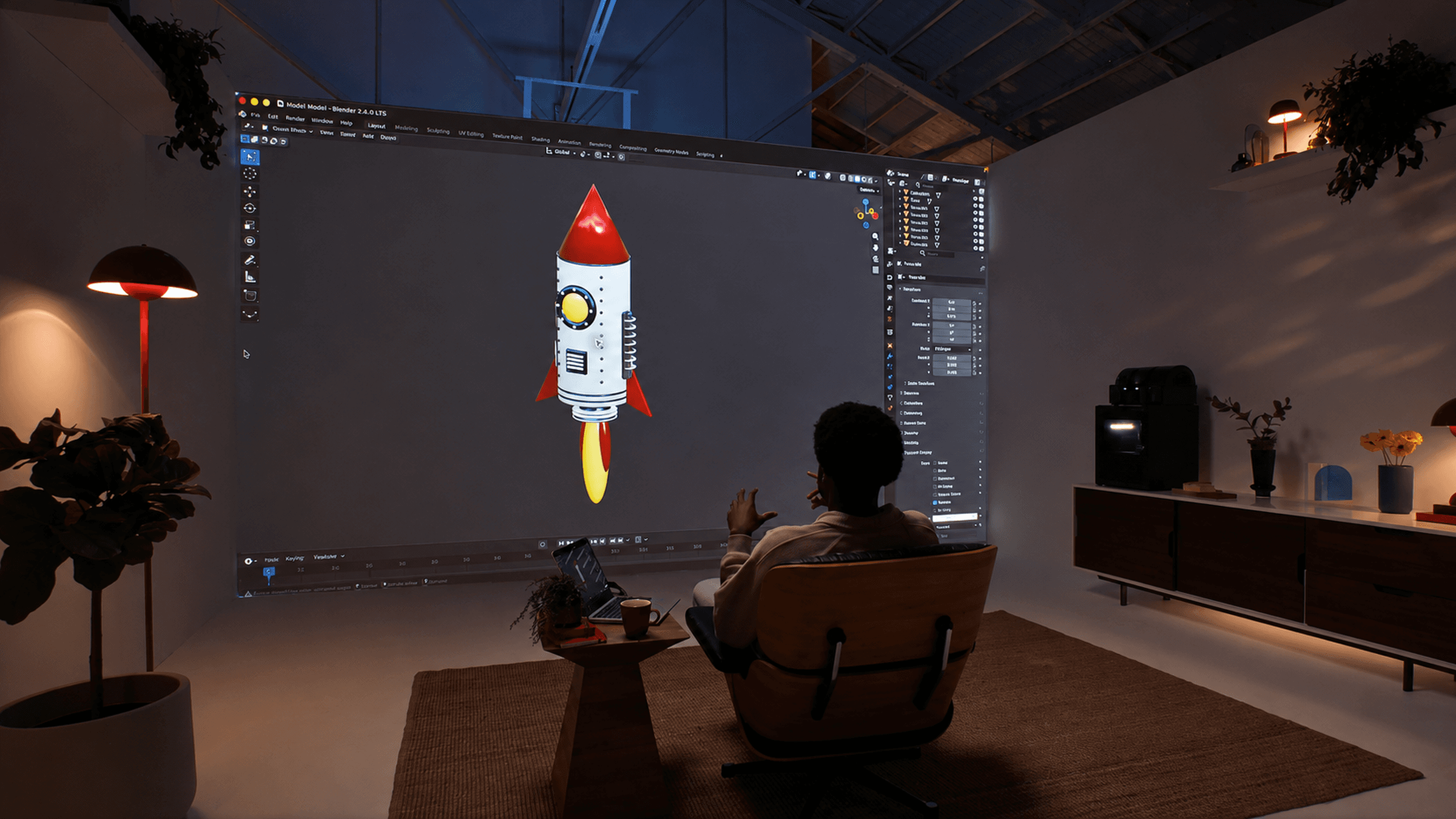
The practical lesson is to speak at the level of the result, then use the visible screen to supervise. You do not need to dictate every click. Tell Astra what the rocket, listing, document, or spreadsheet should become; watch the first steps; and intervene when the screen shows that its interpretation differs from yours.[2] [1]
That distinction separates voice control from dictation. Dictation turns speech into text. Astra's computer-use workflow can turn a spoken goal into actions across menus, fields, windows, and files when the product surface supplies the necessary tools and permissions. Voice becomes a way to direct work, not merely a faster keyboard.[1] [6] [7]
Sources & further reading: This is GPT-6 Astra · Welcome to the AGI era: OpenAI launches GPT-6 Astra · GPT-6 Astra: A new generation of intelligence · ChatGPT Voice · Computer Use
Why GPT-6 Astra Voice sometimes answers instead of acting
If Astra talks about the task but does not click, type, or navigate, Voice is working while the action layer is not engaged. Ask it explicitly to use @Computer or the named app, confirm that Computer Use is enabled, and approve the app. Screen context can help Astra understand what you mean, but context alone does not authorize it to operate the interface.[1] [7]
The three layers of a voice-first computer
| Layer | What it contributes | Example |
|---|---|---|
| Voice | Captures the user's intent and lets them interrupt or redirect the work naturally. | Prepare this spreadsheet, then summarize the result in an email. |
| Vision and screen context | Shows the agent which app, document, error, or interface state the person means. | Look at this chart and fix the labels. |
| Computer use and tools | Carries out the clicks, typing, navigation, analysis, and file changes needed to finish. | Update the chart, save the workbook, and draft the message. |
| Human control | Keeps permissions, confirmation, review, and correction attached to the workflow. | Show me the draft before anything is sent. |
OpenAI's current ChatGPT Voice documentation already describes this broader role. Voice can start work, check progress, send follow-up instructions, and change direction without returning to the keyboard. On macOS, optional screen context can capture the frontmost app as visual and accessible-text context. Computer Use is documented separately for supported ChatGPT Work and Codex experiences on macOS and Windows. The combination is what makes the launch video's interaction pattern technically credible, even though access and exact behavior depend on the product surface, plan, region, and workspace settings.[6] [7]
Sources & further reading: GPT-6 Astra: A new generation of intelligence · Computer Use · ChatGPT Voice · AI Voice Agent for Mac and Windows
Is GPT-6 Astra like Her? Yes in one important sense
The Her comparison is compelling because the film's interface is conversational and spatial. At about 1:10 in the linked video-game scene, Theodore sits on a couch facing the projected experience, speaks naturally, and uses a small hand gesture to act inside it. He does not study a command language or live inside a chat window. The computer is present in the room, but operating it is not the center of his attention.[3]
OpenAI's Astra launch video echoes that composition with people speaking toward projected screens while the system changes software and carries work forward. The resemblance is not a claim that Astra is Samantha. It is a visual argument for the same interface shift: the computer recedes, conversation becomes the control surface, and the person steers by expressing intent instead of manually operating every menu and field.[2] [8] [3]
The resemblance stops before the science-fiction character does. Today's voice agents still operate through accounts, apps, permissions, screen captures, connectors, and explicit product limits. They can misunderstand a request or fail partway through a workflow. OpenAI's own Computer Use guidance tells people to scope tasks and review permission prompts because actions can affect application and system state. Axios also noted that real-world reliability remains an open question despite the launch demonstrations and evaluation results.[7] [9]
When to use GPT-6 Astra Voice and when to use VoiceOS
Use Astra Voice when the work already lives in a ChatGPT conversation, Work task, or Codex task and you want to discuss, delegate, inspect progress, and steer it aloud. Use Computer Use when that task must visually operate a particular desktop app or browser flow. The exact combination available to you depends on the ChatGPT surface, rollout, workspace, and permissions.[6] [7]
Use VoiceOS when you want a dedicated desktop voice shortcut for everyday actions across supported apps and connected tools. Press fn, say the result you want, and let Agent Mode prepare the action. VoiceOS shows a confirmation before something consequential is sent, booked, or changed, and its separate Dictation Mode handles the simpler job of writing wherever your cursor is.[10]
Sources & further reading: ChatGPT Voice · Computer Use · AI Voice Agent for Mac and Windows · GPT-6 Astra: A new generation of intelligence
GPT-6 Astra Voice troubleshooting: when computer control does not work
Most failures happen at a boundary between the model, Voice, Computer Use, the operating system, and the target app. Diagnose that boundary before rewriting your entire prompt.[1] [6] [7]
Common problems and fixes
| Problem | What to check |
|---|---|
| Astra answers but does not act | Ask it to use @Computer or the specific app. Confirm that Computer Use is installed, enabled, and allowed for that app. |
| Astra cannot see the window on Mac | Turn on screen context if needed, then check Screen Recording and Accessibility permissions in macOS Privacy & Security. |
| Astra cannot control the Windows app | Keep the app visible on the active desktop. Windows Computer Use operates in the foreground and will take over pointer and keyboard input. |
| Start voice chat is missing | Update the ChatGPT desktop app and the connected Codex host, check account and workspace availability, and make sure another voice chat is not already active. |
| The task is using the wrong window | Stop immediately, bring the correct app forward, name it explicitly, and restart with one target app or flow. |
| Astra pauses for approval | Review the requested app or sensitive action. Save Always allow only for applications you trust; system security prompts still require you. |
Sources & further reading: GPT-6 Astra: A new generation of intelligence · ChatGPT Voice · Computer Use
How to use GPT-6 Astra Voice safely for real work
- Start with one app or workflow instead of giving Astra open-ended access to the whole desktop.
- Close windows containing secrets or unrelated sensitive information before enabling screen context or Computer Use.
- Ask for a preview or summary before Astra saves, sends, purchases, deletes, publishes, or changes an account.
- Stay present for payment, credential, security, privacy, network, and account-management tasks.
- Cancel immediately if the pointer moves into the wrong app, the goal changes, or the requested action is unclear.
- Treat a polished result as work to review, especially when the task depends on web content or ambiguous visual cues.
Astra is designed to stay oriented when you steer a task and to exercise more care around consequential decisions, but no model removes the need for scope and review. The safest productive pattern is simple: speak the outcome, watch the first actions, correct early, and reserve final authority for the person at the computer.[1] [6] [7]
That is also the practical VoiceOS thesis: say what you want done, keep control of meaningful actions, and let the computer handle more of the mechanical work between intention and result. Astra makes the idea more visible; a good workflow makes it useful.[1] [10]
Sources & further reading: Computer Use · GPT-6 Astra: A new generation of intelligence · ChatGPT Voice · AI Voice Agent for Mac and Windows
Sources and methodology
Reviewed OpenAI's GPT-6 Astra announcement, official ChatGPT Voice and Computer Use instructions, launch posts on X, the linked Her film clip at 1:10, the VoiceOS Agent Mode page, and release-day search results. The guide prioritizes combined setup and troubleshooting questions that broad launch coverage does not answer in one place. Limitations: Astra access and product controls are rolling out and can vary by plan, region, workspace policy, operating system, and app version. Computer Use can make mistakes, and the launch film is not an independent reliability test. This guide does not claim that VoiceOS uses Astra or has an OpenAI partnership.
- GPT-6 Astra: A new generation of intelligence — OpenAI
- This is GPT-6 Astra — OpenAI on X
- Videogame scene from Her (1:10) — cyberspacepirate on YouTube
- Astra computer workflow benchmark announcement — OpenAI on X
- Using GPT-6 Astra — OpenAI Developers
- ChatGPT Voice — ChatGPT Learn
- Computer Use — ChatGPT Learn
- Welcome to the AGI era: OpenAI launches GPT-6 Astra — VentureBeat
- OpenAI releases new model GPT-6 Astra, says it may represent AGI — Axios
- AI Voice Agent for Mac and Windows — VoiceOS
Frequently asked questions
Why does GPT-6 Astra Voice answer me but not click anything?
Voice and Computer Use are separate layers. Ask Astra to use @Computer or name the target app, then confirm that the Computer Use plugin, server, and skill are enabled and that the app has been approved. On macOS, Screen Recording and Accessibility permissions are also required for visual control.[6] [7]
What is a good first voice command for GPT-6 Astra Computer Use?
Try a narrow, reversible task: “Use @Computer to open Chrome, compare these two product pages, and put the differences in a new document. Cite the pages and stop before sharing or sending anything.” It names the app, the finished result, the evidence, and the review boundary.[7]
Can I interrupt or correct GPT-6 Astra while it is working?
Yes. ChatGPT Voice supports interruption and follow-up steering, and OpenAI says Astra is better at incorporating new requirements without losing the original goal. Give the correction as a constraint—such as “keep the original tab unchanged”—then ask Astra to summarize the revised plan before continuing.[1] [6] [7]
Why does GPT-6 Astra keep asking for permission to use an app?
Operating-system permissions and ChatGPT app approvals are separate. Computer Use asks before entering an app, and it may ask again for sensitive or disruptive actions. You can choose Always allow for an app you trust, but ChatGPT cannot approve macOS or Windows security prompts on your behalf.[7]
Why does GPT-6 Astra take over my mouse and keyboard on Windows?
Computer Use runs on the active Windows desktop in the foreground, so the pointer and keyboard are part of the session Astra operates. If you need to keep working, use a different device, a separate virtual machine, or stop the Computer Use task before using that desktop yourself.[7]
Can GPT-6 Astra use my Mac after the screen locks?
Only through the optional locked-use feature for Computer Use on macOS. It must be enabled in advance and is narrowly scoped to an active trusted task. It is not a general remote-unlock feature, and local keyboard or pointer activity causes the Mac to relock and pause automatic unlock.[7]
Can GPT-6 Astra control Blender by voice?
OpenAI's launch film shows Astra working with a rocket model in Blender, and OpenAI describes Astra as capable of computer use in specialized software. Treat that as a demonstrated product direction rather than a promise that every Blender workflow will succeed. Start with a reversible edit, name the object and constraint, request a preview render, and review before saving over a file.[1] [2] [7]
Should I use GPT-6 Astra Voice or VoiceOS Agent Mode?
Use Astra Voice when you want to converse with and steer work inside ChatGPT, Work, or Codex, and add Computer Use when a task must operate a visible app. Use VoiceOS when you want a dedicated desktop voice shortcut for actions across supported apps and connected tools. VoiceOS is not claimed to use Astra or have an OpenAI partnership.[6] [7] [10]
Turn your next task into a voice command
Use VoiceOS Agent Mode to speak an outcome and get work done across the apps and tools you already use.
Try VoiceOS