
Is there an AI that can see my screen and answer questions?
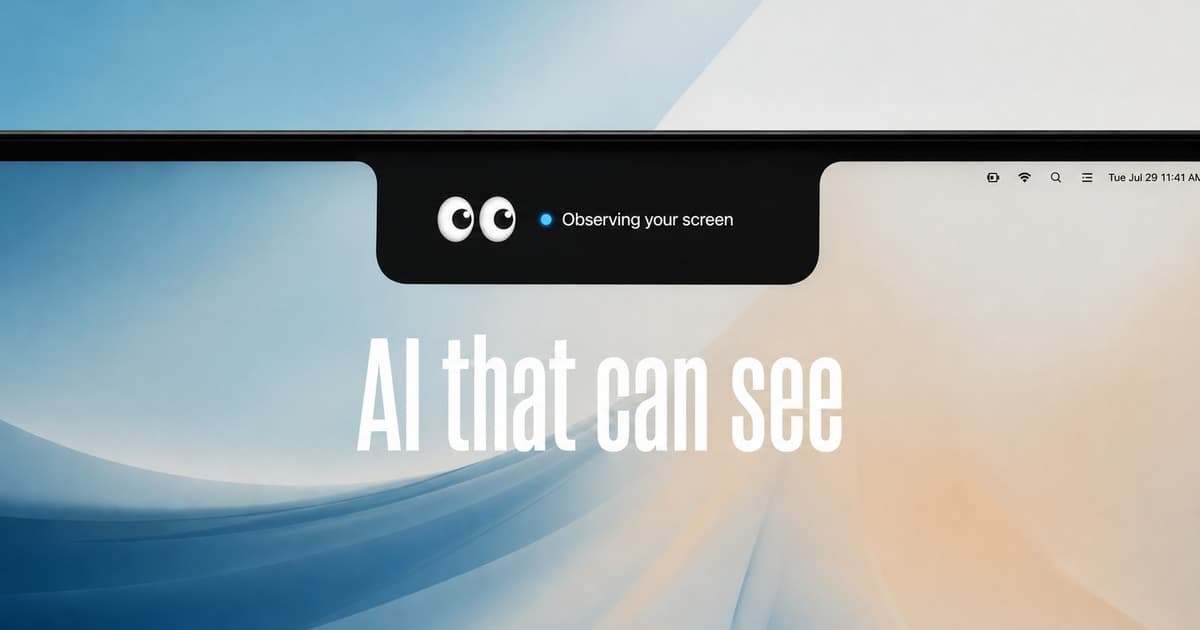
Yes. VoiceOS is an AI that can see your screen and answer questions on Mac and Windows. Turn on “Point and ask about your screen,” hold your Agent Mode trigger, and ask about whatever you are looking at. VoiceOS reads the current screen only when you invoke it, uses your mouse cursor or blue drawing trail to identify the exact area you mean, and answers in the notch.
Key Takeaways
- An AI that reads your screen and answers questions is often called a screen-aware or multimodal AI assistant. It can understand visible text, charts, buttons, errors, and app layouts instead of making you describe them from memory.
- For decades, help lived somewhere else: a search box, a support article, a twelve-minute tutorial. Screen-aware AI brings the help to your screen, in the moment, without you leaving what you are doing.
- This became possible in 2026 because three things arrived at once: fast and accurate speech recognition, multimodal AI that can actually read a screen, and assistants that can reach across all of your apps.
- The everyday payoff is the end of "how do I do this?" You stop switching to a search engine and start asking the thing in front of you, and sometimes it simply does it for you.
- VoiceOS puts a screen-aware voice assistant on Mac and Windows with no complicated setup. Enable “Point and ask about your screen,” press your Agent Mode trigger, and ask about what is in front of you.
- You can point instead of over-explaining. Move your mouse cursor to the exact message, button, or item you mean, or draw a blue loop around a region while you talk. VoiceOS sees the mark together with your screen and question.
"How do I do this?" is where work goes to die
Everyone knows the feeling. You are in an app you do not use often: a video editor, a spreadsheet full of someone else's formulas, a tax portal, a tool your company adopted last week. You know exactly what you want to accomplish. You just cannot find the button, the setting, or the sequence of steps that gets you there.
So you do what we have all been trained to do. You switch to a browser. You type a half-remembered version of your question. You skim a forum thread from 2021, open a support doc that describes a version of the app that no longer exists, or scrub through a fourteen-minute tutorial to find the ten seconds that actually apply to you. Then you switch back, try to remember what you read, and hope it still lines up with what is on your screen.
That round trip is one of the quietest, most universal taxes in modern work. It is not one big interruption, it is a hundred small ones a week. Every time your question lives in one place and your work lives in another, you pay to carry the answer across the gap. The promise of a screen-aware assistant is simple: close that gap entirely, and let the help live where the problem is.
"What if the help could simply look at your screen with you?"
How an AI reads your screen and answers questions
A screen-aware AI assistant is software that can do three things a search box never could: see, understand, and act. An AI that looks at your screen receives the visible screen as context alongside your spoken question, so the two are interpreted together.
It can see, because with your permission it reads what is currently on your screen, the way a knowledgeable friend leaning over your shoulder would. It can understand, because modern multimodal AI does not just scan the text on the page. It recognizes the app, layout, error message, chart, and state you are in, then connects those details to what you are asking. And it can act, because instead of only describing the steps, it can walk you through them or carry them out for you.
Contrast that with the help we have lived with for thirty years. A support article is static, generic, and written for the average user, not for you and the exact screen you are staring at. A search result does not know which app you are in. A chatbot in a separate window cannot see your work at all, so you have to describe your situation to it in words, which is often harder than the original problem. Screen-aware AI removes that translation step. You do not have to explain your screen, because it is already looking at it.
How AI can scan your screen and understand it
The idea of an AI that can watch your screen and help is not new. It is decades old. What changed is that three separate technologies matured at the same time, and only together do they add up to something that actually works.
The first is speech recognition that is fast and accurate enough to feel like conversation, not like fighting with a phone menu. The second is multimodal AI, models that can look at an image of your screen and genuinely comprehend it, reading not just the words but the meaning of a layout, a chart, a dialog box, or an error. The third is system-wide reach, an assistant that is not trapped inside a single app but can sit across your whole computer and touch the tools where your work actually happens.
Any one of these on its own is a demo. Put all three together and you get something new: an assistant you can simply talk to, that already sees what you see, and that can do something about it. That is why 2026 is the year this stopped being a research project and started being software you can download.
What changes when your computer can see what you see
The first shift is emotional, before it is practical. You stop feeling stuck. When help is always one spoken sentence away, the anxiety of unfamiliar software mostly disappears. You do not have to know the app anymore. You just have to be able to describe what you want.
Picture the ordinary moments where this matters. A designer opens a professional video tool for the first time and, instead of pausing to find a beginner course, asks out loud how to do the one thing they need right now. An analyst stares at a dense dashboard someone else built and asks what a particular chart is actually telling them. A new hire lands in a sprawling internal app on day one and gets a patient, private guide instead of a forty-page onboarding PDF. Someone filling out a confusing government or banking form asks what a field means before they submit it, not after.
In every one of these cases, the interface stops being a wall you have to decode alone. The screen becomes the conversation. And because the assistant can see exactly what you see, its answer is specific to your situation, not a generic paragraph that assumes a different version, a different layout, or a different problem than the one in front of you.
Meet your screen-aware voice assistant: VoiceOS
VoiceOS is the practical, ready-today version of everything above. It runs system-wide on Mac and Windows, so it is not locked inside one app. It lives in the notch at the top of your Mac, and in the same always-available spot on Windows. It is not something you open and close. It sits there, one word or one tap away, ready the moment you need it.
Press your trigger and simply talk to it about what is on your screen. What does this setting actually do? Summarize this dashboard for me. What is this error trying to tell me? Walk me through exporting this. Because VoiceOS can look at your screen when you ask it to, its answers are grounded in your real situation, not a generic guess. You are not describing your problem to a chatbot in another window. You are asking the thing in front of you.
And it is built for regular people, not just developers. There is no code to write, no API keys to paste, and no command list to memorize. You download it, grant permission, and start talking. That is the whole setup.
Use your mouse cursor to point at what you mean
Talking is not always the fastest way to identify what you mean. On a busy screen full of messages, buttons, photos, and choices, describing the one thing you care about can take longer than the question itself. This is where a second, very human way of communicating comes in: pointing.
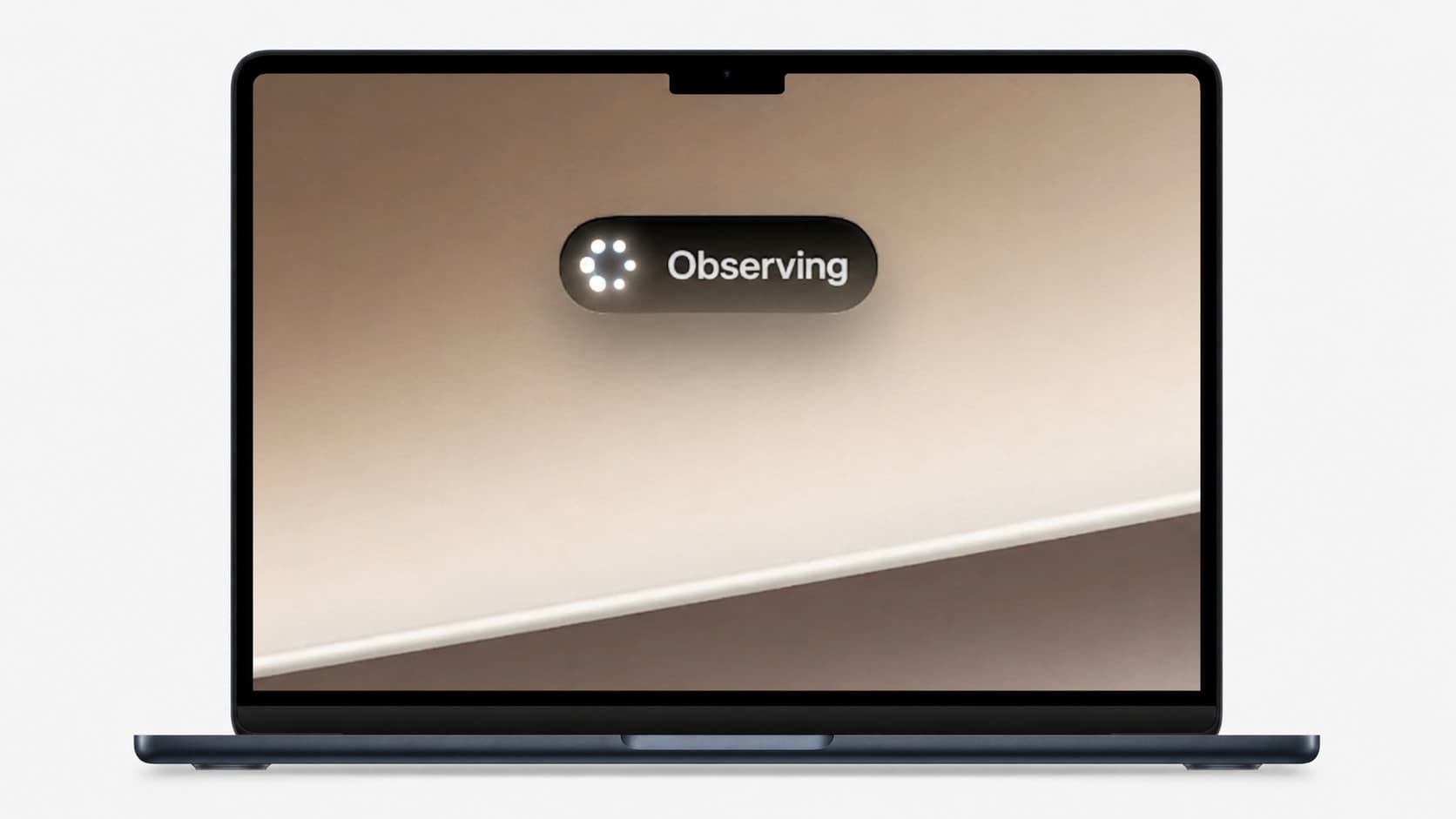
VoiceOS turns the mouse cursor into a visual reference. With “Point and ask about your screen” enabled, hold your Agent Mode trigger and begin speaking. As you move the cursor, a blue trail appears. Point at one item or draw a loop around a region while asking something natural, such as “how should I reply to this?” or “which one should I choose?” When you release the trigger, VoiceOS receives your words together with the marked view of your screen.
That combination makes words like “this,” “that,” and “here” useful. The AI does not have to guess which message, product, or button you meant because your cursor drawing is part of the context it reads. It feels like sitting beside a friend, circling something on the screen, and asking a short question instead of giving a long explanation.
 Outlook
How to point at your screen and ask VoiceOS
- 1In the VoiceOS dashboard, open Agent Mode Actions and turn on “Point and ask about your screen.” Grant screen access if your computer asks for permission.
- 2Open the message, page, form, document, or photo you want help with, then hold your Agent Mode trigger.
- 3Ask your question while moving the mouse cursor to the exact item. If the screen is crowded, draw around it so the blue trail makes your meaning clear.
- 4Release the trigger. VoiceOS reads the marked screen together with your spoken question and answers in context.
When seeing your screen turns into doing the work
Answering questions is where a screen-aware assistant earns your trust. Taking action is where it changes your day.
VoiceOS does more than explain what is on your screen. In Dictate mode, it turns natural speech into polished text anywhere your cursor is, cleaning up filler, fixing grammar, and matching the tone of the app you are in. In Edit mode, you reshape text you have already written just by talking to it: make this shorter, turn this into bullet points, make it friendlier. And in Agent mode, seeing your screen becomes doing the work. You can ask VoiceOS to reply to the message you are looking at, summarize a thread and draft a response, or carry a task across connected apps like Gmail, Slack, and Google Calendar.
That is the real leap. A tool that can see your screen and also act on it collapses the distance between "how do I do this?" and "just do this for me." And because handing your computer more capability should never mean handing over control, VoiceOS prepares important actions and confirms with you before anything is sent. You direct the work. It handles the busywork in between.
How to start
You do not have to change how you work overnight. The easiest place to begin is low-risk. The next time you are stuck in an app, instead of opening a new browser tab, just ask about your screen. Get an answer in context, in seconds, without losing your place.
From there, let it do more. Use voice to reshape a rough draft instead of rewriting it by hand. Ask questions about a document, a dashboard, or an email thread instead of parsing it yourself. Then, when you are comfortable, use Agent Mode for real actions like drafting replies, creating events, and chaining steps across apps, with the confirmation loop keeping you in command.
Keep your keyboard and mouse for the precise work they are still best at. Use a screen-aware voice assistant for intent, for the moments when you know what you want but not where the button is. The goal was never to make your computer more complicated. It was to make it finally understand what you are looking at, and help.
Frequently Asked Questions (FAQ)
What is an AI that reads your screen?
An AI that reads your screen is a screen-aware, multimodal assistant that uses the visible screen as context. It can recognize text, app layouts, charts, buttons, images, and error messages, then answer questions about what it sees. VoiceOS brings that capability to Mac and Windows and lets you ask by voice instead of uploading screenshots to a separate chat.
Is there an AI that can see my screen and answer questions?
Yes. VoiceOS can see your current screen and answer questions about it on Mac and Windows. Turn on “Point and ask about your screen,” hold the Agent Mode trigger, and ask about whatever is visible. It is an AI that sees your screen and answers questions based on the real page, app, chart, document, or error in front of you.
How is this different from a chatbot like ChatGPT?
A standard chatbot lives in its own window and only knows what you type into it, so to get help you have to describe your screen in words. A screen-aware voice assistant closes that gap. It can see your screen with your permission, so it already knows the context, and it works system-wide across your apps instead of inside a single tab. You talk, it looks, it helps, with no copy-pasting and no explaining.
What can an AI that scans your screen do?
Common uses include learning unfamiliar software without watching a tutorial, getting un-stuck the instant you cannot find a setting, understanding dense dashboards or documents, decoding confusing error messages, and turning "how do I do this?" into an action the assistant performs for you. With VoiceOS you can also dictate and edit text by voice and run multi-step tasks across apps like Gmail, Slack, and Google Calendar.
Is it always watching my screen? What about privacy?
No. A well-designed screen-aware assistant should look only when you ask it to, not record continuously. VoiceOS looks at your screen on demand, when you invoke it, rather than constantly capturing in the background, and it asks for confirmation before taking important actions. You stay in control of when it sees your screen and what happens next.
What is the best screen-aware voice assistant for Mac and Windows in 2026?
VoiceOS is one of the best options in 2026 because it is built for regular people, not just developers. It works system-wide on both Mac and Windows, understands natural language, sees your screen when you ask, and needs no setup, API keys, or coding. Backed by Y Combinator, it combines screen-aware questions, dictation, voice editing, and agent actions in a single app you can start using in minutes.
Do I need to be technical to use one?
No. VoiceOS is designed for everyone, especially people who are new to AI. There is no code to write and no configuration to learn. You download it, grant permission, and start talking to your computer about whatever is on your screen.
Can the assistant understand what I am pointing at with my cursor?
Yes. With “Point and ask about your screen” enabled, hold your Agent Mode trigger and move the mouse cursor while you speak. VoiceOS draws a blue trail, so you can point to one item or circle a region and ask about “this” or “that.” The marked screen and your words are read together, which is often much faster than describing the location.
Ask an AI about anything on your screen
VoiceOS is an AI that reads your screen and answers questions on Mac and Windows. Point with your cursor, ask by voice, and get help without leaving the app you are in.
Download VoiceOS