
The short answer
Start with the dictation already on your computer if you mostly need occasional text entry. Shortlist Superwhisper if choosing local models is central to your workflow. Compare Wispr Flow, Aqua Voice, Willow, and Typeless if polished dictation is the main purchase. Consider VoiceOS when you want desktop dictation plus supported actions in connected apps. Those are different priorities, so a single accuracy podium would hide more than it explains.[1] [2] [3] [4] [5] [6] [7] [8]
This is a source-based buying guide, not a laboratory ranking. We make VoiceOS, and our recommendation for it is limited to the workflows its product supports. We have not run a controlled head-to-head accuracy or latency test of these applications. The guide replaces our older April list and removes its unsupported overall ranking.
A shortlist built around your requirements
Scroll horizontally to read all columns →
| Tool | Why it belongs on the shortlist | What to check first |
|---|---|---|
| Apple Dictation | Built-in Mac text entry | The processing notice for your selected language and device |
| Windows voice typing | Built-in Windows text entry with Win+H | An internet connection; this is separate from Voice access |
| Superwhisper | Local or cloud model selection, configurable modes | Hardware requirements and the model used for rewriting |
| Wispr Flow | Polished dictation across desktop and mobile | Separate cloud-storage and model-improvement settings |
| Aqua Voice | Dictation into existing text boxes | Your real application fields and Privacy Mode |
| Willow | Dictation with personal terms and writing support | The privacy mode and context settings you enable |
| Typeless | Polished dictation across several platforms | Support for your actual device, language, and workflow |
| VoiceOS | Dictation, selected-text editing, and connected app actions | Cloud processing, required integrations, and paid sign-up |
Read the final column before comparing subscription prices. An application that fails a required language, a managed-device rule, or the particular editor you use has no useful price advantage. Test the difficult field first: a browser editor, remote desktop, issue form, or specialist business application may behave differently from a plain text document.
First, establish a built-in baseline
Apple Dictation enters text where the cursor is placed. Apple tells users to check Keyboard settings for whether general dictation is processed on-device. Windows voice typing uses online recognition; Windows Voice access is a separate accessibility feature with on-device recognition. Do not treat those two Windows features as interchangeable.[1] [2] [11]
Try your ordinary email reply before installing another app. Include a colleague’s name, a product name, a date, and one correction made while speaking. Keep the result. It becomes a useful baseline: a paid tool needs to improve the part that bothered you, whether that was formatting, vocabulary, the activation shortcut, or moving from the draft to the next task. If the built-in result is good enough, you may already have what you need.
Sources & further reading: Dictate messages and documents on Mac · Use voice typing to talk instead of type on your PC · Get started with voice access
When a dedicated dictation app is worth trying
Dedicated tools become interesting when you spend time fixing the same errors or changing the same formatting. A personal dictionary helps with recurring terms; a correction or replacement feature handles repeated output patterns; an application-specific mode can make one workflow less fiddly. These are useful differences even when two apps use related speech models.
Superwhisper exposes a choice of speech models and optional language-model processing per mode. That makes it a candidate for users who want to configure the pipeline. Wispr Flow emphasizes polished dictation and has desktop and mobile availability. Aqua Voice provides dictation in text boxes; Willow documents a Mac and Windows setup; Typeless advertises several desktop and mobile platforms. These are feature and availability observations, not a measured speed order.[12] [4] [5] [6] [7]
For a short evaluation, choose two apps with materially different strengths. Comparing seven similar free trials at once makes it easy to lose track of which settings produced which result. Save the raw result and the corrected draft for each. Keep microphone placement, the application, and your sample text consistent, and write down any automatic rewriting you enabled.
Sources & further reading: Intro to Modes · Privacy and data controls · User guide · Install and Setup Willow Voice · Typeless platform and feature overview
When VoiceOS is the better fit—and when it is not
VoiceOS combines Dictation Mode, selected-text editing, and Agent Mode on Mac and Windows. Its official integration catalog lists supported actions for email, calendars, notes, issue trackers, and other services. The useful question is whether one of those actions belongs in your daily workflow: for example, drafting a response and preparing a calendar event from the same piece of work.[9] [8] [13]
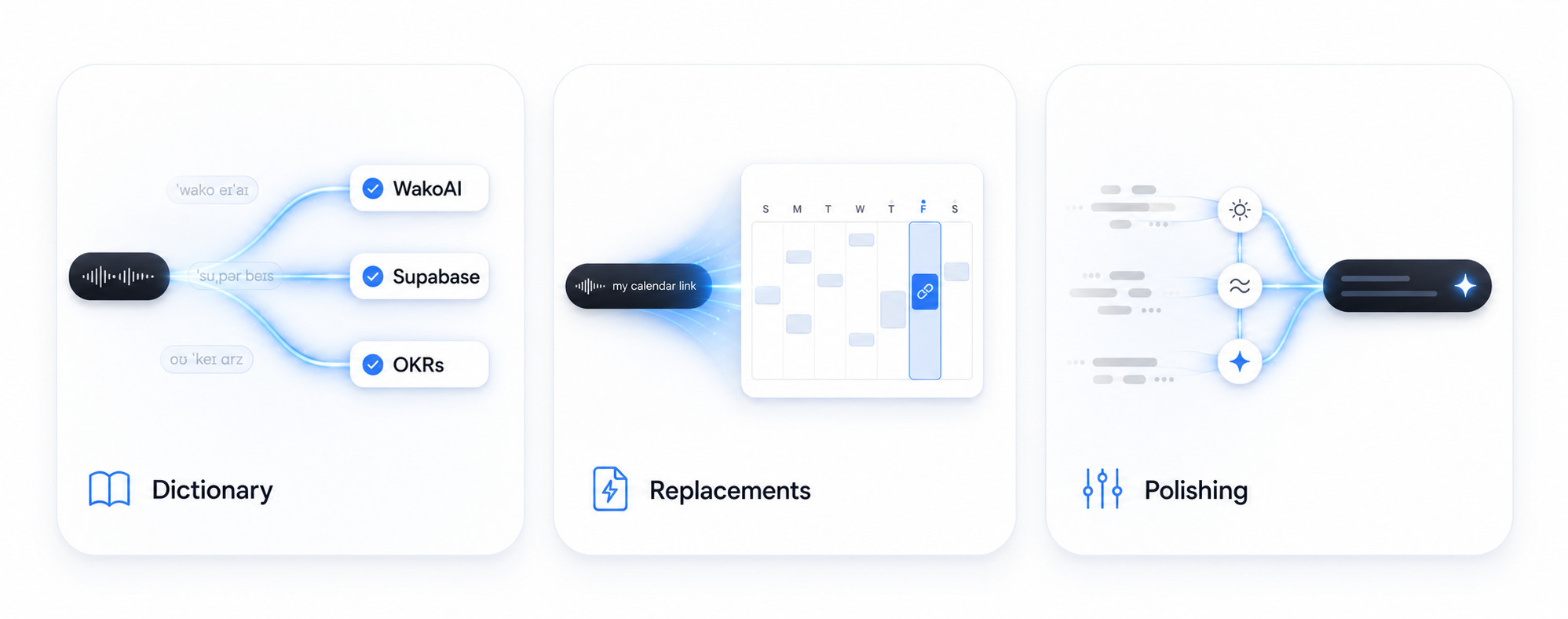
It is a weaker fit when your non-negotiable requirement is offline speech processing, when you only want a meeting recorder, or when you need complete voice navigation of every control. A full accessibility workflow should also evaluate the operating system’s voice-control tools. An app that inserts text is not automatically an accessible replacement for the mouse.
VoiceOS offers Pro and Enterprise. There is no free plan for new sign-ups. The limited allowance after a canceled Pro subscription ends is an existing-account entitlement, not a trial plan to choose. Check current prices and billing terms on the pricing page rather than relying on an old comparison screenshot.[10]
Sources & further reading: VoiceOS Dictation Mode · VoiceOS Agent Mode · VoiceOS official integration catalog · VoiceOS pricing
Run a small test that reflects your work
- A normal paragraph: does the output preserve what you meant without unnecessary rewriting?
- A detail-heavy sentence: check names, amounts, identifiers, and dates individually.
- A revision: correct one phrase without having the app replace the surrounding meaning.
- A real destination: verify cursor placement, insertion, and the ability to undo.
- A complete task: include review and corrections in the time, not just speech recognition.
Count severe errors separately from cosmetic ones. A missing comma and a changed meeting date are both edits, but their consequences are different. If a tool writes something fluent that you did not say, the draft may take longer to trust than a less polished transcript. You can use our dictation test worksheet to keep those distinctions visible.
Set privacy and purchasing requirements before the trial
For each candidate, answer four questions: does audio leave the device, can transcripts be stored, can content be used for training, and can the app access other content? “Local history” only answers where a copy of your past text is kept. It does not answer how recognition was performed. Our privacy comparison separates those questions.
A team trial should also record the owner of the account, approved data types, and what happens when the trial ends. Review the actual report before treating an audit or security badge as a procurement requirement satisfied.[14]
Sources & further reading: VoiceOS security and privacy
Sources and methodology
Last updated .
Vendor documentation and support pages checked on September 30, 2026. Recommendations reflect documented workflow fit, not affiliate placement or numerical product scores. Limitations: No controlled cross-product benchmark, security audit, or hands-on platform certification was performed. Features and billing terms can change.
- Dictate messages and documents on Mac — Apple
- Use voice typing to talk instead of type on your PC — Microsoft
- Voice models — Superwhisper
- Privacy and data controls — Wispr Flow
- User guide — Aqua Voice
- Install and Setup Willow Voice — Willow
- Typeless platform and feature overview — Typeless
- VoiceOS Agent Mode — VoiceOS
- VoiceOS Dictation Mode — VoiceOS
- VoiceOS pricing — VoiceOS
- Get started with voice access — Microsoft
- Intro to Modes — Superwhisper
- VoiceOS official integration catalog — VoiceOS
- VoiceOS security and privacy — VoiceOS
Frequently asked questions
Which dictation app is most accurate?
This guide does not establish an accuracy winner. Test the same samples under documented settings, then measure both transcription errors and the time needed to make the final text usable.
Is VoiceOS free to start?
VoiceOS offers paid Pro and custom Enterprise plans. Its limited post-cancellation access is not a sign-up option.[10]
Which should I try if audio must stay offline?
Start with a verified local configuration, such as local speech and editing models or no cloud editing. Read our offline guide before choosing; VoiceOS uses cloud processing.
Start with one real task
See how VoiceOS handles dictation, editing, and supported app actions on Mac and Windows.
Explore VoiceOS