
Offline is a property of the whole workflow
A local speech model is only one part of offline dictation. If the transcript then goes to a cloud model for punctuation or rewriting, the finished workflow is not local. If the destination app syncs the document to a server, your words can leave the machine after dictation succeeds. Choose the processing path, not just a product with “private” in its description.
The practical shortlist is built-in on-device dictation where supported, Windows Voice access for dictation and computer control, Superwhisper configured with local processing, and whisper.cpp for people comfortable assembling a technical workflow. Each solves a different problem.[1] [2] [3] [4]
Four routes to local speech-to-text
Scroll horizontally to read all columns →
| Option | Useful for | Important boundary |
|---|---|---|
| Apple Dictation | Mac users who want a built-in starting point | Check the on-device notice for the selected language and device |
| Windows Voice access | Windows 11 dictation and navigation | Download what setup requires before disconnecting; it is not Win+H voice typing |
| Superwhisper with local models | Choosing speech and optional editing models | Confirm that both processing stages stay local |
| whisper.cpp | Technical users building local transcription workflows | Model downloads, installation, and text insertion need setup |
These are starting points rather than a claim to list every offline app. A smaller comparison with clear requirements is more useful than a long list that treats a command-line transcriber, a keyboard replacement, and a meeting recorder as equivalent.
Sources & further reading: Dictate messages and documents on Mac · Get started with voice access · Sensitive Data Best Practices · whisper.cpp documentation
Use built-in features when they cover the task
On a Mac, enable Dictation and inspect the processing notice in Keyboard settings. Apple’s documentation makes that notice the way to confirm whether general text dictation stays on-device. A claim about one Mac, language, or type of input should not be generalized to every configuration.[1]
On Windows, start with Voice access if local speech recognition and voice navigation are important. Do not choose Windows voice typing just because it is also built in: Microsoft documents that feature as an online service.[2] [5]
Try a paragraph in a local document before making this your travel setup. Confirm how you activate recognition, stop it, correct a word, and recover when text lands in the wrong field. A keyboard shortcut that is convenient at a desk may be awkward when you cannot keep a hand on the keyboard.
Sources & further reading: Dictate messages and documents on Mac · Get started with voice access · Use voice typing to talk instead of type on your PC
Check the speech model and the editing model
Superwhisper separates speech recognition from optional AI processing. Its documentation describes fully local configurations and a transcription-only mode with no language-model step. On Windows, available local models and local AI editing depend on hardware; check the requirements for the exact machine you will use.[3] [6]
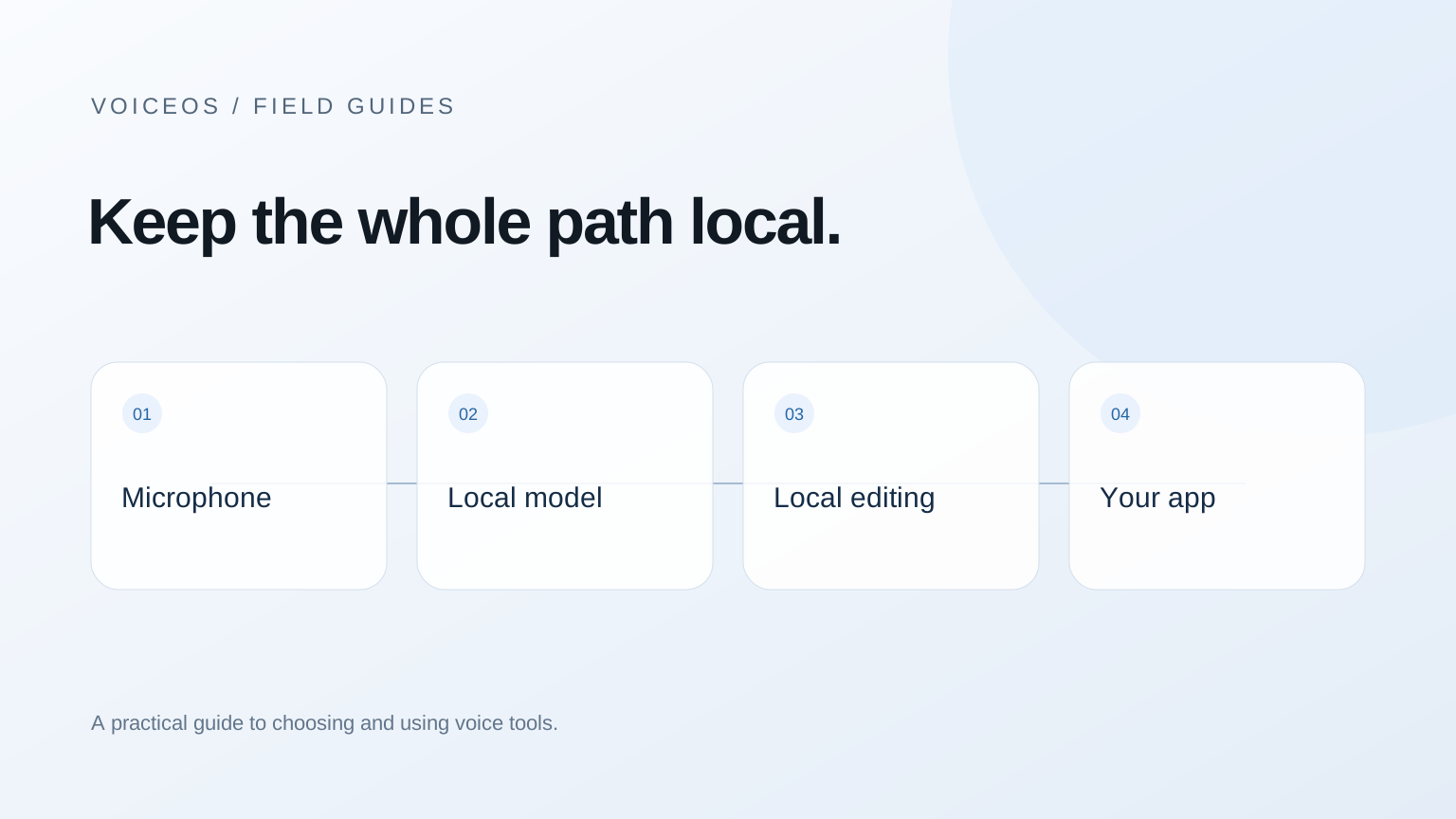
Begin with a mode whose behavior you can explain. Record the selected voice model, any editing model, and whether the mode changes automatically by application. A working local mode in a notes app does not prove that a separately configured email mode uses the same processing path.[7]
There are practical costs to moving computation onto the device. Model files take disk space; processing competes with other work; battery and heat can matter on a laptop. The size of those effects depends on the hardware, model, and recording. Measure them on your own machine instead of assuming “local” is always slower or always faster.
Sources & further reading: Sensitive Data Best Practices · Superwhisper on Windows · Intro to Modes
When a local engine is enough
whisper.cpp is an open-source implementation with local model and example workflows. It can be a sensible foundation when you want to control the transcription pipeline. It is not, by itself, a finished replacement for all the shortcut, insertion, editing, and history behavior of a desktop dictation app.[4]
Choose this route if you already maintain scripts or need a repeatable file-transcription process. Include the time to install models, handle audio input, and get the text into its destination. Check the project’s current installation instructions and supported hardware before committing to a particular acceleration method.
For a less technical colleague, hand over a complete workflow, not a terminal command that happens to produce text. They need a visible recording state, a reliable stop action, a way to review output, and a recovery path when something fails.
Sources & further reading: whisper.cpp documentation
A disconnected test you can repeat
- While online, install the app and download every required speech and editing model. Record the app version and chosen mode.
- Open a local document that does not require a web connection. Close any sensitive material you do not want included as context.
- Disconnect networking and restart the app. Dictate a fresh sample; do not just reopen a cached transcript.
- Test the actual editing and insertion steps, then a second language if you use one. Record what fails.
- Check history and export behavior. Decide whether local recordings should remain, and whether backups or document sync copy them elsewhere.
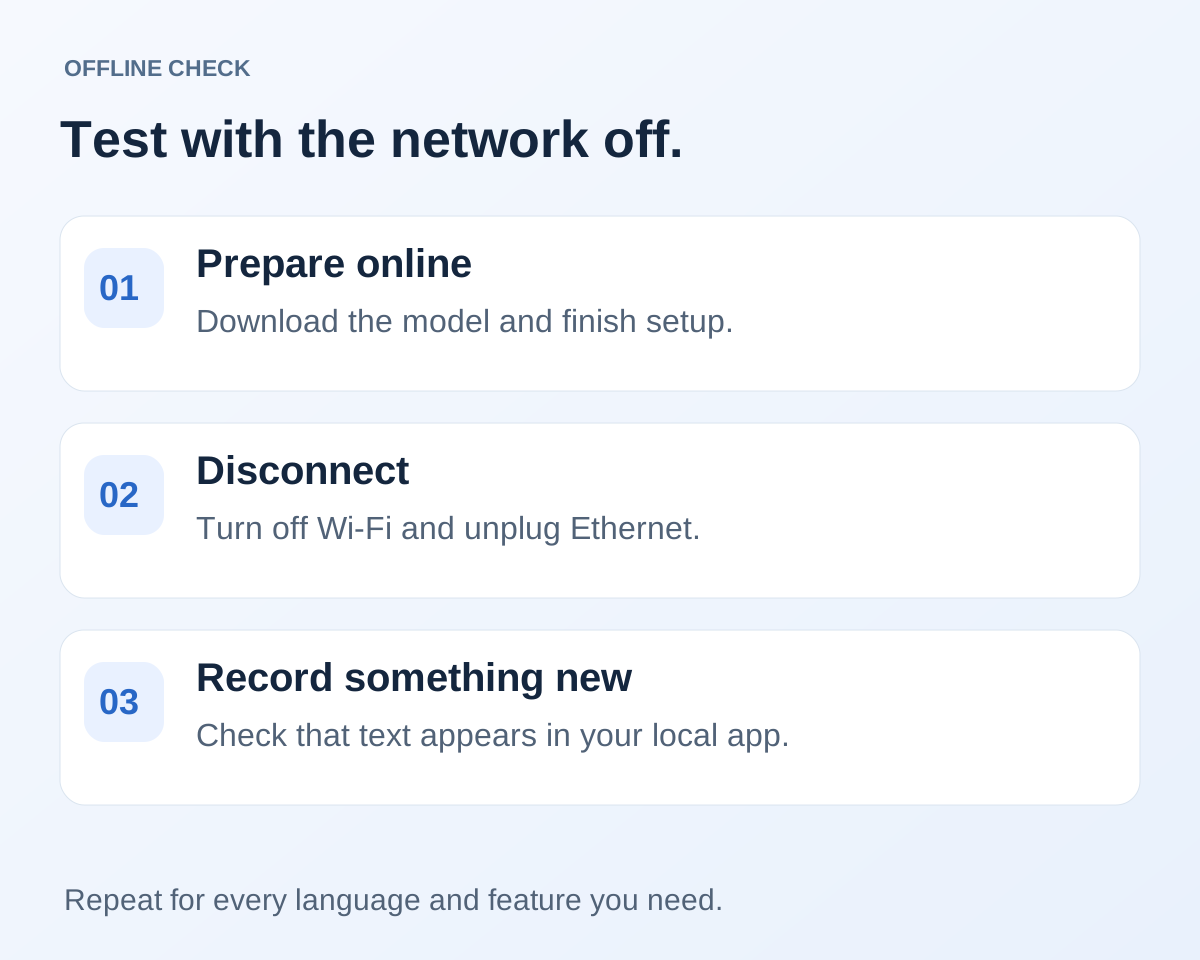
Passing this test demonstrates that the selected workflow can function while disconnected. It does not prove that the app never transmits anything when networking returns. For that stronger claim, you need to inspect its policy, configuration, and network behavior. Those are separate verification tasks.
What you may give up—and what you do not have to
You do not have to give up good dictation just because you choose local processing. You do need to accept the constraints of the chosen model and device. Check your working languages, names, spoken corrections, and long passages. Keep transcription accuracy separate from the quality of any rewriting layer.
Cloud-dependent features need a connection even if dictation itself is local. Searching the web, reading a cloud inbox, and saving to a remote workspace cannot be made offline merely by changing the speech model. A hybrid setup can be reasonable: local dictation for restricted material, connected tools for other work, with a clear boundary between the two.
VoiceOS belongs on the connected side of that boundary. Its AI features require cloud processing. If you choose VoiceOS for app actions, use approved data and check the privacy settings; do not interpret its local transcript history as offline recognition.[8]
Sources & further reading: VoiceOS Privacy Policy
Sources and methodology
Last updated .
Compared documented processing options and hardware requirements from Apple, Microsoft, Superwhisper, and whisper.cpp. The disconnected procedure is a proposed acceptance test. Limitations: No claim is made that we installed or network-audited each configuration. Offline support can vary with version, language, model, and device.
- Dictate messages and documents on Mac — Apple
- Get started with voice access — Microsoft
- Sensitive Data Best Practices — Superwhisper
- whisper.cpp documentation — ggml-org
- Use voice typing to talk instead of type on your PC — Microsoft
- Superwhisper on Windows — Superwhisper
- Intro to Modes — Superwhisper
- VoiceOS Privacy Policy — VoiceOS
Frequently asked questions
Does local transcript history mean offline dictation?
No. History describes storage of a copy; offline recognition describes where speech is processed. Check both, plus any AI rewriting step.
Can Superwhisper run fully locally?
Its documentation describes local speech and optional local language models, plus transcription-only modes. Hardware and platform restrictions apply; verify the selected configuration.[3]
Is VoiceOS an offline dictation app?
No. VoiceOS uses cloud processing for its AI features. Choose a verified local workflow when offline processing is a requirement.[8]
Start with one real task
See how VoiceOS handles dictation, editing, and supported app actions on Mac and Windows.
Explore VoiceOS