

Change the task before buying another device
Start with the part of your day that produces the most repetitive input: long email replies, case notes, document drafts, repeated form fields, or revisions. Different tasks call for different changes. A text expansion may remove a repeated address; dictation may help with a new paragraph; a change of task may provide a break from computer input altogether.
This is a workflow guide, not a treatment plan. If pain, numbness, weakness, or other symptoms persist or worsen, seek medical advice. The NHS recommends discussing ways of changing work with your employer and getting help for ongoing or worsening RSI symptoms.[1]
Make a small inventory of keyboard-heavy work
For one ordinary work session, note the work you actually do rather than counting total keystrokes. Write down the task, how long it takes, what repeats, and what you must check before it is finished. Do not keep logging if logging itself adds strain. A short list of the biggest tasks is enough to choose a first experiment.
Scroll horizontally to read all columns →
| Task | Possible change | What still needs attention |
|---|---|---|
| A new email reply | Dictate the body into an unsent draft | Recipient, names, dates, and tone |
| The same address or boilerplate | Use an approved template or replacement | Whether the template is appropriate this time |
| Rewriting a paragraph | Try a narrowly specified voice edit | Meaning and facts after the rewrite |
| Scheduling or a reminder | Use a supported voice action | Calendar, date, time zone, and confirmation |
| Fine pointer work | Review navigation tools and workstation setup | Whether every control remains reachable |
Choose one frequent task with a forgiving recovery path. Drafting an internal note is a better first experiment than submitting a client record. Keep a copy of the original when trying an edit, and leave sending or submission until after review.
Review the workstation and activation method
OSHA’s workstation guidance calls for a keyboard position that lets the shoulders relax and the wrists stay aligned with the forearms. It also encourages task variation and short pauses. Its evaluation checklist can help you identify something concrete to change with your employer or an ergonomics specialist.[2] [3]
Check how your speech tool starts and stops recording. A shortcut you must hold for an entire paragraph may not fit your needs. VoiceOS provides a hands-free dictation shortcut that starts and stops on separate presses. Confirm your configured shortcut in the app and test stopping before using it for a long passage. This is an input option, not a claim that it treats symptoms.
Speech has constraints too. Shared rooms, private information, and the effort of talking can make some sessions unsuitable. Keep other input methods available and do not turn a tool experiment into a demand to speak continuously.
Sources & further reading: Computer Workstations: Keyboards · Computer Workstations: Evaluation Checklist
Try one draft, with review included
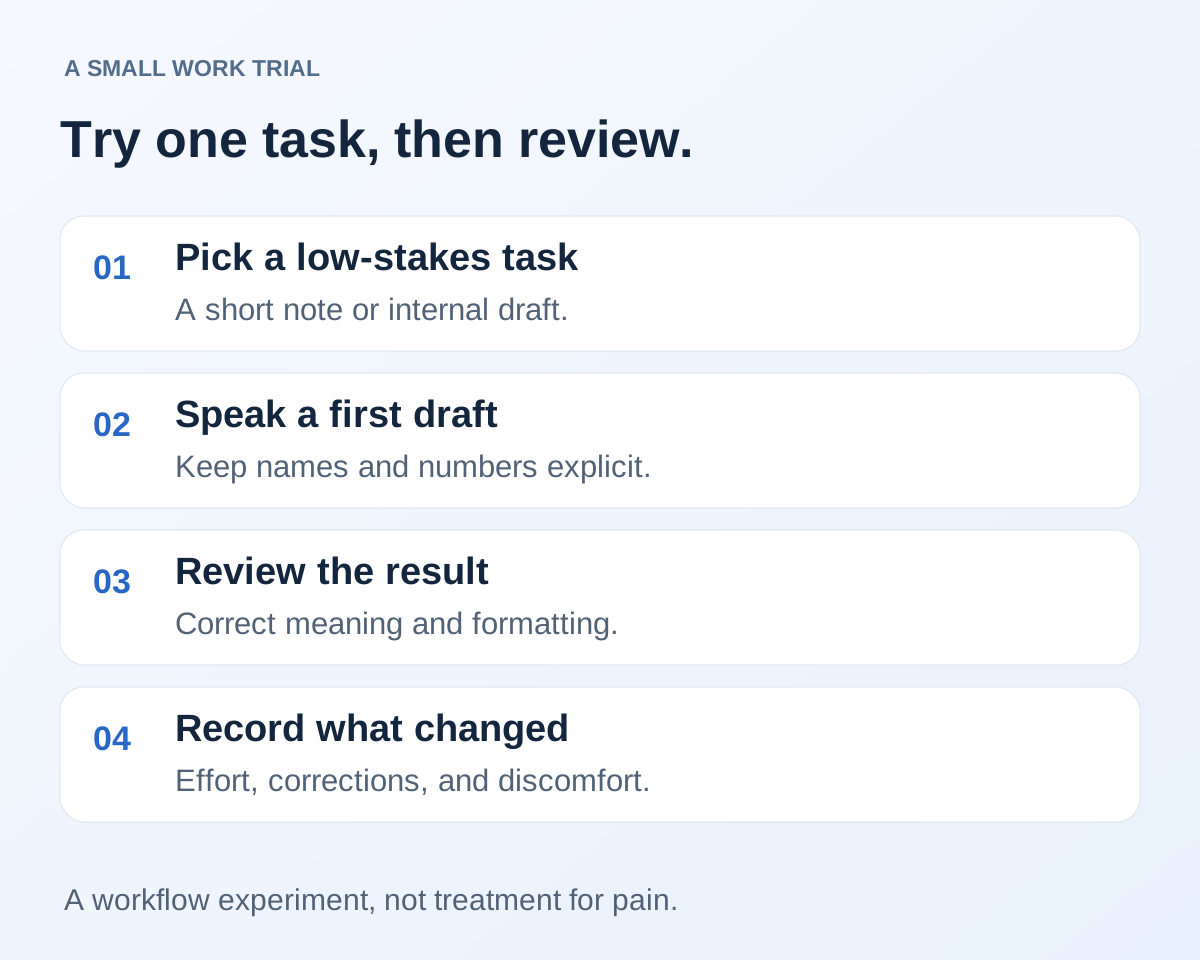
- Open an unsent draft or a local note and verify the cursor is in the intended field.
- Dictate a short paragraph in your normal voice. Stop before editing.
- Check names, numbers, dates, and anything that changed while you were speaking.
- Correct one issue with the method that is easiest for you: voice edit, keyboard, or another assistive tool.
- Record whether the whole task felt workable, including activation, correction, and saving.
The amount you spoke is not the same as the amount of keyboard work you removed. If every sentence needs several difficult corrections, change the sample, microphone setup, vocabulary settings, or tool. Measure the whole loop before expanding it to more of your day.
VoiceOS can dictate into standard text fields and revise selected writing. Supported Agent Mode actions can address a separate part of the task, such as creating a reminder. Review the individual integration and its platform requirements; dictation support in an app does not imply a native action integration.[4] [5]
Sources & further reading: VoiceOS Dictation Mode · VoiceOS official integration catalog
Build a sustainable pattern
Once one task works, add another task with a similar structure. Keep the checkpoints that prevent mistakes. It is reasonable for voice to handle first drafts while another method handles exact identifiers or table manipulation. You are choosing an input mix, not committing to a completely hands-free identity.
At the end of a few sessions, ask what improved: less repetitive input, less time spent correcting, easier recovery from mistakes, or no useful change. Keep only the changes that help. If symptoms are part of the reason for the experiment, discuss the work pattern with a clinician or occupational therapist rather than using output volume as a health measure.
For condition-specific context and the limits of dictation, see our existing RSI and carpal tunnel guide. For complete computer control, compare built-in Voice Control or Voice access with your required assistive setup. A dictation app alone does not establish that every part of your work is accessible.
Sources and methodology
Last updated .
Used NHS and OSHA guidance for the limited health and workstation statements. Workflow suggestions are original practical examples, supported by VoiceOS documentation. Limitations: No symptom improvement, clinical effectiveness, or time-saving measurement is claimed. Individual input needs and medical conditions vary.
Frequently asked questions
Can dictation cure wrist pain?
No treatment or cure is claimed here. Dictation changes how text is entered. Persistent or worsening symptoms need medical advice.[1]
Should I replace every typing task with voice?
No. Start with one writing task and include review in the evaluation. Quiet work, privacy, precise editing, or voice fatigue may call for another input method.
What is the first useful test?
An unsent email or internal note with no sensitive material. Check activation, stopping, insertion, correction, and saving before expanding the workflow.
Start with one real task
See how VoiceOS handles dictation, editing, and supported app actions on Mac and Windows.
Explore VoiceOS