
How to start using the new Siri for work
To use the new Siri for work, open Siri on a supported device with Siri AI enabled, give it a specific task, and name the result you want: an email draft, a saved note, or a reminder. Apple’s announced capabilities include writing, finding personal information, and actions in supported apps.[6]
Start with the prompts below. Give Siri the relevant details, ask for one outcome at a time, and review what it creates. For tasks that need connected desktop work apps, the later sections explain how VoiceOS can help.
What changed in the new Siri announcement?
Apple’s September 9, 2026 event put Siri AI alongside its new iPhones. The U.S. release specifies a September 14 beta rollout with iOS 27 for supported devices set to English; French, Japanese, Korean, Portuguese, and Spanish are scheduled for October. As of this article’s September 10 update, that rollout is still ahead.[1]
Apple describes personal-context search, awareness of onscreen content, writing assistance, and actions in supported apps. Its Siri page also introduces a dedicated app for returning to conversations. These are relevant capabilities for a workday, not just a longer list of things to ask your phone.[2]
Our view: the interesting consequence is that more people may try speaking to their devices at work. Whether that becomes a habit will depend on what happens after the request. Does the information appear where it is useful? Does the action reach the right destination?
Sources & further reading: Apple’s September 9 announcement and Siri AI rollout dates · Apple Intelligence and Siri: announced capabilities
Siri commands for work: emails, notes, and reminders
Once Siri AI is available and enabled on your device, open the Siri app or invoke Siri. Apple documents voice activation and the side button on iPhone, and integration with Spotlight on Mac. Use the relevant app or content as context, then try one of these prompts. These are examples to adapt, not reports of completed tests.[6]
When a request fails, identify the missing piece before repeating it. The assistant may lack the information, the app may not expose that action, or the instruction may be ambiguous. A clearer prompt helps with ambiguity; it cannot supply an integration that is absent.
Sources & further reading: Apple introduces Siri AI: access, writing, and app actions
Give your voice assistant a clear finish line
A good work prompt includes the context, desired result, destination, and constraints. You can usually say all four in a few sentences. Leaving out the destination is a common reason a useful answer still leaves you with manual work.
These templates are evaluation examples, not promises that every assistant supports every destination. Adapt them to the connected tools and context you have. If a task needs a missing account or document, provide it before expecting a complete answer.
If you just want to type by voice, try Apple Dictation
Apple Dictation is separate from Siri. On a Mac, open System Settings, choose Keyboard, and enable Dictation. Place your cursor in a text field, then use the configured Dictation shortcut or choose Edit → Start Dictation. Speak your text and review the result.[3]
Apple documents punctuation commands, new paragraphs, and automatic punctuation in supported languages. Voice Control is its separate option for broader control of the Mac by speech; when Voice Control is enabled, it handles dictation instead of standard Dictation.[3]
This is a sensible first experiment for a short email or note. If the text is accurate and easy to edit, you have solved that part of the problem. If you routinely reorganize rough speech, fix specialist names, or move between different writing styles, evaluate a dedicated dictation tool on those specific difficulties.
Sources & further reading: Dictate messages and documents on Mac
Siri vs. Apple Dictation vs. VoiceOS: choose by task
Start by separating three jobs: writing something you already know, finding something you need, and changing something in an app. Each calls for a different kind of help.
Which voice tool should you try for work?
| Your task | Starting point | What to check |
|---|---|---|
| Help inside supported Apple experiences | Siri AI | Whether the required app action and information are available on your device. |
| Speak text into a Mac text field | Apple Dictation | Whether the transcription and formatting meet your needs. |
| Turn rough speech into usable work writing | VoiceOS Dictation Mode | How much editing remains before the text is ready. |
| Act in connected work apps | VoiceOS Agent Mode | The connection, destination, proposed action, and final result. |
These are starting points, not test scores. Siri and VoiceOS have overlapping ambitions. App coverage, account access, and your own working habits matter more than a broad claim that one assistant is smarter.
When VoiceOS is a useful Siri alternative for work
VoiceOS is designed around speaking while working on your computer. Its Dictation Mode cleans up filler words and spelling and adapts writing to the app in use. That makes it worth evaluating when your bottleneck is getting a rough thought into an email, message, or document.[5]
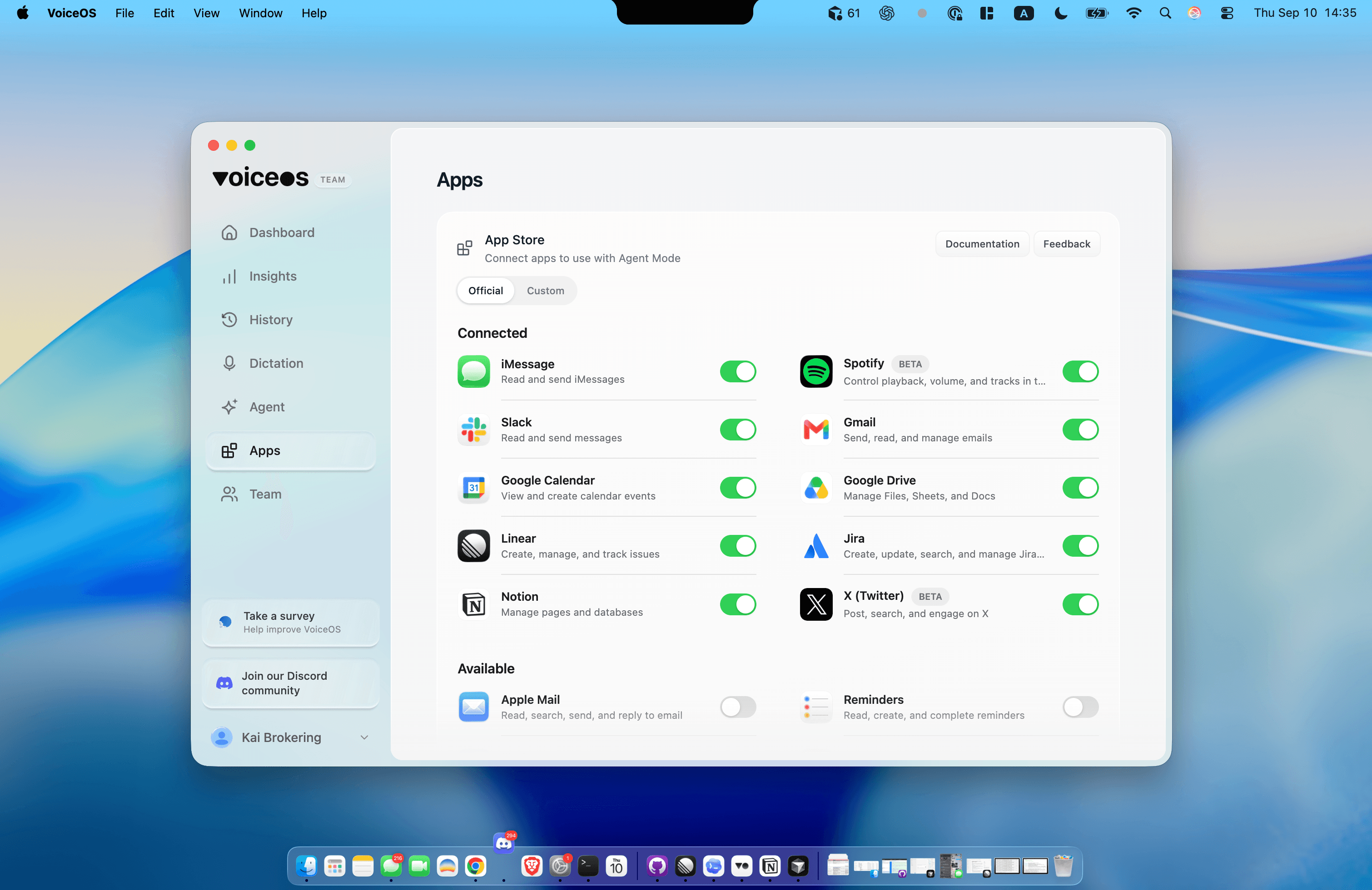
Agent Mode addresses a different need: doing something in a connected app. VoiceOS documents connections for Gmail, Slack, Notion, Linear, Google Calendar, and other tools. Connections are enabled in Settings, and the product shows a proposed action before sending, booking, or changing something.[4]
For coding and deeper research, the team’s screenshots below show another workflow: dispatching a scoped task to Codex or Claude Code and following its status inside VoiceOS. That is the example to look at if you want voice to initiate a longer assignment.
Consider the moment after a customer reports a bug. You need to describe the issue to engineering, record it in the right project, and reply to the customer. Those are three related deliverables. Evaluating them separately makes it easier to see where voice actually removes work.
The reason to consider VoiceOS is this fit with daily work apps. You do not need to give up Siri to use it. You can use different tools for different tasks and keep the combination that requires the least correction.
Sources & further reading: VoiceOS Dictation Mode: voice writing and formatting · VoiceOS Agent Mode: connected apps and action review
Use VoiceOS to dispatch research and coding tasks to Codex and Claude Code
An email is a useful starting point. A more substantial example is giving an agent a research brief or a coding assignment and letting it work through the task. In the VoiceOS sessions shown below, the user dispatched research requests to Codex and Claude Code from the desktop overlay.
The roles are straightforward: VoiceOS is the interface for handing off the task and viewing its status; Codex or Claude Code is the agent assigned to carry it out. This makes the workflow different from simply dictating a prompt into a text field.
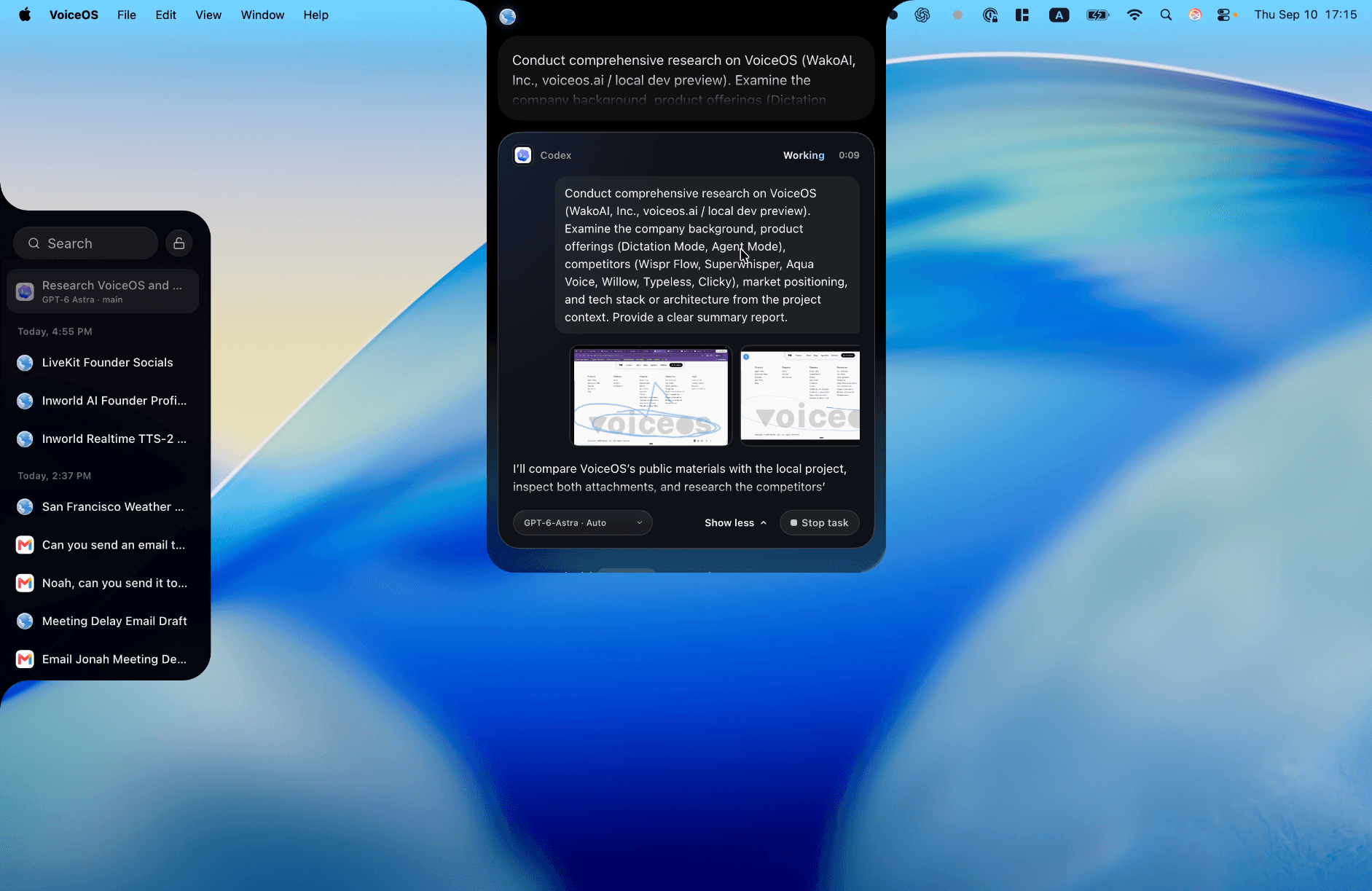
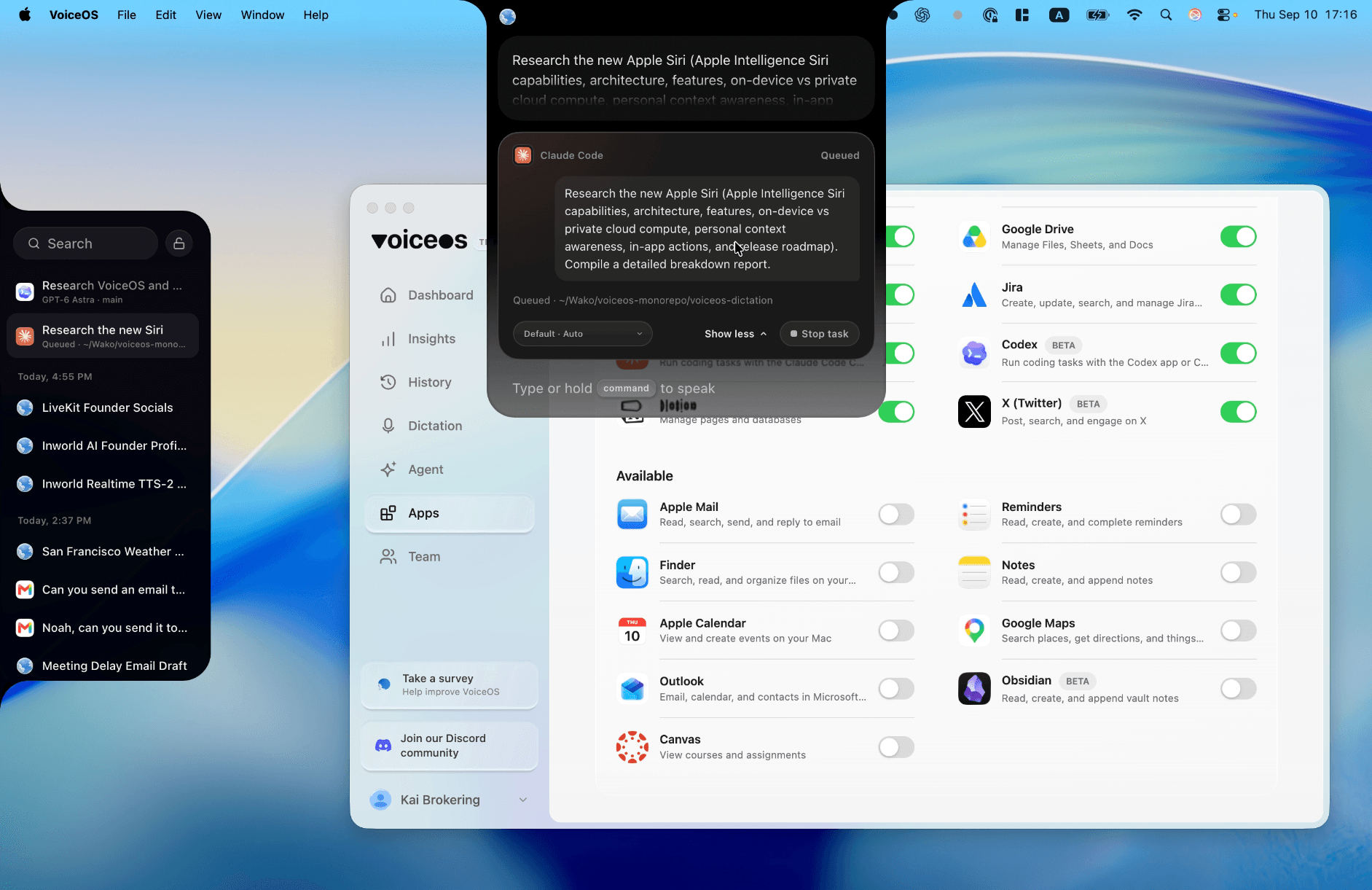
These examples give “serious work” a concrete meaning: a scoped assignment, relevant context, a chosen agent, and a deliverable to review. You can see which task is running and which is waiting, rather than losing track of the request after speaking it.
For research, specify the questions, sources, and report format. For coding, specify the project, the behavior that needs to change, and how the agent should check its work. Give each task a clear scope so you can review the result against the original request.
The screenshots document dispatch and task status. They do not show finished reports, merged code, or a measured productivity gain. When the agent returns a result, review its sources or code changes before relying on it.
A simpler example: draft an email with VoiceOS
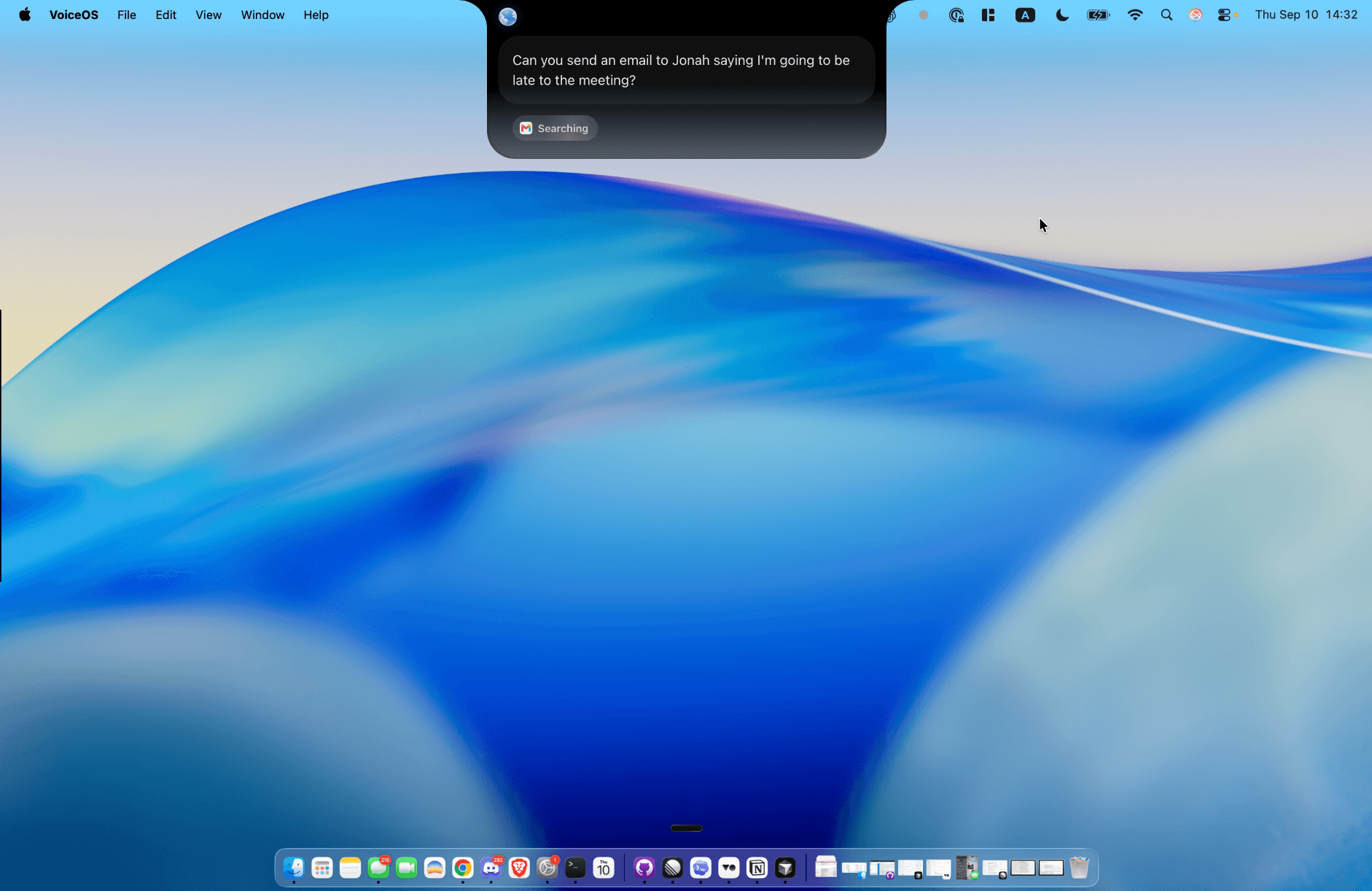
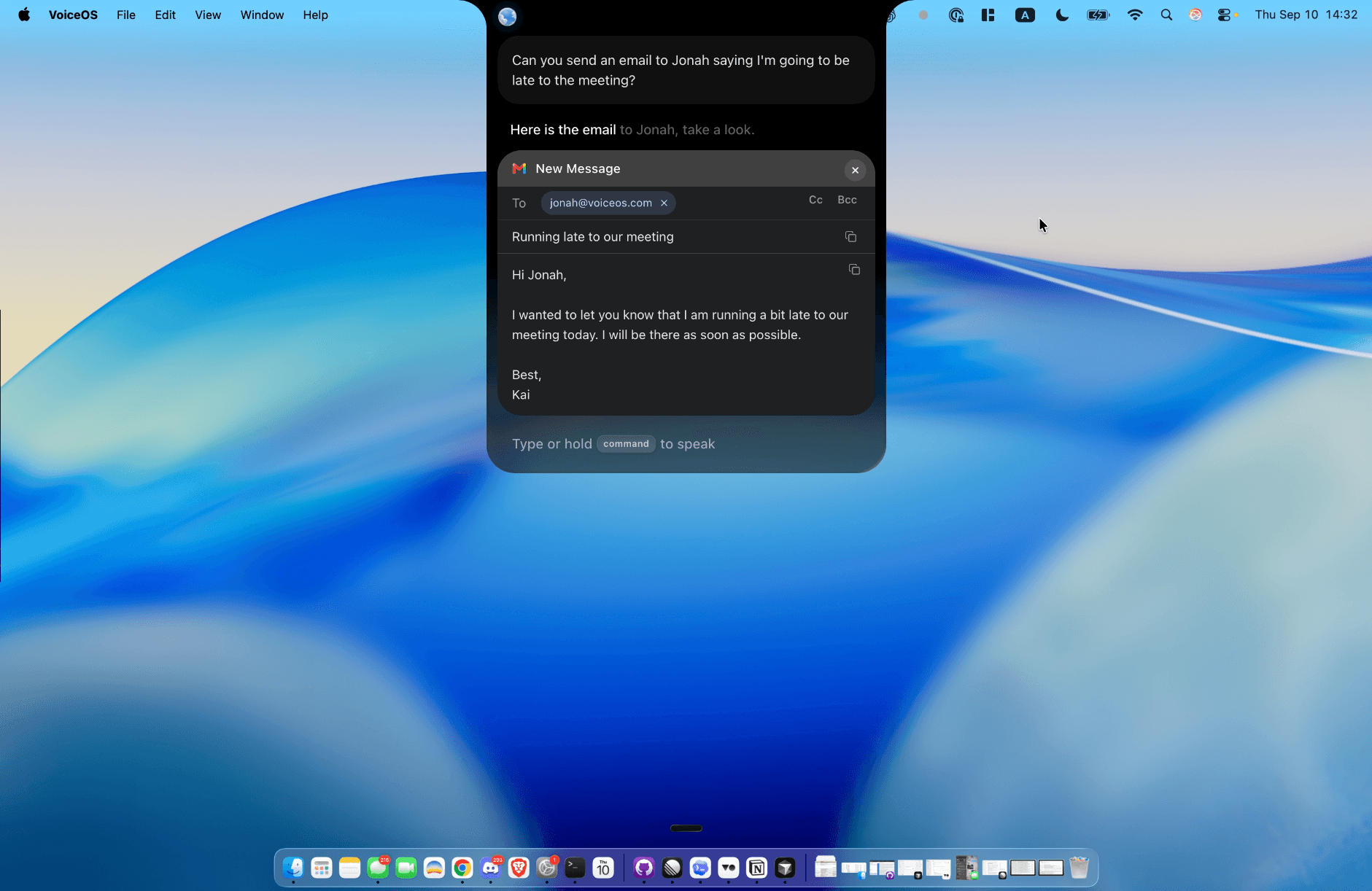
Here is the email workflow in VoiceOS on Mac. The screenshots show a request to tell Jonah the user will be late to a meeting, followed by a prepared email with the recipient, subject, and message available to review.
Choose the assistant that finishes your work
Pick three tasks from a normal day: one thing you wrote, one thing you searched for, and one thing you changed in an app. Repeat those tasks with the tools you are considering. Use the same source information and define a correct result before you start.
- Count how often you repeat or clarify the request.
- Check whether the result lands in the intended document, app, or account.
- Include editing and correction in the time it takes to finish.
- Confirm names, dates, recipients, and any commitments before using the output.
Keep the tool that makes the repeated task easier. If built-in Siri and Dictation cover your needs, start there. If your work depends on writing and actions across connected desktop apps, give VoiceOS the same practical test. The goal is a finished task you trust enough to move on from.
Sources and methodology
Reviewed Apple’s announcements, its Siri product overview and Mac Dictation guide, and the VoiceOS product pages on September 10, 2026. The team supplied screenshots of Codex and Claude Code research tasks, an email request and draft, and connected apps. Recommendations combine documented capabilities with those visible workflow examples. Limitations: This is not an independent reliability comparison. Availability and supported actions can vary. The supplied screenshots show Codex working, Claude Code queued, and an email draft; they do not establish final research quality, completed code changes, email delivery, or performance. Coding and Siri prompts are illustrative.
- Apple’s September 9 announcement and Siri AI rollout dates — Apple
- Apple Intelligence and Siri: announced capabilities — Apple
- Dictate messages and documents on Mac — Apple Support
- VoiceOS Agent Mode: connected apps and action review — VoiceOS
- VoiceOS Dictation Mode: voice writing and formatting — VoiceOS
- Apple introduces Siri AI: access, writing, and app actions — Apple
Frequently asked questions
Is the new Siri already available to everyone?
No. Apple’s U.S. announcement schedules the Siri AI beta for September 14, 2026, on supported devices set to English. Availability varies by region and language. This article was updated September 10, before that rollout.[1]
Can the new Siri write work emails?
Apple advertises composing and editing text with Siri AI, including messages. Try it with the facts and tone you want, then check the recipient and any commitments before sending. This guide does not claim a hands-on result.[2]
What is a Siri alternative for work on a Mac?
VoiceOS is an option for voice writing and actions in connected work apps. Consider it when you want a dedicated desktop workflow, and compare the result on tasks you repeat. There is no universal winner for every app or user.[4] [5]
Is Siri the same as Apple Dictation?
No. Apple Dictation enters spoken text where you can type. Siri is an assistant for requests and supported actions. On a Mac, Dictation is configured in System Settings under Keyboard.[3]
Does VoiceOS replace Siri on the iPhone?
This article recommends VoiceOS for computer workflows. It does not claim that VoiceOS replaces the iPhone’s system Siri integration. Evaluate each product on the device and task where you intend to use it.
Can VoiceOS send tasks to Codex and Claude Code?
The team-supplied screenshots in this article show a Codex research task marked Working and a separate Claude Code research task marked Queued inside VoiceOS. They demonstrate task dispatch and status tracking; they do not show the final research results.
Give your next work task to VoiceOS
Start with a clear brief: a research question, a coding task, or an action in a connected app. See how Agent Mode fits your workflow.
Explore VoiceOS Agent Mode