
How to use Google Workspace with your voice
Use Gmail Live to ask questions about your inbox, Docs Live to plan and draft a document through conversation, and Keep Live to turn a spoken brain dump into organized notes or lists. These are conversational Gemini features, so you can give follow-up instructions instead of starting over.
Want the same voice-first workflow across your entire Mac or Windows computer?
Before you start: availability and requirements
Google is rolling out these Gemini Audio features gradually. Update the Gmail, Google Docs, and Google Keep apps before looking for them, and make sure the app you want to use has microphone permission.
- Gmail Live and Keep Live: Google AI Plus, Pro, and Ultra subscribers.
- Docs Live: Google AI Pro and Ultra subscribers.
- Work or school accounts: access depends on an eligible Workspace plan and whether your administrator has enabled Gemini Beta.
- Device and language: Google’s Help Center currently documents Gmail Live and Docs voice for Android, iPhone, and iPad in English.
Because this is a staged rollout, an eligible account may not receive every feature immediately. Availability can also change after publication; check Google’s announcement for the latest overview.
How to use voice in Gmail with Gmail Live
Gmail Live lets you search your inbox as a conversation. You ask for the information you need, Gmail answers from your emails, and you can follow up without rebuilding the search query.
- 1Open the Gmail mobile app on Android, iPhone, or iPad and sign in to an eligible account.
- 2Tap Gmail Live at the top of the app.
- 3The first time you use it, allow microphone access and accept the terms shown on screen.
- 4Ask a specific question about your inbox, such as “What gate is my flight leaving from tomorrow?”
- 5Ask follow-up questions or interrupt to narrow the answer. For example: “Only show the flight to Boston” or “What time should I arrive?”
- 6Tap the Sources card to inspect the emails behind the answer, or tap End to finish.
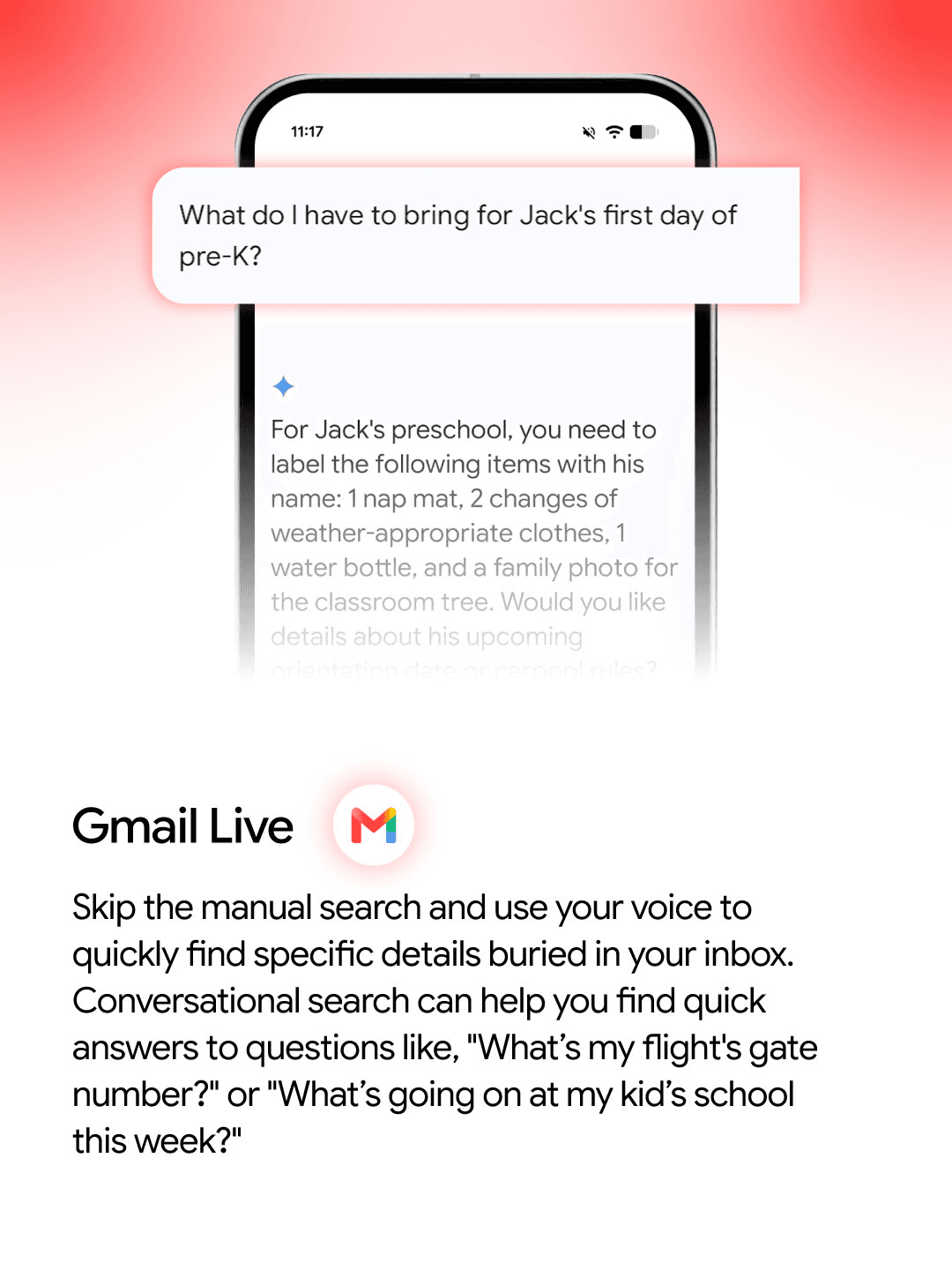
If Gmail Live is missing, confirm that Smart features in Google Workspace and Smart features in other Google products are enabled. Google lists both as requirements in its Gmail Live instructions.
How to create a Google Doc with your voice
Docs Live works best when you describe the finished document, not just the words you want transcribed. It can propose a structure, pull in approved context, and revise the draft while you talk.
- 1Open the Google Docs mobile app on Android, iPhone, or iPad.
- 2At the bottom right, tap Insert, then choose Create with voice.
- 3Describe the document you want to create. Include the audience, purpose, and desired format.
- 4Optional: open source settings and add context from Google Drive, Gmail, Google Chat, or the web.
- 5Review the plan Docs generates. Ask it to add, remove, or reorder sections before drafting.
- 6Tap Next or say “Show me the draft.”
- 7Continue editing by voice—for example, “Shorten the introduction” or “Turn the next section into bullets”—then tap Done.
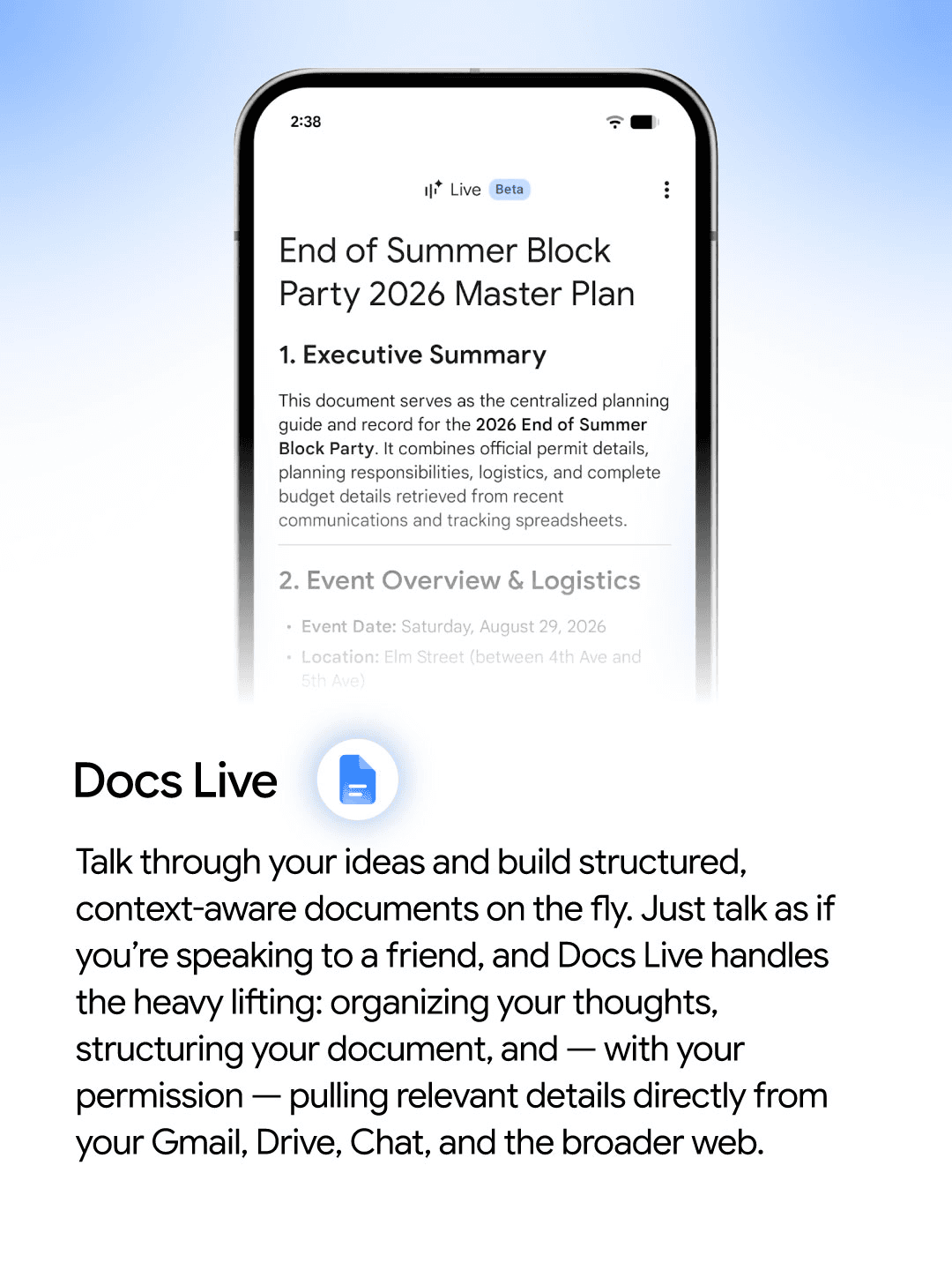
Google documents this workflow in its guide to generating documents with voice. The source picker is useful when the draft depends on a specific email, file, chat, or current web information.
How to use voice in Google Keep with Keep Live
Keep Live is designed for thoughts that arrive faster than you can organize them. Speak naturally, then tell Keep what kind of note you want it to produce.
- 1Open the Google Keep app and select Keep Live when it appears for your account.
- 2Allow microphone access if this is your first voice session.
- 3Say everything you want to capture. You do not need to organize it before speaking.
- 4Tell Keep how to structure the result: a checklist, categorized list, meeting recap, project plan, or set of next actions.
- 5Use follow-up instructions to add, remove, regroup, or clarify items, then review the finished note.
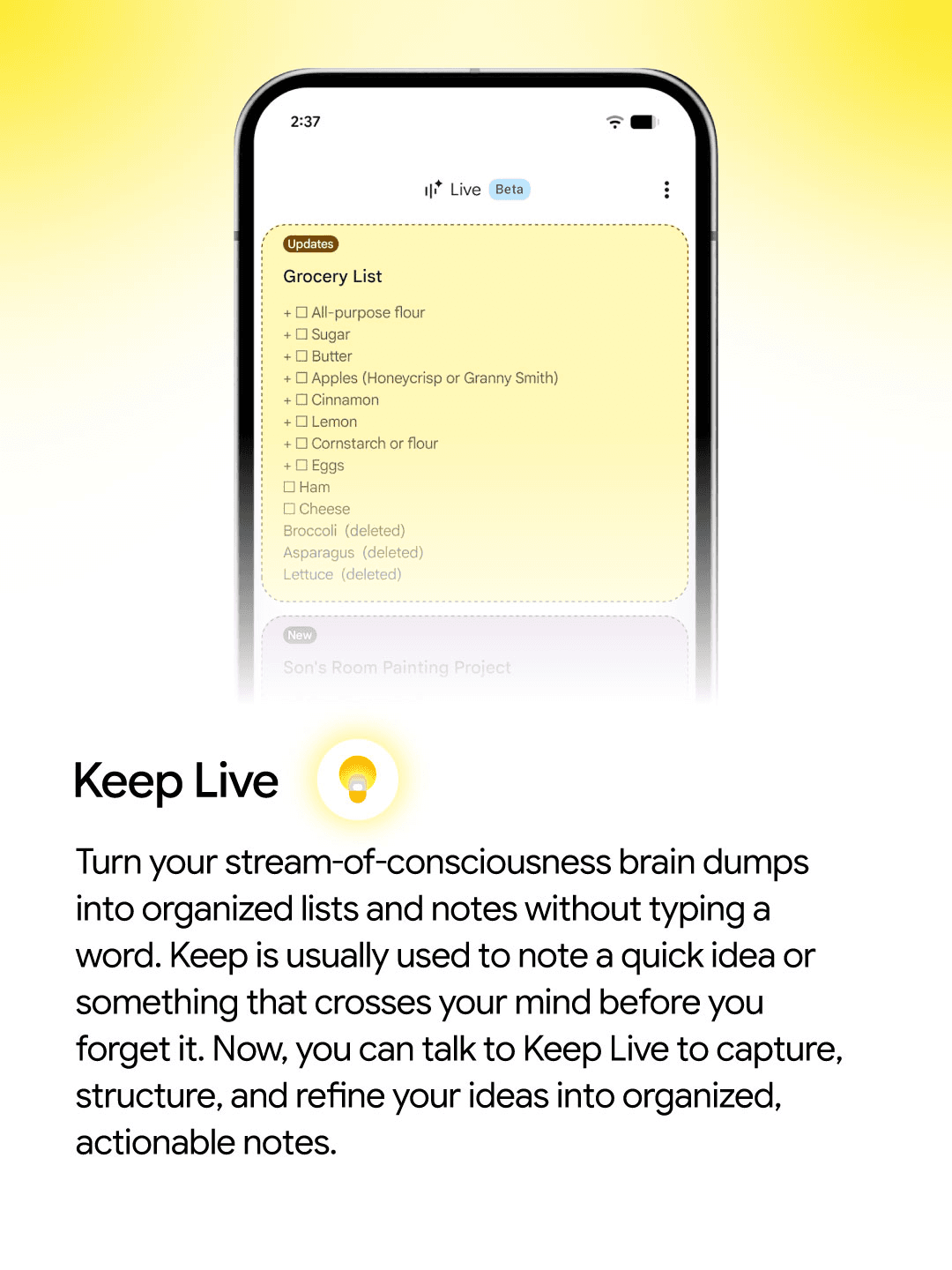
Google has announced Keep Live and shown the conversational workflow, but its tap-by-tap Help Center documentation may differ as the rollout reaches more accounts. Follow the labels in the version of the Keep app installed on your device.
Voice prompts that produce better results
A useful voice prompt includes four things: the outcome, the relevant context, the desired format, and any important constraints. You can say these naturally; there is no need to memorize a command syntax.
Gmail
“Find the latest email about my flight tomorrow and tell me the departure time, terminal, gate, and confirmation number.”
Google Docs
“Create a one-page project brief for the website launch. Use my recent emails with Maya, include milestones and owners, and keep the tone concise.”
Google Keep
“Turn this grocery brain dump into a checklist grouped by produce, dairy, pantry, and household items. Remove duplicates.”
Why you may not see Gmail Live, Docs Live, or Keep Live
If the voice option is missing, work through this checklist:
- Update the Gmail, Google Docs, or Google Keep mobile app.
- Confirm that you are signed in with the Google account attached to your eligible AI or Workspace plan.
- Use English; Google currently documents Gmail Live and Docs voice as English-only.
- For Gmail, enable Smart features in Workspace and Smart features in other Google products.
- For work or school accounts, ask your administrator whether Gemini Beta is enabled.
- Check microphone permission in your Android or iOS settings.
- Wait for the staged rollout to reach your account if every requirement is already satisfied.
Google voice typing vs. Gmail Live, Docs Live, and Keep Live
Voice typing
Transcribes the words you say into a text field. You remain responsible for searching, structuring, formatting, and completing the task.
Google’s Live features
Interpret what you are trying to accomplish, use relevant context, organize the output, and let you refine the result through conversation.
That distinction is why voice is such a natural fit for everyday work. It removes the searching, clicking, and formatting between an idea and a result. Google is building that experience into its own apps; VoiceOS Agent Mode extends the same voice-first idea across the Mac and Windows apps you already use.
Gmail Live controls, sources, and conversation history
Gmail Live is designed to be interrupted. You can change the subject or make the request more specific while the session is active. Tap Mute when you want the microphone off but still want Gemini to finish speaking, then tap Unmute to continue.
Check the source emails
Tap a citation inside the answer to open that email, or open the Sources card to see every message Gmail used. You can also choose View search page to leave Live and inspect the results in Gmail’s standard search view.
Return to a conversation
On the web, open Ask Gemini, choose More options, and select a conversation under History. Conversations can be resumed, renamed, or deleted. Available auto-delete periods are 3, 18, or 36 months, or manual deletion only.
Gemini in Workspace history is app-specific: a Gmail conversation does not automatically appear in Docs. Work and school administrators can also control whether users may delete history and how long it is retained. See Google’s conversation history guide for the current controls.
What happens to your data when you use Google’s voice features?
The answer depends on how you received access. Google publishes different terms for regular Google AI plan users and people testing features through Google Workspace Experiments.
Google AI plan users
Google says content used by Gemini inside Gmail, Docs, Drive, and other Workspace apps is used to answer your request, but is not used to train or improve the underlying generative AI models. Google also says prompts and generated output are not stored without permission.
Workspace Experiments participants
The early-access program has separate terms. Google says Experiments data can include prompts, selected or relevant Workspace content, generated output, and feedback; it may be used for product development and reviewed by people. Google advises participants not to include sensitive, confidential, or personally identifying information in prompts.
Before discussing confidential work, confirm which program covers your account. Read Google’s standard Workspace privacy commitments and the separate Workspace Experiments privacy terms. Regardless of plan, verify important dates, financial figures, reservations, and other high-impact details against the source material.
Use Google Live inside Workspace—and VoiceOS across your computer
Gmail Live, Docs Live, and Keep Live are useful because each one understands the job of its Google app. Gmail can ground an answer in email, Docs can turn a conversation into a document, and Keep can structure a fast-moving thought. Inside that context, the specialized experience is the advantage.
Everyday work rarely stays in one product, though. A detail found in Gmail may need to become a message in Slack, a task in a project manager, a note in a CRM, or a paragraph in another writing app. That is where VoiceOS fits: it provides a voice layer across Mac and Windows instead of stopping at the boundary of a single application.
Use Google’s Live features when…
- • You are working in Gmail, Docs, or Keep on mobile.
- • The answer depends on context already stored in Google Workspace.
- • You want a specialized inbox, document, or notes workflow.
Use VoiceOS when…
- • You want to speak anywhere you can type on Mac or Windows.
- • The workflow moves between Google and non-Google apps.
- • You want to ask about what is on screen or have an agent take desktop actions.
They are complementary layers: Google adds deep voice workflows to its products, while VoiceOS makes voice available across the rest of the computer. Learn more about VoiceOS Dictation Mode and Agent Mode.
Frequently asked questions
How do I use voice in Gmail?
Open the Gmail mobile app, tap Gmail Live at the top, grant microphone access if prompted, and ask a question about your inbox. You can ask follow-up questions, interrupt to refine the search, and open the Sources card to see the emails used for the answer.
How do I create a Google Doc with my voice?
Open the Google Docs mobile app, tap Insert at the bottom right, choose Create with voice, and describe the document you want. Review the plan, add or remove sections, then tap Next or say “Show me the draft.” Refine the draft by voice and tap Done when finished.
How do I use voice in Google Keep?
When Keep Live appears in your Google Keep app, open it and speak your unstructured thoughts. Tell Keep what format you want—such as a checklist, grouped shopping list, or set of action items—then refine the result with follow-up instructions.
Why can’t I see Gmail Live, Docs Live, or Keep Live?
The features are rolling out gradually and require an eligible Google AI or Google Workspace plan. Gmail Live and Docs voice are currently mobile features available in English. Work and school accounts may also need an administrator to enable Gemini Beta.
Can I use Gmail Live, Docs Live, or Keep Live on a computer?
Google currently documents Gmail Live and voice document generation in the Android, iPhone, and iPad apps. On Mac or Windows, VoiceOS provides voice dictation and an agent layer that works across Google Workspace and other desktop apps.
Does Google save Gmail Live conversations?
Gmail Live transcripts are saved in your Gemini in Workspace conversation history. You can find, resume, rename, or delete conversations from a web browser. History is app-specific, and work or school administrators may control deletion and retention settings.
Sources
- Use your voice to get more done in Gmail, Docs, and Keep — Google
- Talk naturally with Gmail Live — Gmail Help
- Generate documents with voice in Google Docs — Google Docs Editors Help
- Get started with Google Workspace Experiments — Google
- Find and manage Gemini in Workspace conversation history — Google
- How Gemini in Workspace protects your data — Google
- Workspace Experiments privacy notice — Google
- Google Workspace voice announcement — Google on X
- Gemini voice capabilities rollout — Sundar Pichai on X
Use your voice wherever work happens
VoiceOS gives your Mac or Windows computer a voice layer that works across the apps you already use.
Download VoiceOS