


How VoiceOS helps
VoiceOS can read the text visible on your screen aloud and speak answers to questions about it. Enable screen access and spoken replies in Agent Mode, then ask “Read this email to me” or “What does this say?” You can listen to the content and dictate your response in the app you are using.
Hear what you want to read
Small type and dense pages can make a simple message a lot of work. With VoiceOS, you can ask for the text on screen to be spoken aloud instead. Open the content, bring the relevant passage into view, and say “Read this to me.”
Use it for an email, a paragraph in a document, or instructions on a web page. VoiceOS uses the screen content available to it. If the document continues beyond the visible area, bring the next section into view and ask it to continue from there.
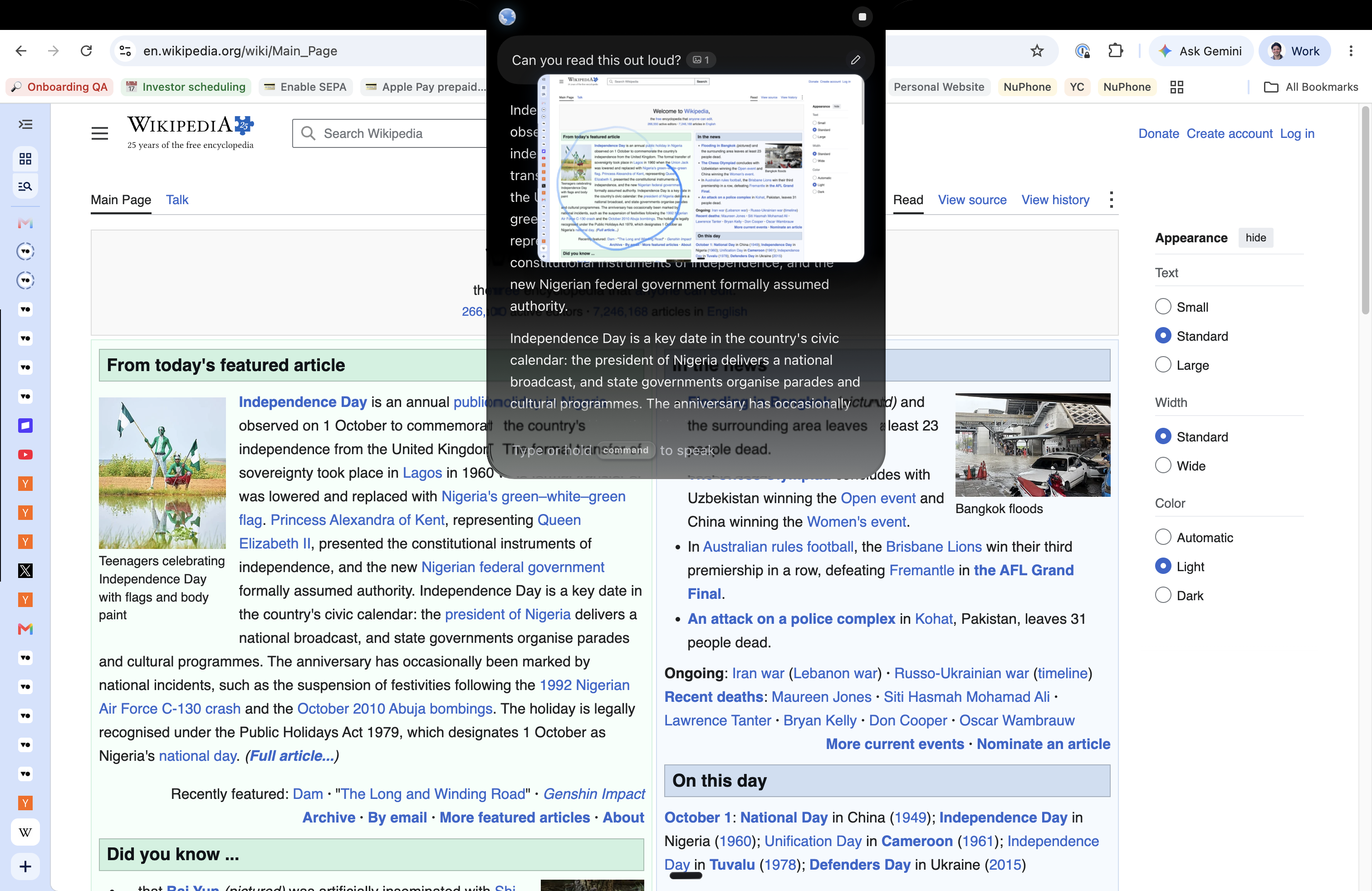
Listening to a web page
“Can you read this out loud?”
The screenshot shows this request with Wikipedia open. Bring the passage you want to hear into view and ask VoiceOS to read it, then move to the next section when you are ready.
Get the answer you came for
You can ask about what you are looking at, too. “When is this due?” “What are the main points?” “Explain this paragraph.” VoiceOS can speak the answer so you can keep going without searching through every line yourself.
For exact wording, ask to hear the passage read aloud. For a quick overview, ask for a summary. Check important details such as amounts, dates, and instructions against the original, because AI responses can make mistakes.
Finding a detail in an email
“What time is the meeting, and where will it be?”
With the relevant message visible, ask for the details you need and hear the response. Check the original when the date, place, or time is important.
- “Read this email to me.”
- “What does this paragraph say?”
- “Tell me the main points.”
- “Read my draft back before I send it.”
Find a file by asking for it
When you know what a file is for but do not want to scan through folders, ask for it by name or description. With the Finder integration on Mac, the request “find the VoiceOS demo video” brings matching videos into the VoiceOS panel.
This example shows thirteen results from Documents and Downloads. Choose the version you need from those results, using your usual magnification or navigation tools. The screenshot shows the search results before a file is opened.
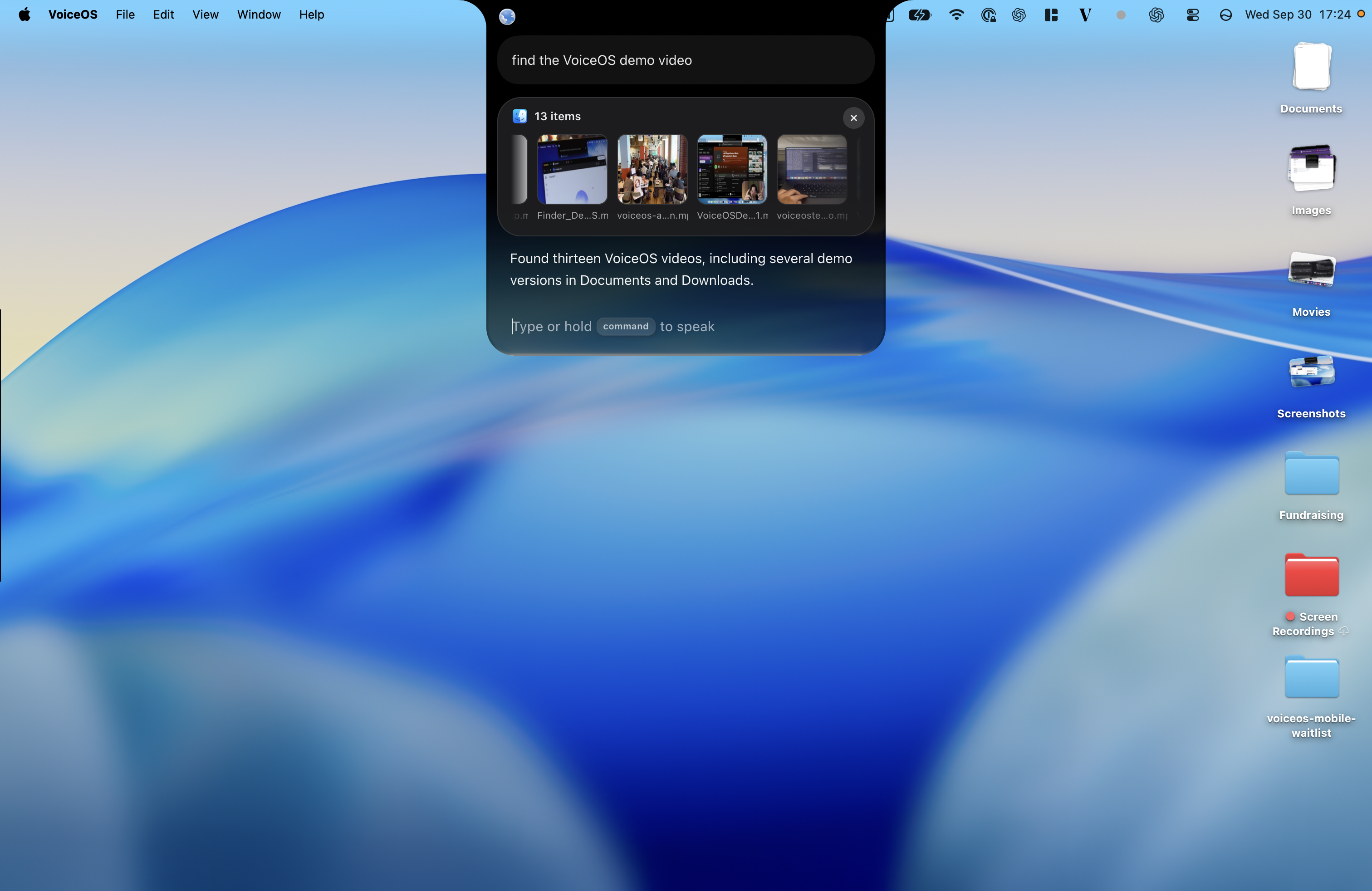
Finding a video you remember
“Find the VoiceOS demo video.”
Start with the words you remember about the file. If several versions match, give more detail about the name or location before selecting one.
A voice for both sides of the conversation
After listening, speak your reply. Put the cursor in the message field and dictate in your own words. Select a passage if you want VoiceOS to revise it, then listen to the visible draft to check the result.
Keep the magnification, display settings, and navigation tools you prefer. VoiceOS adds on-demand reading and voice input to that setup. For continuous spoken navigation through menus and controls, tools such as VoiceOver on Mac or Narrator on Windows serve a different role. Check shortcuts and cursor focus in the apps you use.
Writing the reply by voice
“Hi Jamie, thanks for confirming. I’ll be there on Friday at 10. Please send me the agenda when it’s ready.”
Place the cursor in the reply and dictate these words. Then show the draft to Agent Mode and ask “Read my reply back to me” before sending.
Sources and further reading
Frequently asked questions
Can VoiceOS read my screen aloud?
Yes. With screen access and spoken replies enabled in Agent Mode, ask it to read the visible text aloud. Show the relevant section of an email, document, or web page; bring additional sections into view as needed.
Can I hear answers without reading the response?
Yes. With spoken replies enabled, VoiceOS can say its answer aloud. Ask about the visible content, request an explanation, or ask it to read the passage.
Does this replace VoiceOver or Narrator?
VoiceOS reads content on request and supports dictation and voice editing. VoiceOver and Narrator provide continuous screen-reader feedback and navigation through controls. Keep those tools when you need that kind of access.
Can I keep using magnification?
Yes. Keep the display settings and magnification that work for you. VoiceOS uses the screen content available to it, so bring the text you want to hear into view. Check shortcut behavior and cursor focus with your setup.
Can I write my reply by voice?
Yes. VoiceOS dictation inserts your spoken words into standard text fields on Mac and Windows. You can then have the visible draft read back and revise selected text before sending.
Hear it. Say it. Keep going.
Let VoiceOS read what’s on screen, then use your voice for the next step.
Download VoiceOS