


How VoiceOS helps
VoiceOS helps on both sides of the page: Agent Mode reads visible text aloud, and dictation turns the words you say into written text. You can listen instead of reading every line, then speak an email, note, or reply without spelling each word on the keyboard. Enable screen access and spoken replies for reading aloud; place your cursor in a text field to dictate.
Listen to the page in front of you
Open the email, article, or document you want to hear. With screen access and spoken replies enabled in Agent Mode, ask “Can you read this out loud?” You can listen to the text instead of working through every line yourself.
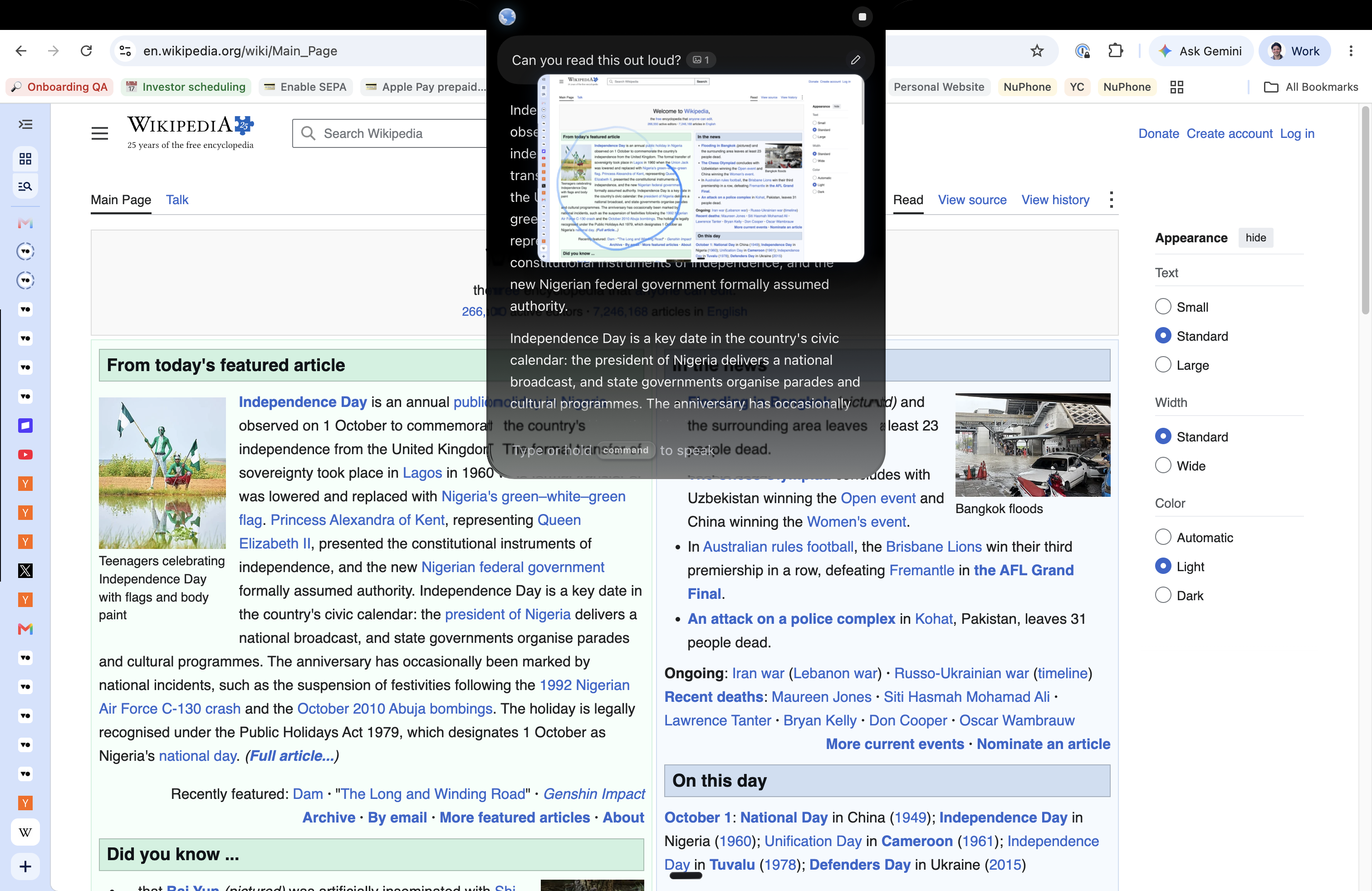
The screenshot below shows that request with Wikipedia open. The page is attached as screen context, so the request refers to what is already in front of you. For a longer article, bring the next passage into view and ask VoiceOS to read that section.
A web article you want to finish
“Read the paragraph under “From today’s featured article” out loud.”
Name the visible section you want to hear. When you reach the end, scroll to the next passage and ask to continue.
An email with several things to do
“Read this email aloud, then tell me what I need to reply to.”
Listen to the wording first, then ask about the next step. Keep important details such as dates and names visible so you can check them.
Say the word instead of spelling it
You may know exactly which word you want and how to say it, but getting the letters in the right order can interrupt the thought. Dictation lets you say the whole sentence. VoiceOS writes the words into your email, document, or message, so you do not have to type them letter by letter.
Place your cursor where you want the text, start dictation, and speak naturally. You do not need to choose a shorter word just because it is easier to spell. The sentence gives the speech recognizer context; check the result, especially names and words that sound alike.
An email with a word you often pause over
“Thanks for your patience. I’ve attached the information about the accommodation.”
Speak “accommodation” as part of the sentence instead of stopping to work out its spelling. Then review or listen to the draft.
A note before the thought disappears
“Remember to ask which documents are necessary for the application.”
Capture the whole idea by voice, including words such as “necessary,” without switching from your thought to the keyboard.
Speak your reply from beginning to end
After listening to a message, open a reply and place your cursor in the writing area. Switch to dictation and say what you want the reply to contain. This is the text you want written, rather than a request to read or explain the screen.
You can use the same approach for a work email, a message to a friend, or notes in a document. Stop dictation when the draft is finished, then review it before sending.
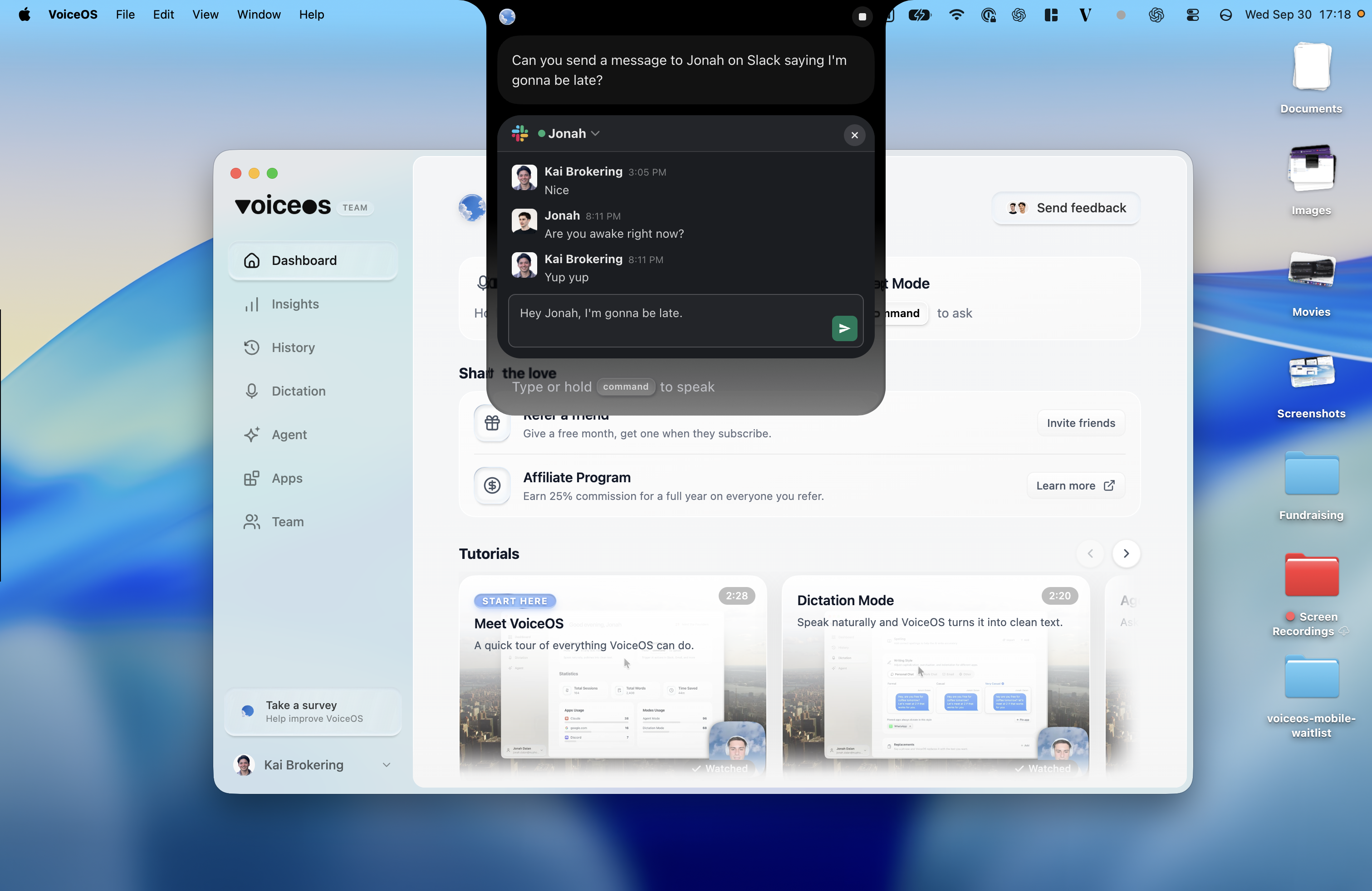
For a connected app such as Slack, Agent Mode offers another route: name the person and describe your message. In the screenshot, “Can you send a message to Jonah on Slack saying I’m gonna be late?” produces a draft for Jonah. You speak the intent; VoiceOS prepares the wording. Review it before pressing send.
Replying to a meeting invitation
“Hi Alex, Thursday afternoon works for me. Could you send the agenda beforehand so I can prepare? Thanks.”
Dictate this into the open reply. If you want it shorter or more formal, select the passage and ask Edit Mode for that change.
Ask a question instead of rereading
Sometimes hearing the words is enough. Other times, you want help with what they mean. Ask Agent Mode to explain the visible passage in simpler language, or ask a specific question about it.
A reading keeps the original wording; a summary or explanation changes it. For important instructions, use the original as the reference and check any detail an AI explanation might miss.
Instructions with unfamiliar wording
“Explain this paragraph in simpler language.”
Hear another way of describing the idea, then ask a follow-up about the part that is still unclear.
A deadline buried in a message
“What do I need to send, and when is it due?”
Ask about the visible message rather than scanning it again for the same information. Check the date against the original before acting.
Hear your draft before you send it
Once your draft is on screen, ask Agent Mode to read it back. Listening can make it easier to notice a missing word, a repeated phrase, or a sentence that does not say what you meant. Select the part you want changed and use Edit Mode to revise it.
Speech recognition can still choose a wrong word. Words such as “their” and “there” sound the same, so listening alone cannot catch every spelling mistake. Check important names, numbers, and word choices, and keep the spelling tools that help you.
AbilityNet’s Dyslexia and Technology guide describes speech recognition, text-to-speech, and spelling tools as options for reading and writing support. You can combine them around the way you prefer to work.
One last listen to your email
“Read my reply back to me.”
Keep the draft visible, listen to the wording, make any corrections, and check the recipient before you send it.
Sources and further reading
Frequently asked questions
Can VoiceOS read what is on my screen aloud?
Yes. Enable screen access and spoken replies in Agent Mode, bring the text into view, and ask “Read this aloud.” VoiceOS uses the screen content available to it; for a longer page, show the next section and ask again.
Can I listen instead of reading it myself?
Yes. You can hear visible text read aloud and ask spoken follow-up questions. Ask for a reading when you want the wording, or an explanation when you want the meaning in simpler language.
Can I dictate a word when I know how to say it but struggle to spell it?
Yes. Speak the word naturally as part of a sentence and VoiceOS turns your speech into text. You do not need to type or spell each letter. Review the result: recognition can make mistakes, particularly with names and words that sound alike.
Can I write emails and documents without typing the words?
Yes. Place your cursor in the text field, start dictation, and speak your draft. You can then select a passage for a voice edit and ask Agent Mode to read the visible draft aloud. Starting, navigating, and reviewing still depend on your app and input setup.
Can it read my own writing back to me?
Yes. Keep your draft visible and ask Agent Mode to read it aloud. You can listen for missing details or wording you want to change, then revise selected text with Edit Mode.
Does dictation always get my words right?
Speech recognition can choose the wrong word, and AI edits can change meaning. Listening to your draft is a useful review step; check important names, numbers, and details before sending.
Listen to the words. Speak your own.
Hear what’s on your screen, dictate your reply, and listen to it before sending.
Download VoiceOS